Customizing your phone
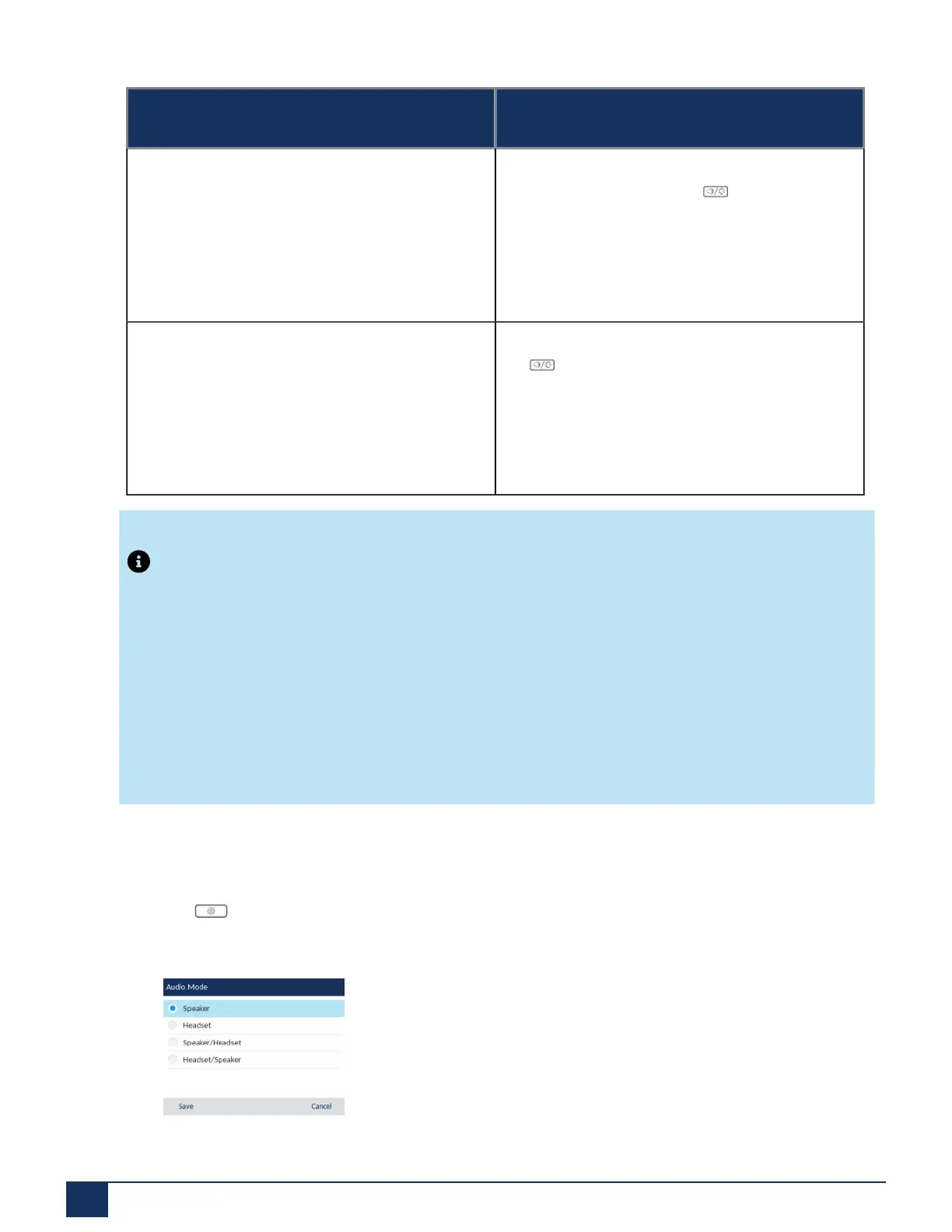
Audio Mode Option Description
Speaker/Headset Incoming calls are sent to the handsfree
speakerphone first when the button is pressed.
By pressing the button again, you can switch back
and forth between the handsfree speakerphone
and the headset. At anytime, lifting the handset
switches back to the handset from either the
handsfree speakerphone or the headset.
Headset/Speaker Incoming calls are sent to the headset first when
the button is pressed. By pressing the button
again, you can switch back and forth between
the headset and the handsfree speakerphone. At
anytime, lifting the handset switches back to the
handset from either the headset or the handsfree
speakerphon
Note:
1. On 6915 IP Phone by default the Audio mode is set to Speaker. When the Headset is connected to
the phone, user must change the Audio mode to Headset or Speaker/Headset or Headset/Speaker.
2. If a headset is not connected and the user presses the speaker/headset key, the phone goes to
speaker mode regardless of the audio mode.
3. If a headset is not connected and the user presses programmable key, the phone goes to speaker
mode regardless of the audio mode.
Configuring the Audio Mode Using the IP Phone UI
1.
Press on the phone to enter the Options List.
2. Navigate to the Audio > Audio Mode option and press the select button or Select softkey.
Version 1.0
57 User Guide



 To Next Page