Configuring Softkeys
Note:
1. When creating a Speed Dial key from the IP phone UI, you must select a softkey or dialpad key
that has no preassigned function (key must be set to None or Empty).
2. If there are no empty softkeys on the home screen, you can press and hold the More softkey to
configure the next available softkey with speeddial functionality. If a More softkey is not available,
use the Dialing > Speed Dial Edit option in the Options List to configure a new speeddial key.
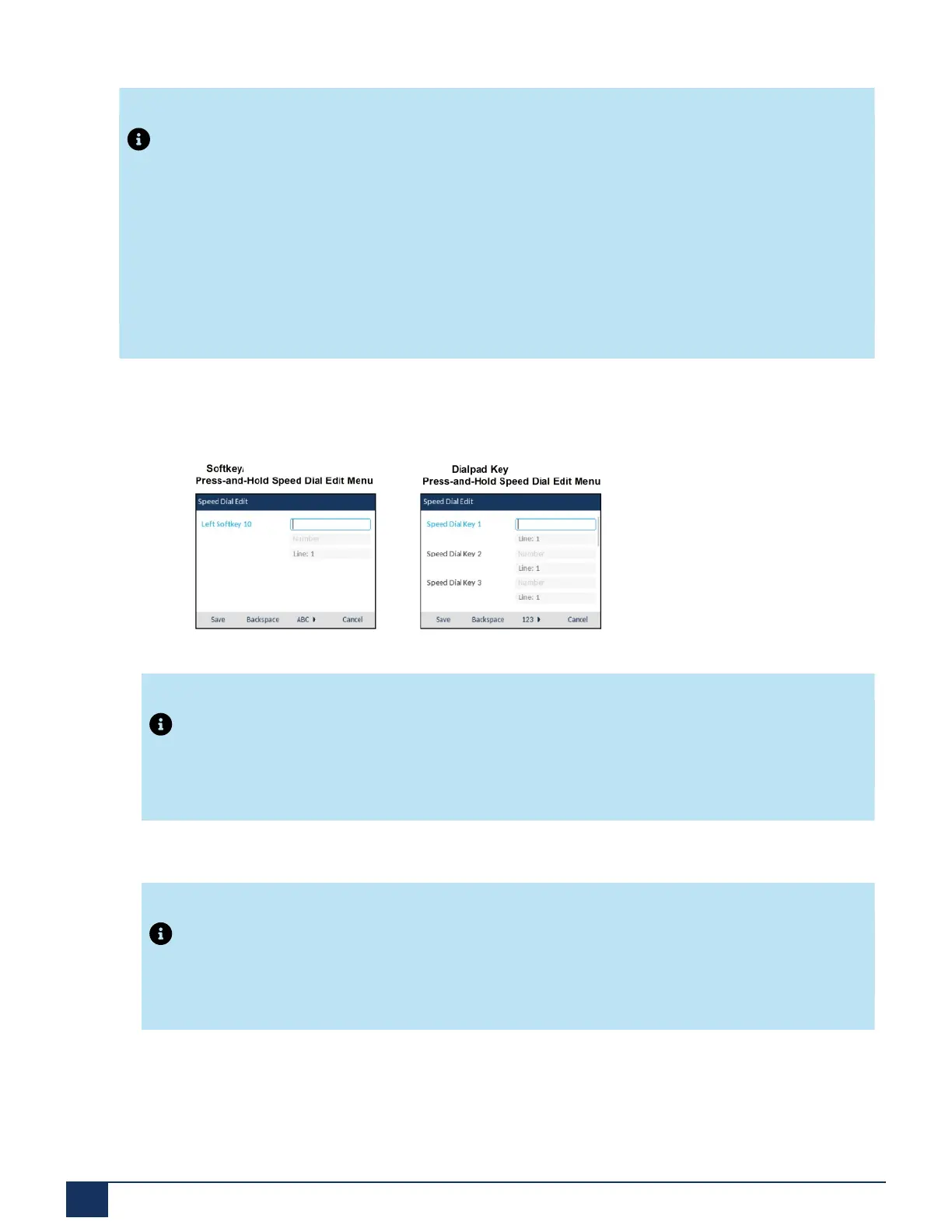
1. Press and hold an non-configured softkey or dialpad key for three seconds.
Note:
You can press the Cancel softkey at any time during the speed dial programming to cancel and not
save the speed dial information.
2. In the Label field (if applicable), enter a label to apply to the key.
Note:
If necessary, use the ABC softkey to specify uppercase letters or lowercase letters when entering
the label
3. Press the down navigation key to move to the Number field (if applicable) and enter a number for the
speed dial key using the dialpad keys.
4. Press the down navigation key to move to the Line field and select a line to apply to the key. This is the
line that the phone opens to dial the number after you press the respective Speed Dial key. By default,
Version 1.0
79 User Guide



 To Next Page