17
S
MARTNA™ 10G NETWORK ACCESS (SMARTNA-X)
SETTING UP SMARTNA-X | LOGGING IN TO SMARTNA-X
DRAFT
CAUTION: For security, the default usernames and passwords should be changed in the first instance to prevent
unauthorized access to SmartNA-X.
Logging in to the web UI
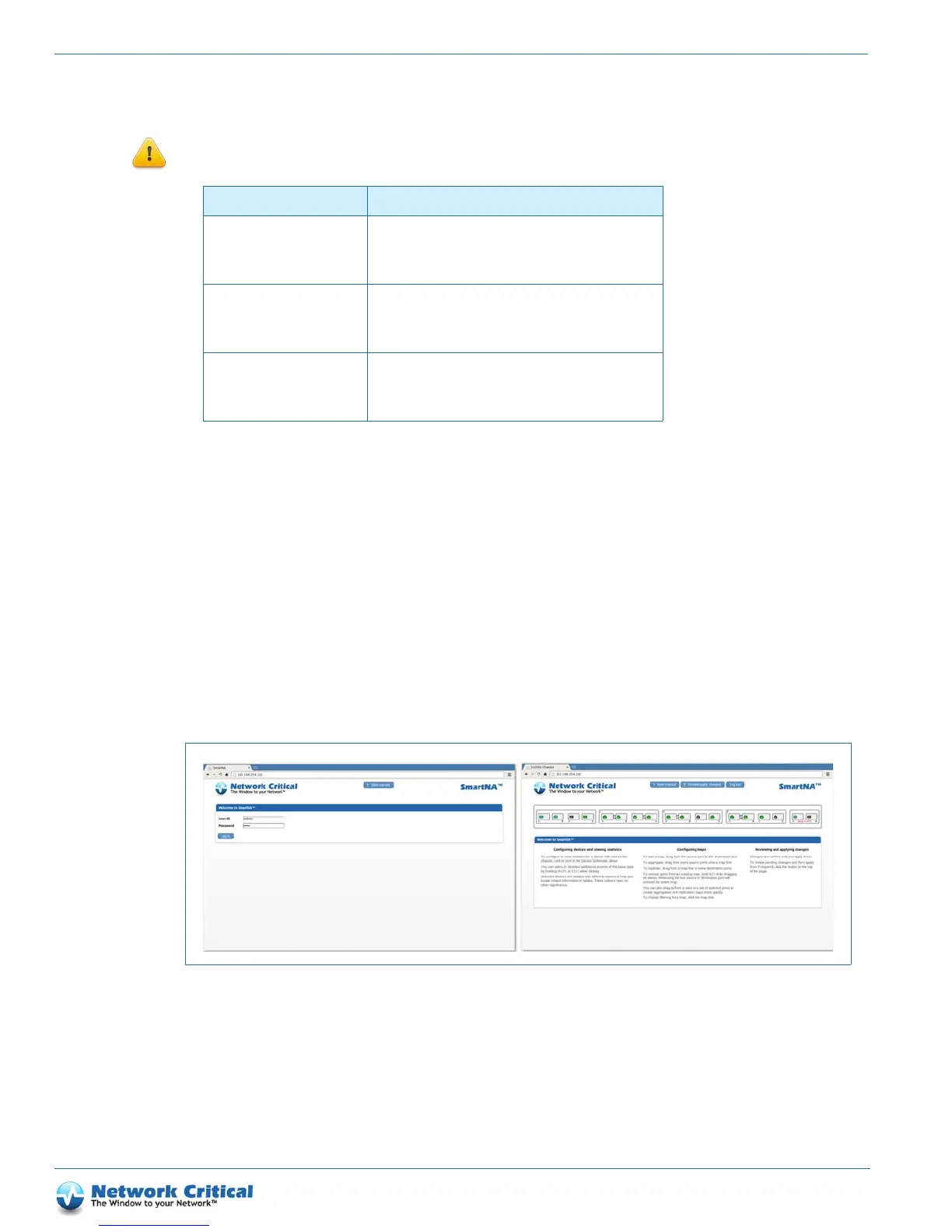
To log in to the SmartNA-X web UI (Figure 3-5), you’ll need:
• network access to the SmartNA-X Management/Network port (default IP: 192.168.254.100)
• a SmartNA-X username and password (see Table 3-1 for the defaults)
• a modern web browser (Internet Explorer 8.0+, Firefox, Chrome, Safari) supporting Java™ 1.5 (or later). If you
are having issues with logging into the web UI on Mac OSX, see the
“Resolving web UI issues on Mac OSX”
section on page 216 for troubleshooting information.
Start your Java-enabled web browser and enter https://<SmartNA-X_address>. Enter your SmartNA-X username
and password and click Log in to login to the system. When you have finished working in the web UI, logout to
allow access to other users of the system.
Logging in to the CLI
To log in to the SmartNA-X CLI as Administrator, you’ll need:
• network access to the SmartNA-X Management/Network port (default IP: 192.168.254.100)
• a SmartNA-X admin username and password (see Table 3-1 for the defaults)
User Access details
Administrator Full read-write access.
Default username:
admin
Default password: admin
Operator Read-write access to ports and modules only.
Default username: user
Default password: user
Audit Read-only access.
Default username: audit
Default password: audit
Table 3-1 SmartNA-X default user accounts
Figure 3-5 Logging to the SmartNA-X web interface


 To Next Page