56
S
MARTNA™ 10G NETWORK ACCESS (SMARTNA-X)
USING PACKET FILTERS | ADDING FILTERS TO MAPS
DRAFT
•Name: “subnet 198.168.10. tcp”
• Packet type: IPv4
• Protocol: TCP
• IP address source: 198.168.10.0/255.255.255.0
enter this command at the prompt:
See page 139 for information on the set filter IPv4 command, and page 142 for the set filter IPv6 command.
Adding filters to maps
Using the web UI to set up filters
1. Log in to the web UI.
2. If necessary, configure port mappings as required.
3. Click on the port map you want to apply a filter to. The Map configuration window appears. If necessary, create
new filters are edit existing filters as required.
4. For all filters, choose the appropriate action to take for a packet match:
• Ignore – Pass all packets regardless of filter settings (default setting)
• Require – Pass matching packets only.
• Exclude – Drop matching packets only.
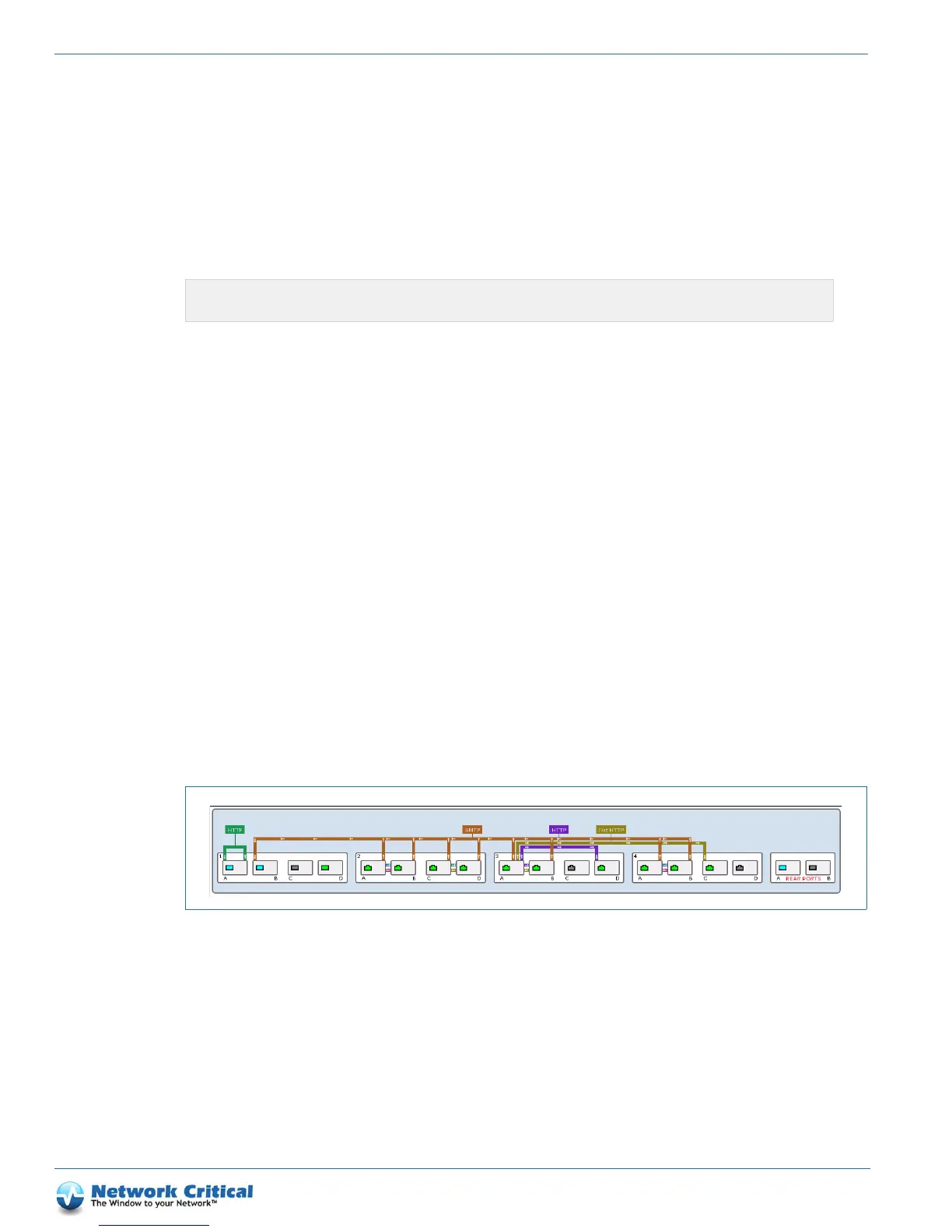
5. Click Review/apply and review your changes, and then click Apply to configure the system. Figure 8-1 shows
example port mappings with filters applied.
Using the web UI to set up filters
To apply packet filters in the CLI, use the set map command and specify the filter(s) you want to require or
exclude. You can use the show map command to display the current mapping configurations and view any filters
that have been applied.
For example, to create a map for 1A -> 1B, 1C and apply the following filters
• require “filter1” – allow traffic through which matches its conditions
• exclude “filter2” – remove traffic which matches its conditions
CONTROLLER>set filter "subnet 198.168.10. tcp" ipv4 address src 198.168.10.0/255.255.255.0
protocol tcp
Figure 8-1 Example mappings with filters applied


 To Next Page