22
S
MARTNA™ 10G NETWORK ACCESS (SMARTNA-X)
ADMINISTERING SMARTNA-X | LOGGING IN
DRAFT
NOTE: The web UI (and CLI) support single user access only. Make sure there are no other users logged in before
attempting to access the web UI/CLI interface.
Logging in to the web UI
1.
Enter the SmartNA-X network address in a web browser. For example:
https://192.168.254.100
https://[2001:db8:1234::8a2e:370:fe56:dec4] (note the brackets).
We recommend using DNS for resolving IPv6 host names.
2. Enter your SmartNA-X account details and then click Log in.
For information on using the web UI, see Chapter 5,“Using the Web User Interface”.
Logging in to the CLI
To access the command line interface (CLI) use a terminal client which supports Secure Shell (SSH). To log in to
the CLI, follow these steps:
1. SSH to the SmartNA-X CLI:
2. If prompted, enter “yes” to continue connecting (you won’t need to do this a second time from this host):
3. Enter your SmartNA-X password:
4. When you have finished entering commands in the CLI exit to allow access to other users:
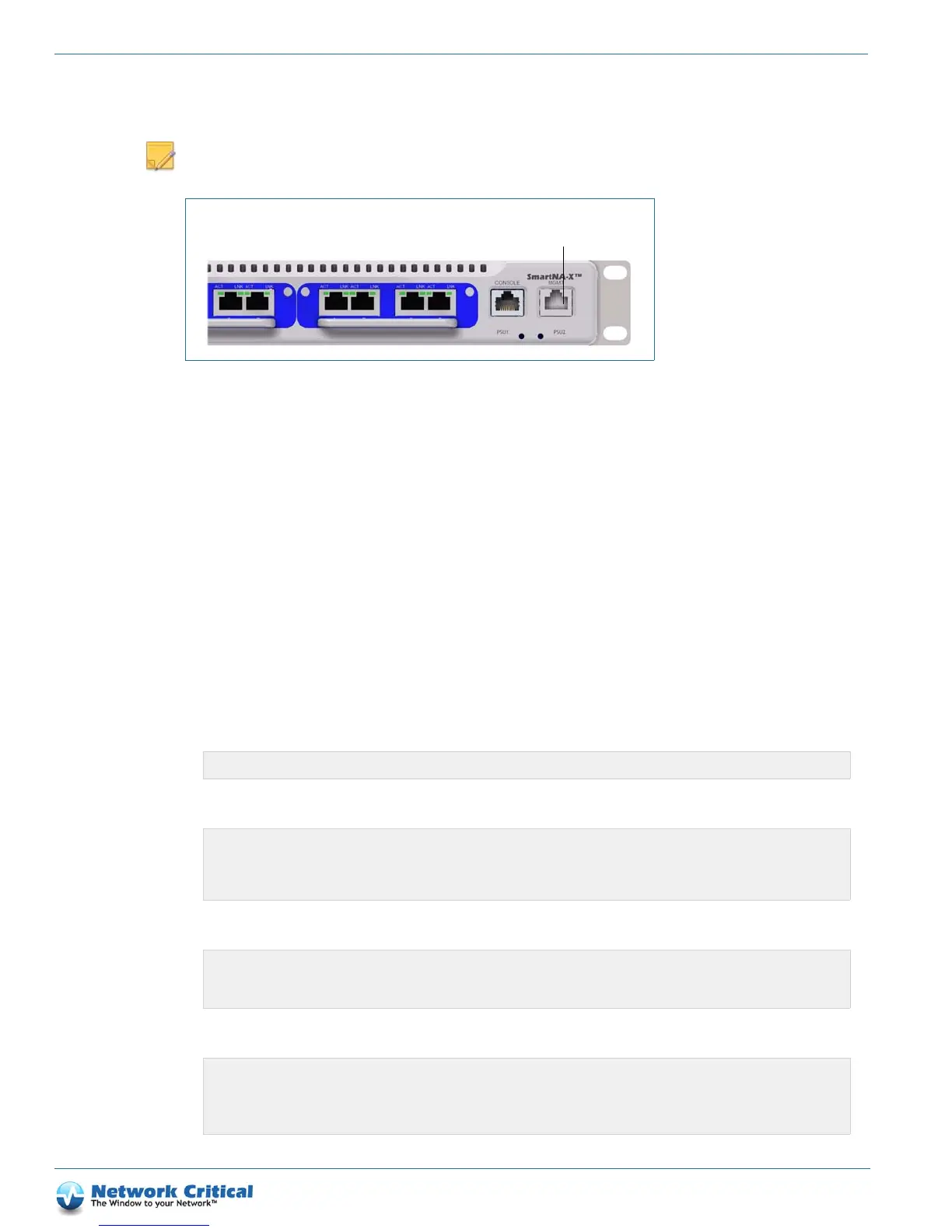
Figure 4-1 SmartNA-X Management/Network port
user@example.com ~# ssh admin@192.168.254.100
The authenticity of host '192.168.254.100' can't be established.
RSA key fingerprint is 9a:30:7b:95:ec:b4:fe:53:e1:a4:42:69:4f:15:5c:1a.
Are you sure you want to continue connecting (yes/no)? yes
Warning: Permanently added '192.168.254.100' (RSA) to the list of known hosts.
admin@192.168.254.100’s password:*****
CONTROLLER>
CONTROLLER>exit
Exiting CLI
Connection to 192.168.254.100 closed.
user@example.com ~#


 To Next Page