51
S
MARTNA™ 10G NETWORK ACCESS (SMARTNA-X)
CREATING PORT MAPS | CREATING PORT MAPS
DRAFT
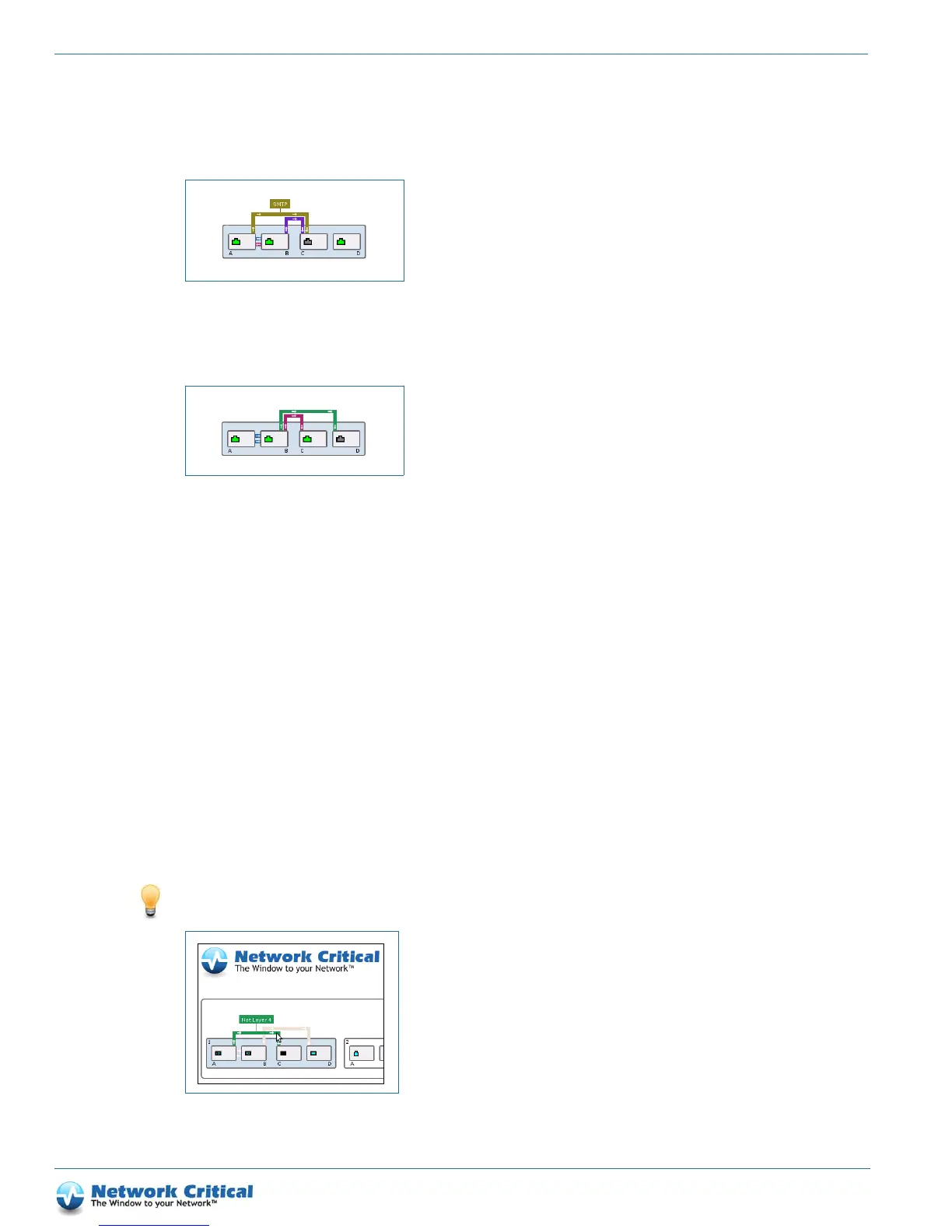
Direct input ports to one output port so filters can be used on one or both streams (Figure 7-7).
Replicate a stream to different output ports (Figure 7-8).
Adding packet filters
Clicking on a map line opens the map con
figuration settings, letting you add and define packet filters, and remove
maps that are no longer required. For more information about creating and applying filters, see Chapter 8,“Using
Packet Filters”.
Using map shortcuts in the web UI
Several shortcuts can also be used when setting up maps:
• Select multiple ports (by holding SH
IFT or CTRL) and drag from any one of them to another port to create an
aggregation map from all selected ports to the port at the end of the drag.
• Select multiple ports and drag from another port onto any
of those selected to create a replication map from the
port at the start of the drag to all selected ports
• Drag between a module/one of multiple selected modules a
nd a port to create an aggregation/replication
(dragging to/from the port) using all ports on the module or modules
TIP:
Hover your mouse pointer over a map line to dim all other lines, as shown in Figure 7-9.
Figure 7-7 Directing input ports to one output port and applying a filter
Figure 7-8 Replicating a link to two output ports
Figure 7-9 Hover over a map line to dim all other mappings


 To Next Page