NewSonic SonoDur2 Issue 04 09/2016 Page 53
10 System
The test device is an energy-efficient mini-computer with a Microsoft Mobile operating system. This
enables adjustments of many much energy and display settings. Upon delivery, the SonoDur2 is
preset to optimal default values, so that you usually no longer have to worry about these settings.
The following guidelines are intended for custom-specific settings.
10.1 System Settings
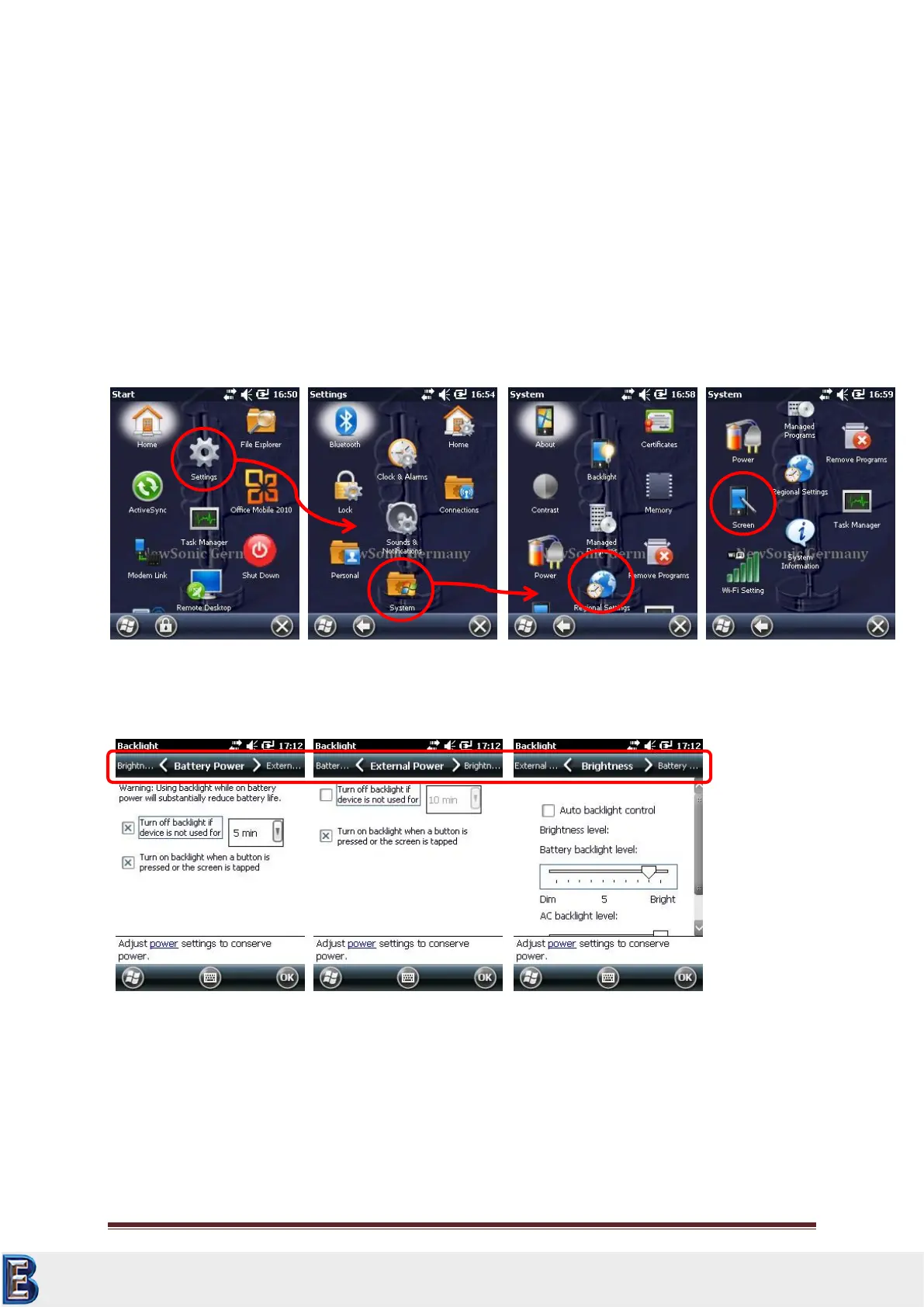
You reach the system settings over the Windows symbol in the lower left image border. Here you
also find the File-explorer with which you can look at files, copy or shift. With the symbol Settings
you reach the next menu level and from there you can change the button system in the system level
in which you can carry out all important device settings.
10.2 Display Lighting
To adjust the display lighting, you can access the menu via the icon Backlight:
The settings for the behavior for battery and mains operation and backlight control could be select
via the scroll bar below the status bar in the upper display region.
Your Complete Source for
Testing Equipment. Since 1969!
www.BergEng.com
Berg Engineering & Sales Company, Inc.
Tel 847-577-3980
info@bergeng.com



 To Next Page