NewSonic SonoDur2 Issue 04 09/2016 Page 56
10.6.2 Connecting SonoDur2 to your Computer
The following description is created for computers with Win7, but basically true for other operating
systems.
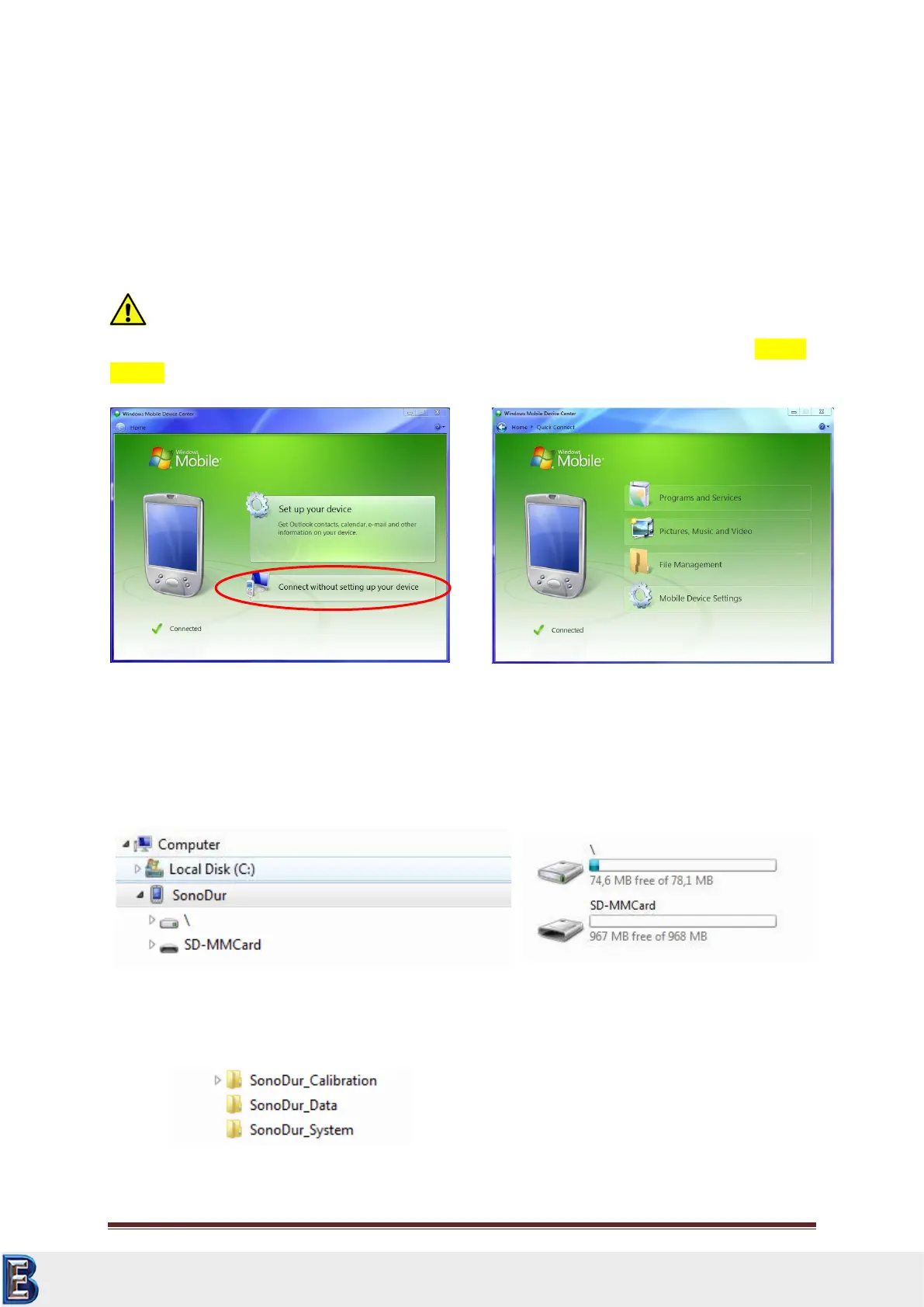
Connect the SonoDur2 device to the PC using the USB data cable (turn on the power if necessary).
Wait until the Windows Mobile Device Center automatically starts (this may take a few seconds). The
green check mark indicates the active USB connection. Select "Connect without setting up your
device".
Attention:
Do not allow the computer to synchronize with the SonoDur2 instrument! Please check your firewall
settings and allow access for Microsoft Mobile Device Center or ActiveSync!
Move the mouse to "File Management", it opens a submenu. Please click on "browse contents of
your device". This opens the file manager and the SonoDur2 device is now shown as a mobile device
in the file explorer and you can access the measurement and adjustment data in the SonoDur2
directory (see Figure 10.12).
…\SonoDur\SD-MMCard\... (SonoDur Version 1.01 and higher, storage path SD-MMCard)
Your Complete Source for
Testing Equipment. Since 1969!
www.BergEng.com
Berg Engineering & Sales Company, Inc.
Tel 847-577-3980
info@bergeng.com



 To Next Page