NewSonic SonoDur2 Issue 04 09/2016 Page 26
7.3 Entries via System Keyboard or SonoDur2 Keyboard
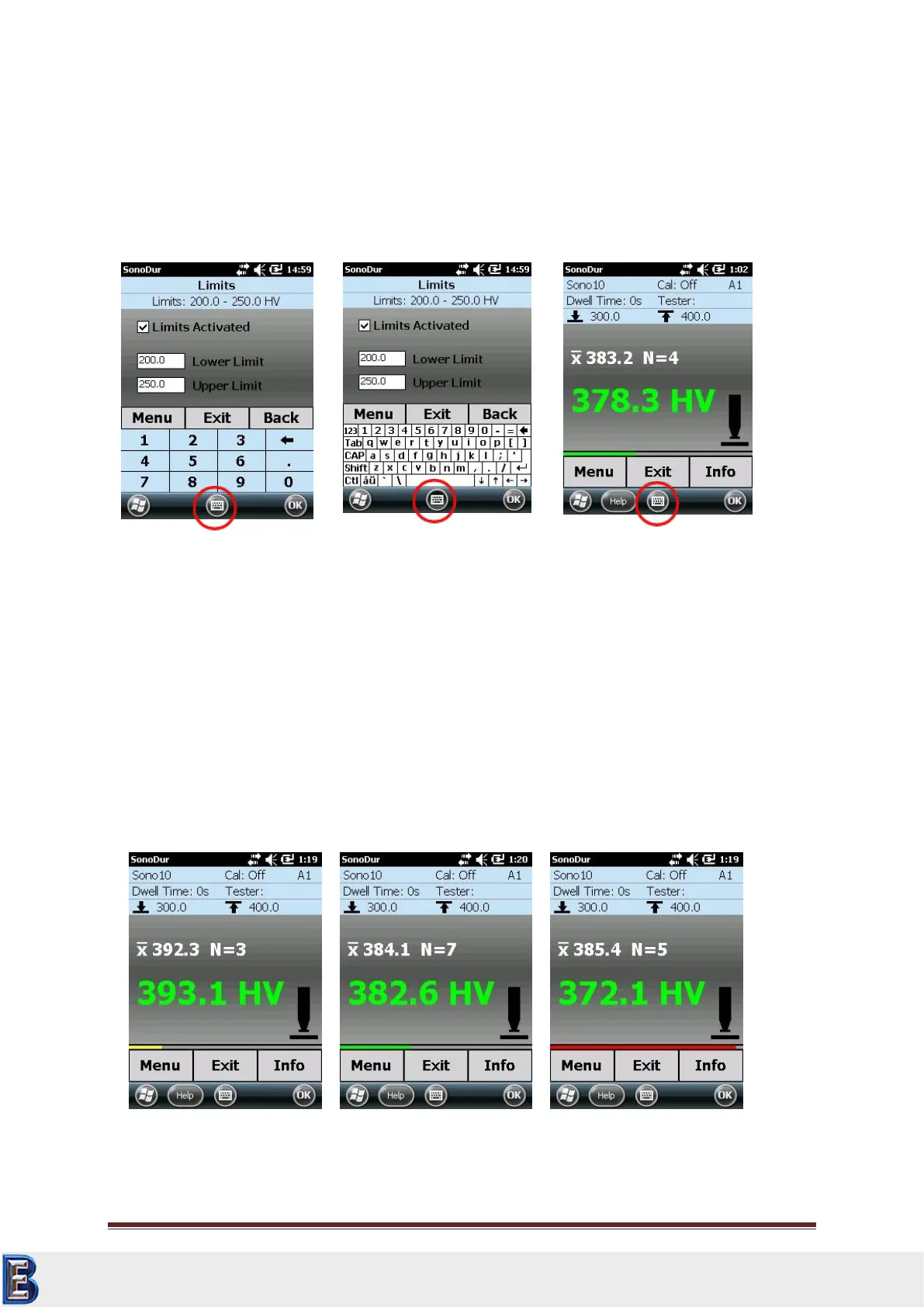
Any position inside the input field can be marked, modified or supplemented. The keyboard can be
accessed by clicking the keyboard symbol at the lower bottom of the screen. Numbers can be
entered via the large SonoDur2 keyboard: Number field, horizontal arrow as delete key (individual
symbols on the left hand side in order to place the cursor) and decimal point.
Switching between keyboards by means of the keyboard symbol, show or hide keyboard.
7.4 Main Menu Measurement
The SonoDur2 test device must be in the main menu “Measurement“, to enable the accomplishment
of a measurement. The Measurement menu can be accessed from any program item via the Exit
button. The operation with motorized- and handheld probes is described below. If a handheld probe
is used, a horizontal bar is displayed over the softkeys Menu, Exit and Info. The bar represents the
velocity of applying the test force. This information should help the user to find the right handling of
the probe! A short bar (left end)=test force is applied too fast, middle (green bar)=ok, long bar (right
end)=applied test force too slow (refer Figure 7.11 to Figure 7.13).
Your Complete Source for
Testing Equipment. Since 1969!
www.BergEng.com
Berg Engineering & Sales Company, Inc.
Tel 847-577-3980
info@bergeng.com



 To Next Page