70
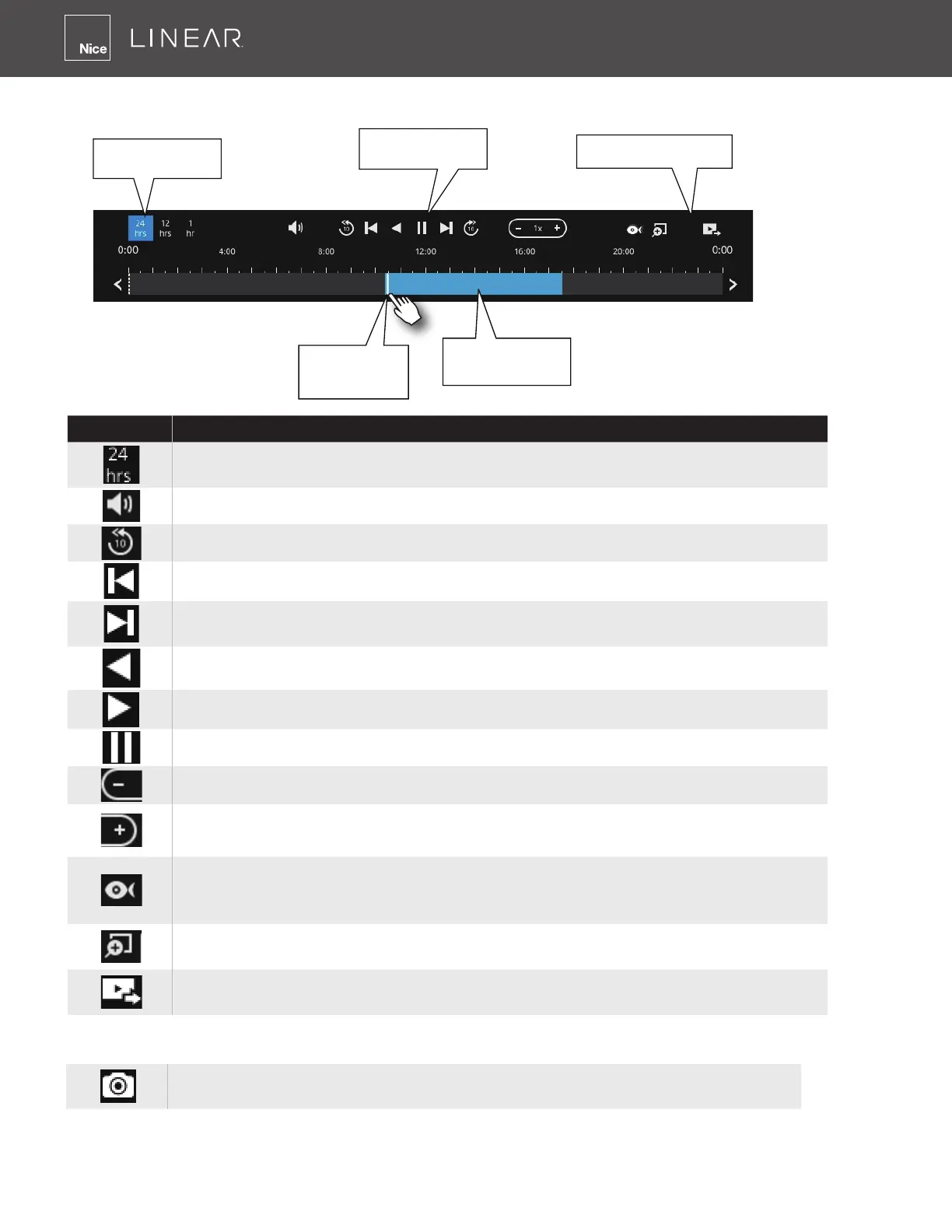
The timeline bar enables quick skimming through the recording� Its functions are described
as follows:
Buttons Description
Time scale selector� Use the buttons to select the span of time displayed on
the tool bar�
Audio volume tuner�
Plays back from 10 seconds ago�
Previous frame� (I-frame only)
Next frame� (I-frame only) After you paused a playback, use this button to
browse video frame by frame�
Play backwards�
Play� This button is available after you paused a playback�
Pause�
Each click on it speeds down by 1/2� The slowest speed is 1/16�
Each click on it speeds up by 2x� The fastest speed is 16 times�
The current playback status is indicated on the screen�
This button appears when you select to playback a sheye camera's
recording� This avails the selection of dewarp modes usable during the
playback�
Digital zoom� This applies when a camera is displaying the full of its eld of
view� You can use the Digital zoom function to zoom in on the eld of view�
Export clips� Use this function to select a span of time you want to export to
other medias�
By default, the playback starts from the beginning of a day's recording� While playing the
recorded video, click on the timeline to replay a point in time in the video�
Current time
indicator
Span of existing
recording
Timeline scale
Control buttons
Functional buttons
Snapshot� Takes a snapshot of the current FOV� The Snapshot button has
been moved to the right-hand side of each view cell�



 To Next Page