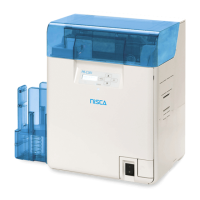
Full Color Card Printer PR-C101/C101M
10
Note
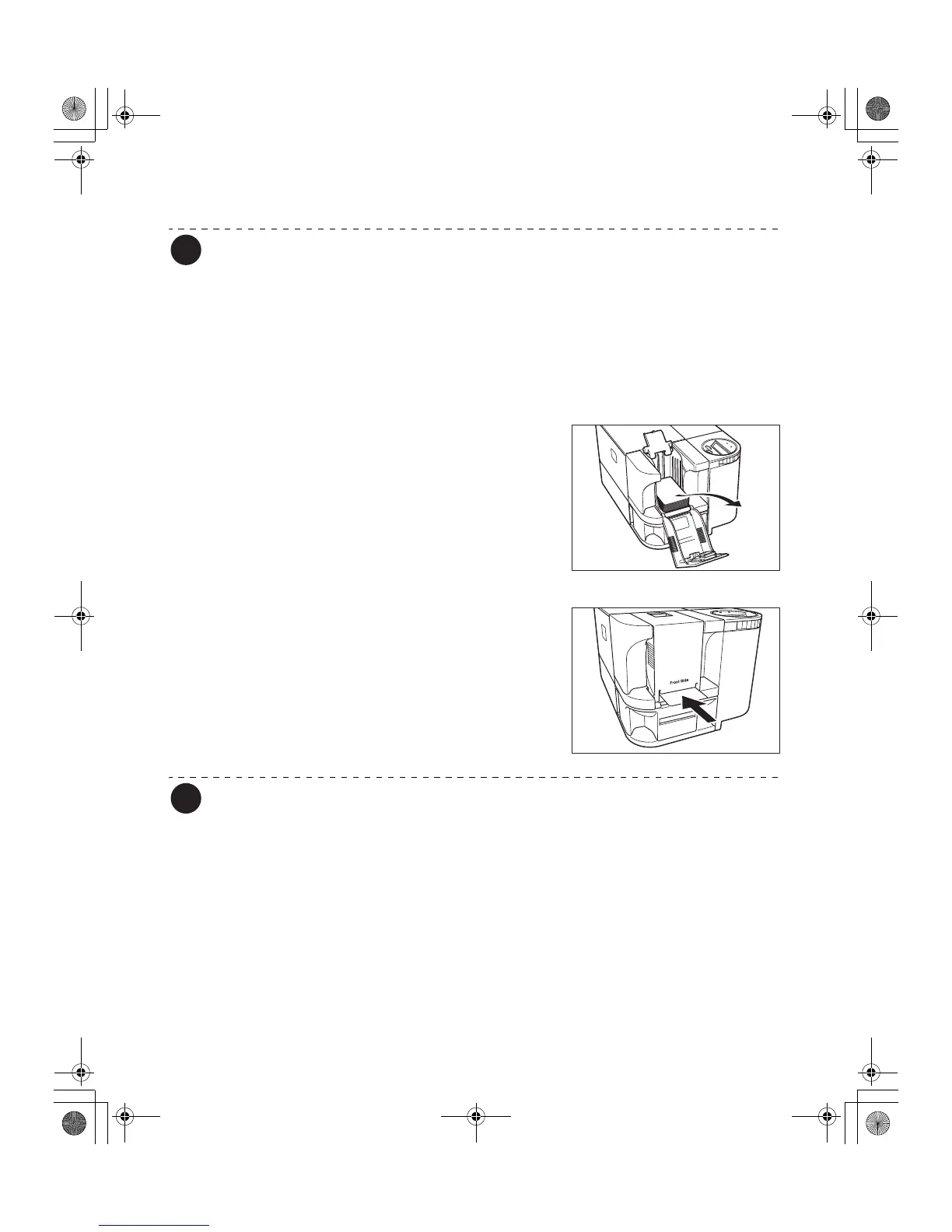
z The Card Case can be removed from the printer, allowing you to load cards into the
Card Case before reattaching it.
z In order to prevent unauthorized printing, we recommend storing loaded Card Cases
separately from the printer.
→See "How to Store Cards (Removing the Card Case)" on page 31 for information on the how to remove
the Card Case.
Manually Loading Cards One by One
1 Remove the cards from the Card Case.
• [Card Empty] appears on the LCD Panel.
2 Insert cards and press the CLEAR Key.
• Insert cards with the printing side up into the Card
Feeding Slot and press the CLEAR Key.
• [Ready to Print] appears on the LCD Panel.
Note
z Printing occurs on the top side of the card.
Load the cards for printing so that after printing the printed side faces the Operation
Panel.
z The bottom side of the card is for writing data to the magnetic strip.
Load the cards for writing data to the magnetic strip so that the magnetic strip faces
the bottom side of the Operation Panel. (PR-C101M only)
z When printing begins the bottom card is pulled into the printer.
PR-C101_C101M_E.book Page 10 Monday, August 27, 2007 11:16 AM


 To Next Page