EasyManua.ls Logo

Nisca PR-C101 - User Manual

Nisca PR-C101
48 pages
Print Icon
To Next Page IconTo Next Page
Loading...
Contents
Contents
Operating the Printer Safely .......................................................................................1
Part Names and Descriptions.....................................................................................3
Front of the Printer ..................................................................................................3
Rear of the Printer ..................................................................................................4
Front Cover .............................................................................................................5
Operation Panel ......................................................................................................6
Basic Card Printing Methods .....................................................................................8
Turning On and Off the Printer................................................................................8
Loading Cards ........................................................................................................9
Loading Cards into the Card Case ................................................................ 9
Manually Loading Cards One by One ......................................................... 10
Printing..................................................................................................................11
Removing Cards ...................................................................................................12
Changing the Ink Ribbon Cartridge ......................................................................13
When a Change is Necessary ..................................................................... 13
Changing the Cartridge ............................................................................... 13
Normal Mode and User Mode ...................................................................................15
Normal Mode and User Mode...............................................................................15
Normal Mode ............................................................................................... 15
User Mode ................................................................................................... 15
Switching to User Mode........................................................................................16
Basic User Mode Operations ................................................................................17
Moving to the Next Menu (Switching to Menus on the Same Level) ........... 17
Moving to a Sub-menu (Switching to Menus on a Lower Level).................. 17
Returning to the Main Menu (Switching to Menus on a Higher Level) ........ 18
Switching to Normal Mode (Exiting User Mode).......................................... 18
Getting the Most Out of Your Printer .......................................................................19
Reprinting a Card that Has Just Been Printed......................................................19
Counting the Number of Cards that Are Printed ...................................................20
Displaying the Total Number of Sides that Are Printed .........................................20
Switching the Card Ejection Slot...........................................................................21
Checking the Ink Ribbon Remaining in the Ink Ribbon Cartridge.........................22
Checking the Ink Ribbon Cartridge that is Currently Installed ..............................23
Adjusting the Print Quality ....................................................................................24
Adjusting the Color ...................................................................................... 24
Adjusting the Edges of Images.................................................................... 26
Turning the Error Alarm On or Off.........................................................................27
PR-C101_C101M_E.book Page 2 Monday, August 27, 2007 11:16 AM

Table of Contents

Other manuals for Nisca PR-C101

Questions and Answers

  • J
    James HarrellAug 20, 2025
    What does 'Check Ink Ribbon' mean on my Nisca PR-C101?
    • K
      Kelly SchmidtAug 20, 2025
      The 'Check Ink Ribbon' message on your Nisca Printer means you should change to a normal Ink Ribbon Cartridge.

  • K
    Katrina JordanAug 22, 2025
    What to do if my Nisca PR-C101 displays 'Card Jam XX-XX'?
    • R
      Roger ClaytonAug 22, 2025
      If your Nisca Printer is displaying a 'Card Jam XX-XX' error, press the CLEAR Key. If card jams occur frequently, the Card Transport Roller may be dirty. Clean the Card Transport Roller, and if it's excessively dirty, continue cleaning with a new Cleaning Card.
  • A
    Alexander SmithAug 25, 2025
    What does 'Feed Miss XX-XX' mean on my Nisca Printer and how to fix it?
    • N
      Nichole HenryAug 25, 2025
      The 'Feed Miss XX-XX' error on your Nisca Printer indicates that cards cannot be fed into the printer. Press the CLEAR Key. Frequent occurrences of this error may mean the Card Case is not loaded correctly, so ensure it is. Also, check that the Card Case weight is lowered. If the issue persists, the Feeding Roller might be dirty; clean it.
  • J
    Jason MillsAug 26, 2025
    What to do if my Nisca PR-C101 Printer displays 'Card Empty XX-XX'?
    • E
      Eric DuncanAug 26, 2025
      If your Nisca Printer displays the 'Card Empty XX-XX' error, it means there are no more cards in the printer. Load cards into the printer.
  • E
    Elizabeth MayerAug 28, 2025
    What to do if my Nisca PR-C101 displays 'MG Write XX-XX' error?
    • A
      Amy KerrAug 28, 2025
      If your Nisca Printer shows the 'MG Write XX-XX' error, it means writing to the magnetic strip failed. Press the CLEAR Key. This may mean the card is not set in the correct direction. Check the loading direction of the cards.
  • A
    Anthony NelsonAug 29, 2025
    What to do if my Nisca PR-C101 Printer displays 'MG Read XX-XX' error?
    • C
      Charles WilliamsAug 29, 2025
      If your Nisca Printer displays the 'MG Read XX-XX' error, it means reading of the magnetic data failed. Press the CLEAR Key. This may mean the card is not set in the correct direction. Check the loading direction of the cards. Also, make sure there are no scratches or dirt on the card's magnetic strip; remove any dirt. You cannot use cards with scratches on the magnetic strip.
  • K
    Kristy SotoAug 31, 2025
    Why does my Nisca PR-C101 Printer say 'Rbn End XX-XX'?
    • C
      Carlos CookeAug 31, 2025
      The 'Rbn End XX-XX' error on your Nisca Printer indicates that the ink ribbon has been used up. Change the Ink Ribbon Cartridge.
  • G
    Gary WhiteSep 2, 2025
    What does 'Service C. XX-XX' mean on my Nisca PR-C101 Printer?
    • M
      Maria WilliamsSep 2, 2025
      The 'Service C. XX-XX' error on your Nisca Printer indicates an error that requires repairs. You can try to turn the power off and on, or hold down the CLEAR Key for 3 seconds to reset the printer. If the error reoccurs, repairs are necessary.
  • P
    Philip JacksonSep 4, 2025
    How to fix 'Rbn Wind XX-XX' error on Nisca PR-C101?
    • L
      loganjoelSep 4, 2025
      The 'Rbn Wind XX-XX' error on your Nisca Printer means the ink ribbon could not be wound correctly. Reload the Ink Ribbon Cartridge.
  • B
    bcarrollSep 6, 2025
    How to fix 'Rbn Type XX-XX' error on Nisca PR-C101 Printer?
    • L
      lisamillerSep 6, 2025
      The 'Rbn Type XX-XX' error on your Nisca Printer indicates that ink ribbon position control has failed. Reload the Ink Ribbon Cartridge.

Summary

Operating the Printer Safely

Part Names and Descriptions

Front of the Printer

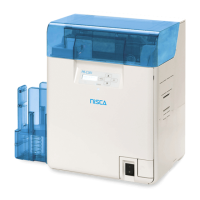
Identifies and describes the components on the front of the printer.

Rear of the Printer

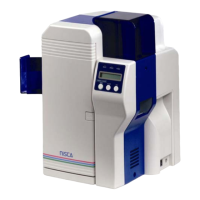
Identifies and describes the components on the rear of the printer.

Front Cover

Details the interior components accessible via the front cover.

Operation Panel

Explains the indicators and keys on the printer's control panel.

Basic Card Printing Methods

Turning On and Off the Printer

Provides instructions for powering the printer on and off safely.

Loading Cards

Explains how to load cards into the printer for printing.

Manually Loading Cards One by One

Describes the procedure for manual card feeding.

Printing

Guides users through the process of printing a card from application software.

Removing Cards

Details how to safely remove printed cards from the printer.

Changing the Ink Ribbon Cartridge

Instructs on replacing the ink ribbon cartridge when it runs out.

Normal Mode and User Mode

Switching to User Mode

Explains the procedure to switch the printer from Normal Mode to User Mode.

Basic User Mode Operations

Covers navigation and basic operations within the printer's User Mode.

Getting the Most Out of Your Printer

Reprinting a Card that Has Just Been Printed

How to set up and use the reprint function for recently printed cards.

Card Counting and Status

Instructions for checking card counts and total sides printed.

Ink Ribbon Status

How to check the remaining amount and details of the ink ribbon cartridge.

Print Quality Adjustment

Details on how to adjust print quality, including color tones.

Printer Information and Settings

How to check program versions, serial numbers, and manage settings.

Cleaning

Cleaning with a Cleaning Card

Procedure for using a cleaning card to maintain print quality.

Cleaning the Cleaning Roller

Steps to clean the printer's cleaning roller for optimal performance.

Cleaning the Feeding Roller

Guide on cleaning the feeding roller to ensure smooth card feeding.

Troubleshooting

When an Error Message Appears

How to diagnose and clear errors indicated by the printer.

When a Card is Jammed

Procedure for removing jammed cards from the printer.

When Cards are Not Printed Correctly

Solutions for problems like missing colors or incorrect prints.

Other Troubles

Addresses issues like power or data connectivity problems.

Appendix

Consumables

Lists available ink ribbon cartridges and their specifications.

Cards

Information on recommended card types and specifications.

Updating the Printers Software

Guide on how to update the printer's firmware and drivers.

Main Specifications

Nisca PR-C101 Specifications

General IconGeneral
Print TechnologyDye-Sublimation
Print Resolution300 dpi
Card Capacity (Input)100 cards
Card Capacity (Output)30 cards
Card SizeCR-80 (85.6mm x 54mm / 3.375" x 2.125")
ConnectivityUSB
Operating System CompatibilityWindows XP/Vista/7

Related product manuals