User Manual N11
Software nSMART™
Industrial PC
3085-US-2.4 www.noax.com Page 75 of 120
11.5 Assigning / configuring the function keys
If a device has function keys, they can be freely assigned using the nSMART™ soft
ware. There is the option to save a keystroke, a key combination, or a key macro.
A key macro can be created by adding a number of consecutive keystrokes, key
combinations, or time delays/pauses.
Function keys can be assigned as follows:
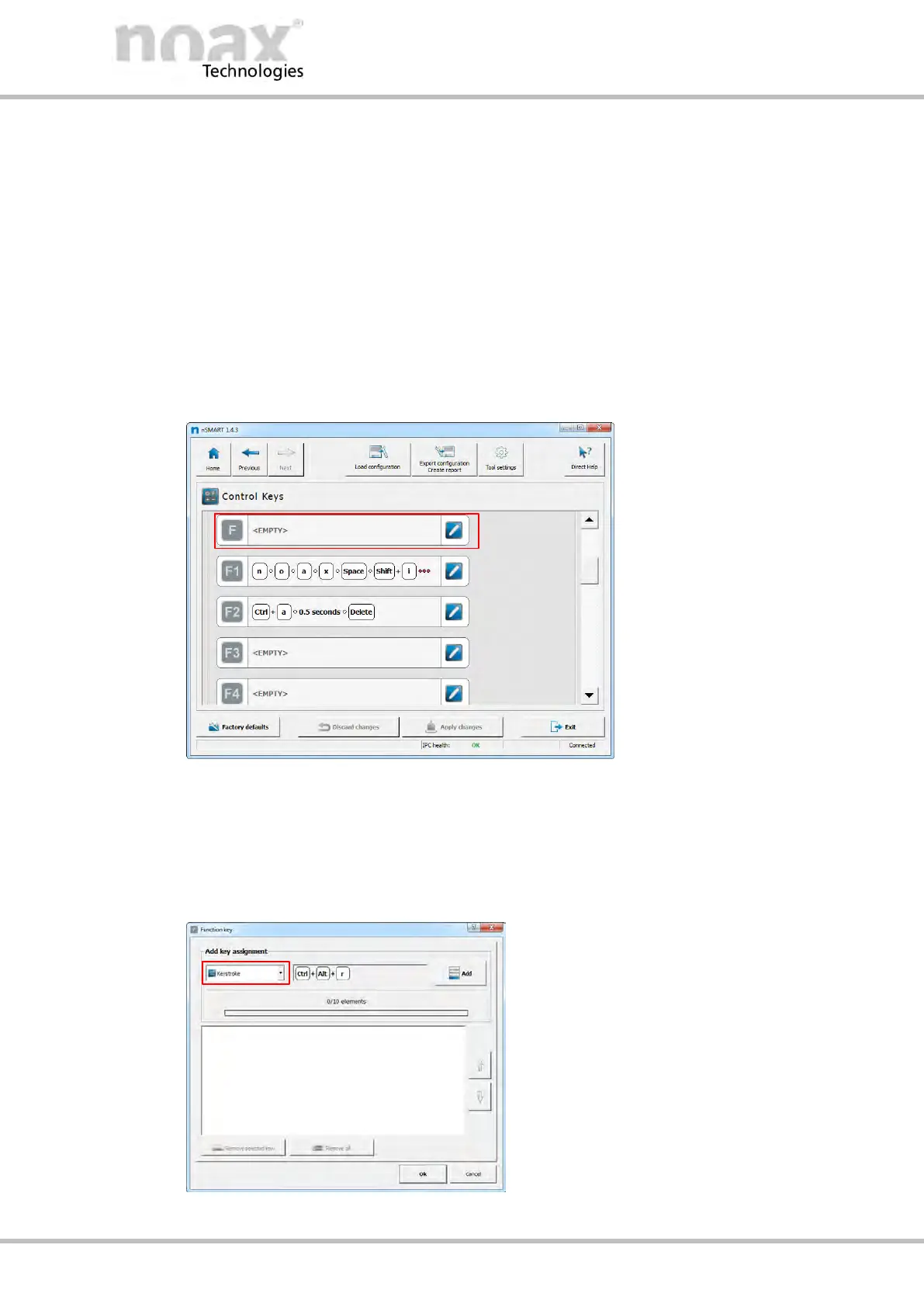
1. Launch the nSMART™ software and click on the “Control Keys” button.
2. Select the function key to be configured. In the example here, we select the F key.
Fig. 56: Function keys
3. To edit the function key, either click on the pencil icon or double‐click on the corre
sponding row.
4. The key editor will open.
The default setting in the key configuration pull‐down menu is “Keystroke”.
5. Press the desired key or key
combination on a connected
standard keyboard or a virtual
touchscreen keyboard. In the
example here, “Ctrl + Alt + r”
is selected.
6. Press the “Add” button to transfer
the key / key combination over to
the element list.
7. Repeat Steps 5. and 6. to add
further keys / key combinations as
required.
Fig. 57: Entering the required key



 To Next Page