Basic print jobs 103
▼ Printing a document using the Océ 3165 printer driver (Windows3.x/95/NT4)
1
From the File menu of your application, select the option ‘Print’.
You are now in the print window of the application.
Note: Options in your print window may differ, depending on the
application you are using.
2 If not yet selected, select the Océ 3165 in the ‘Printer’ box.
Note: Leave the number of copies set to ‘1’ in this window.
3 Click ‘OK’.
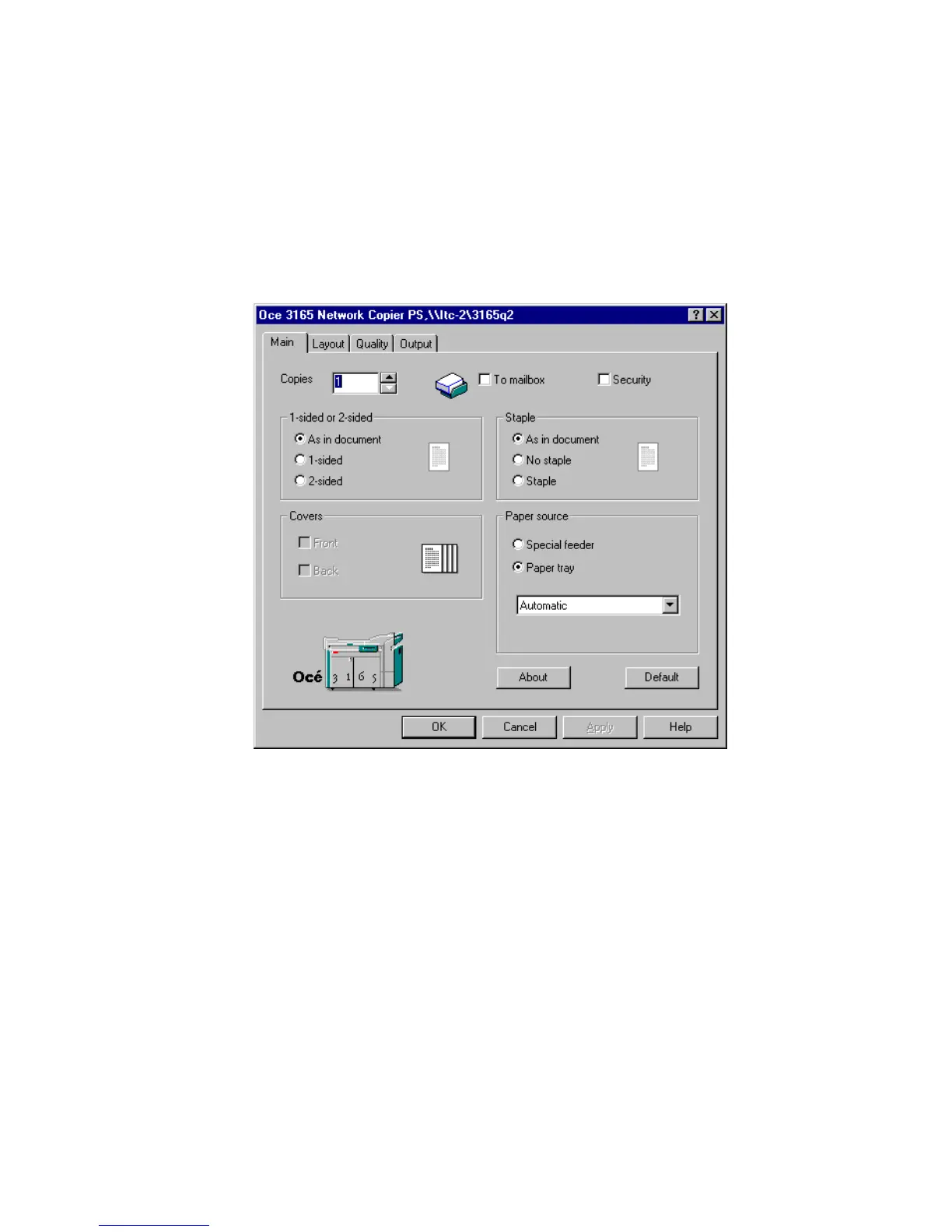
The Océ 3165 printer window appears (see figure 50).
[50] The main window of the Océ 3165 printer driver window
4 Enter the required number of copies.
5 Define whether your copies are to be printed 1-sided or 2-sided by clicking the
corresponding bullet.
Note: When selecting ‘As in document’, the settings which are defined in
your application are respected.
6 If required, check the option ‘Staple’ in the corresponding box to staple your
output.
Note: When clicking on the ‘Default’ button, all settings are restored as
defined in the setup of the printer driver.
7 If required, select the paper tray holding the required paper size.
8 Click ‘OK’.



 To Next Page