Installing the Océ 3165 as a printer 89
Customizing general settings
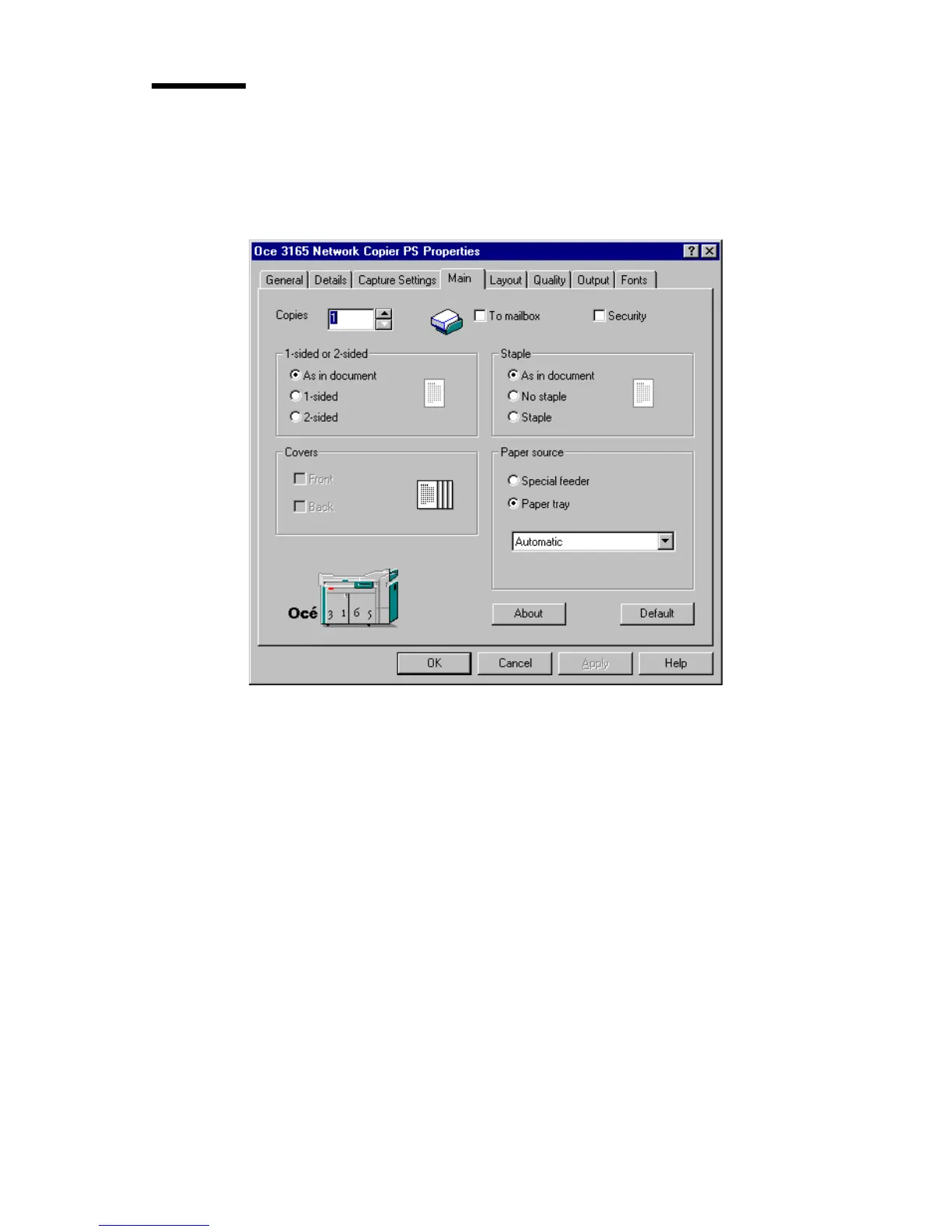
The most frequently used settings for printing a job are summarized in the
Main tab. All settings which are available on this tab are also selectable in the
Océ 3165 print window and can be overruled for specific jobs.
[44] The ‘Main’ tab of the setup window of the Océ 3165 Network Copier printer driver
Note: The ‘General’, ‘Details’ and ‘Capture Settings’ tabs -if present- are only
available in the Windows 95 and NT4 Printer Properties window. These tabs
contain details about the driver used, the printer port to which it is connected
(see ‘Connecting a local port to the Océ 3165 print queue’ on page 83) and
details about the spooling of jobs and banner pages. These topics are not
further documented here, but you can use online help for more information
(see ‘Using online help’ on page 98).
▼ Setting up the Océ 3165 Network Copier printer driver
1
Open the setup window of the Océ 3165 printer driver as described in
‘Opening the setup window’ on page 88.
2 Click the ‘Main’ tab (see figure 44).
3 Select the required setting for ‘1-sided or 2-sided’: ‘As in document’ means
that you select in the application if the job is to be printed 2-sided or not (if the



 To Next Page