50 Océ 3165 User Manual
Using covers
Reports look more attractive and professional if they have a cover. The
Océ 3165 can provide either a front or a back cover, or both a front and a back
cover during the copying process. If none of these options is selected on the
operating panel, copies will be delivered without covers.
When you define to add one or two covers, the indicated paper tray must
contain cover material. Check this by opening the indicated paper tray and load
the required paper if this tray does not contain cover material.
Whether your covers will be printed single-sided or double-sided depends on
your selections for the copies. For example, if single-sided copies are to be
made from single-sided originals, the first original and/or the last will be
copied onto paper from the paper tray containing the cover material. If
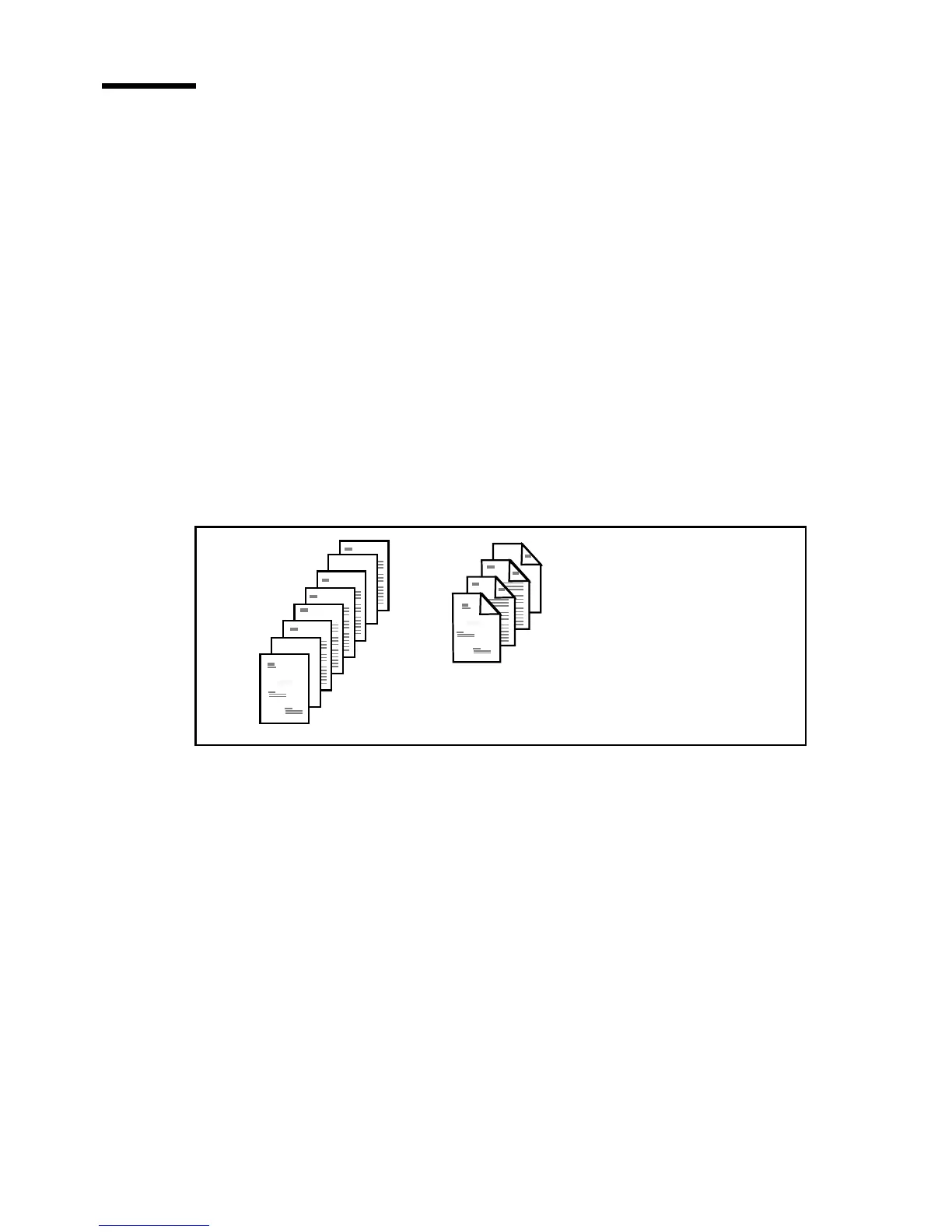
double-sided copies are made from single-sided originals, you can influence
the way the covers are printed by adding blank originals (see figure 22).
[22] The effect of added blank originals on double-sided printing
Note: Use the ‘Blank page’ function to identify the blank pages (see
‘Specifying blank pages’ on page 55). The key operator determines whether
charges will be made for uncopied pages.
▼ Copying reports with covers
1
Place the originals face down in the automatic document feeder.
Note: When making 2-sided copies of 1-sided originals, add blank originals
(if necessary) to obtain the required printed cover.
2 Indicate whether the originals are 1 or 2-sided and choose 1 or 2-sided copies
using the ‘Original’ and ‘Copy’ function buttons.
3 Press the section button ‘Paper’.



 To Next Page