110 Océ 3165 User Manual
Printing confidential documents
Sometimes you want to print a confidential document. To ensure that this
document is only printed in your presence (even if someone else knows your
user PIN code), you can attach a PIN code to this specific document. A
confidential job is automatically moved to the mailbox.
If your mailbox is not secured by a PIN code, other users (including the key
operator may delete your confidential jobs, but they cannot print them.
▼ Printing confidential documents
1
From the File menu of your application, select the option ‘Print’.
You are now in the print window of the application.
Note: Leave the number of copies set to ‘1’ in this window.
2 Click ‘Print’ (in some applications you must select ‘OK’).
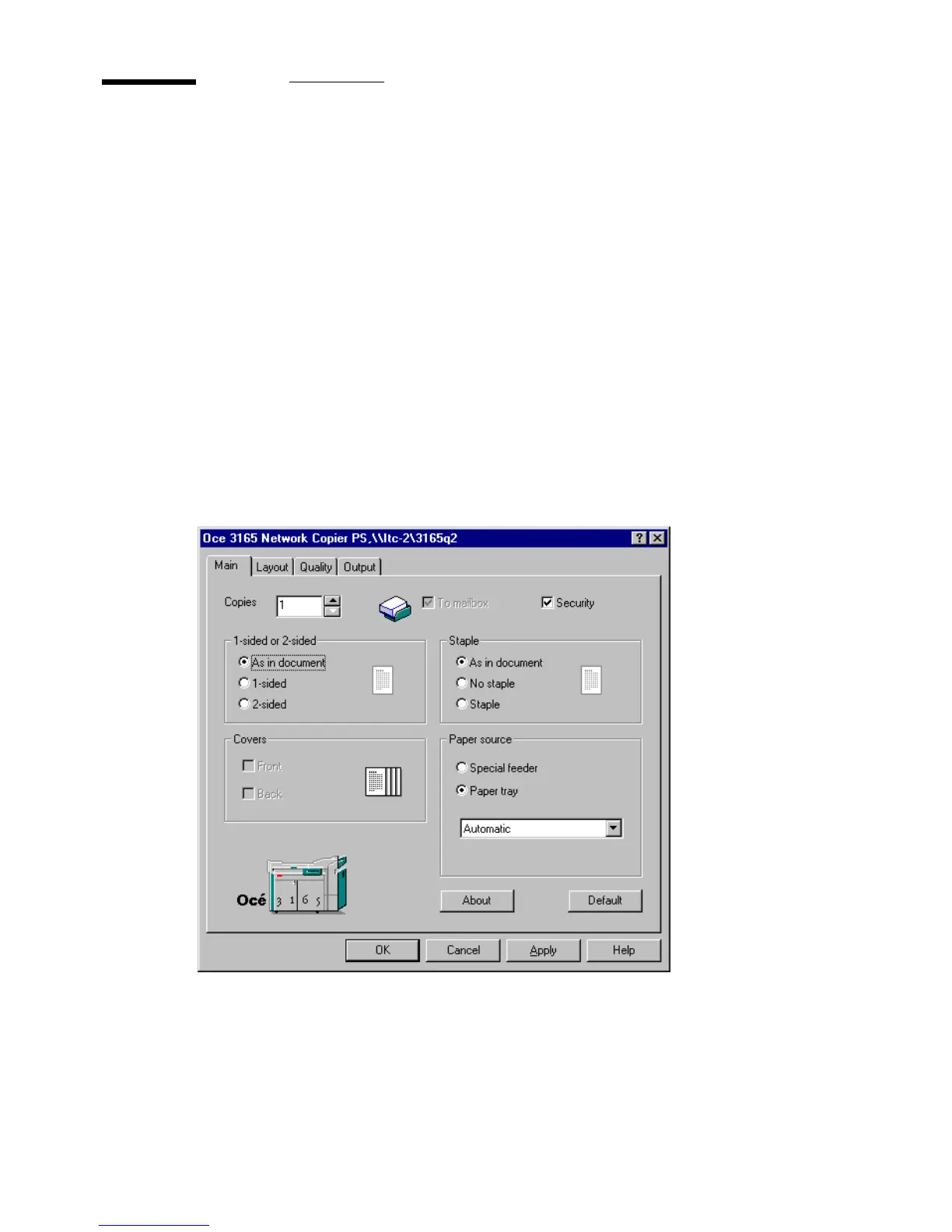
The Océ 3165 printer driver window appears (see figure 56).
[56] Printing confidential documents
3 Enter the required number of copies.
4 Check ‘Security job’ to characterize the job as a confidential document.
The Security job window pops up.
5 Type a PIN code in the pop up window.



 To Next Page