Basic print jobs 107
Storing a document in your mailbox
You can specify in your print command window that the file is to be saved in
your mailbox so it can be printed later. This is especially useful if you are not
sure if the required paper size is available or if you want to print a test copy
first. It also means that you can clearly distinguish your print jobs when they
come out of the Océ 3165 and that less paper is used, because no banner pages
need to be printed.
▼ Print a document to your mailbox
1
From the File menu of your application, select the option ‘Print’.
You are now in the print window of the application.
Note: Leave the number of copies set to ‘1’ in this window.
2 Click ‘Print’ (in some applications you must select ‘OK’).
The Océ 3165 printer driver window appears.
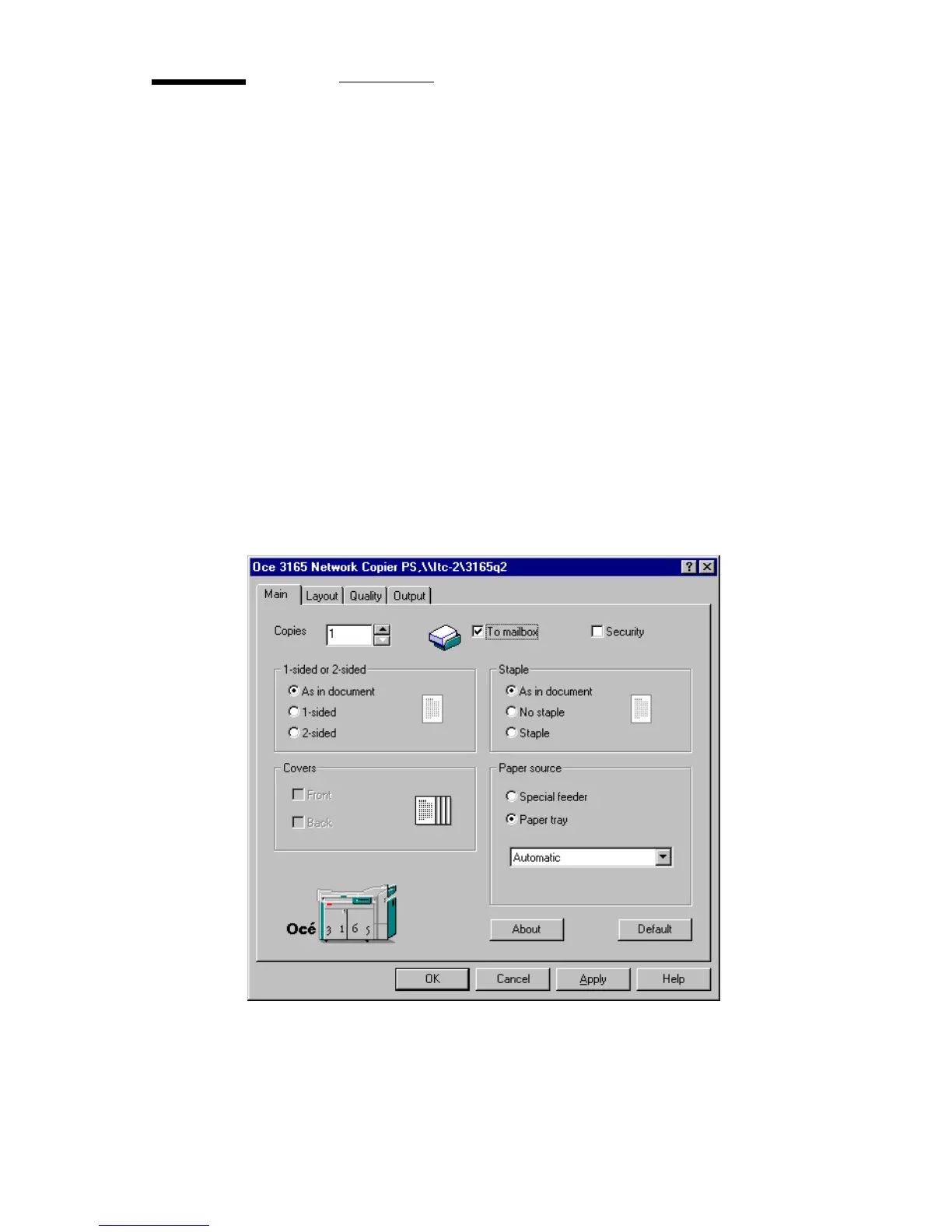
3 Check ‘To mailbox’ to store the job in the printer’s digital mailbox (see
figure 52).
[52] Print a document to the mailbox
4 Define other settings as required.
5 Click ‘OK’.
The document is now transferred to your mailbox.



 To Next Page