Extended copy jobs 63
When printing onto heavy materials, you will find that certain heavy materials
do not move into the finisher smoothly. In that case, you need to change the
output location into upper tray. All copied output is then delivered into the
upper output tray but automatic stapling is no longer possible.
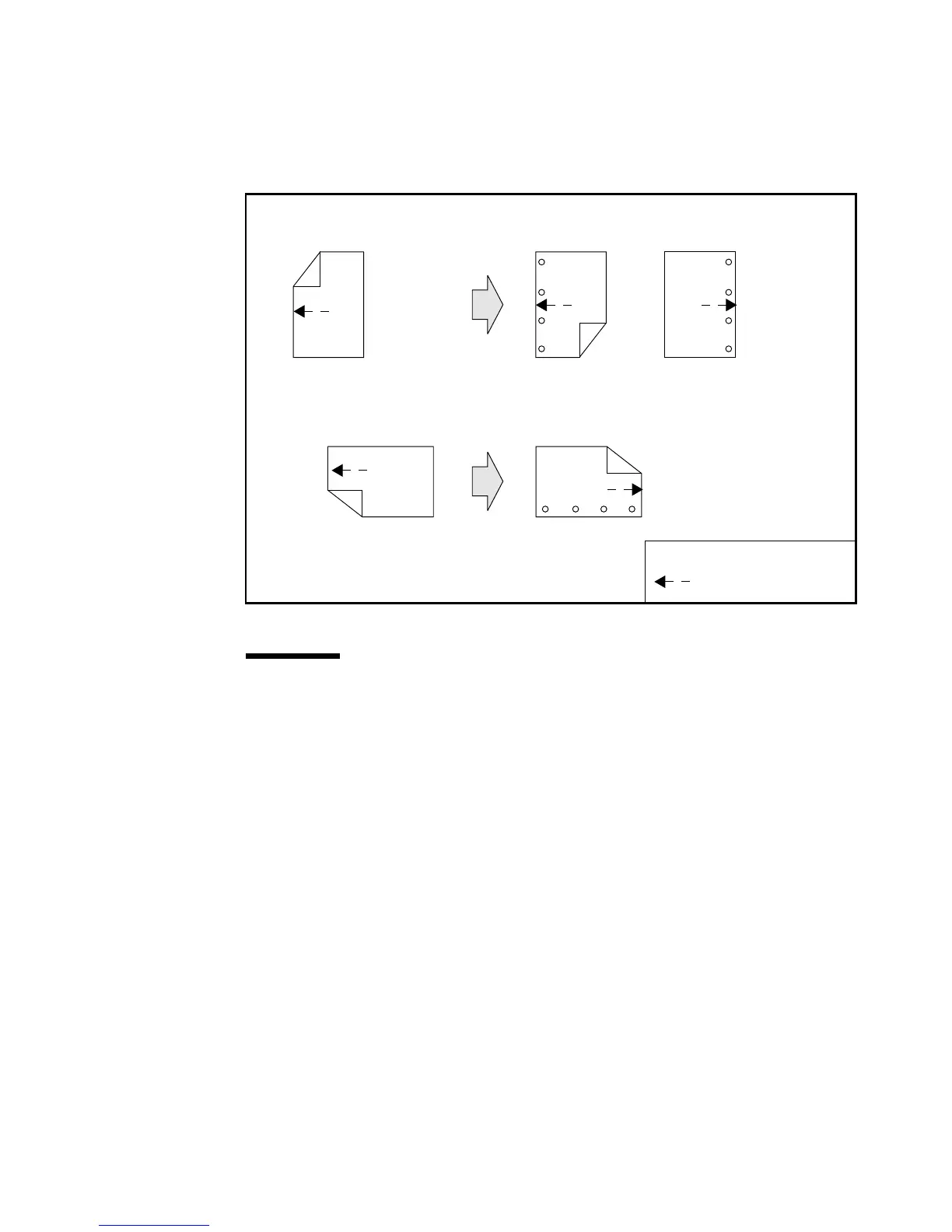
[35] Feed direction of pre-printed and punched copy material in the paper trays
Attention: Do not use precopied paper as this may pollute the machine.
▼ Copying onto special material
1
Open the paper compartment door. Tray 4 moves down automatically as soon
as the door is opened.
Note: If the key operator has locked the paper compartment door, you will
have to call the key operator to load special paper.
2 Place the special copy material in the required tray as described in ‘Loading
paper’ on page 156.
Note: When loading copy material with a specific page orientation, the
material must be loaded into the paper trays as shown in figure 35.
3 Close the paper compartment door.
The bottom tray will move up automatically.
4 Place your A4 originals in the automatic feeder
5 Open the section ‘Paper’ and select the ‘Paper input’ settings.
6 Press the function button ‘Source’ to activate the option ‘Tray’ and select the
corresponding paper tray in which you loaded the special copying material.
✱
✱
Feed direction of copy
material in tray 4
long-edge feed originals
✱
✱
short-edge feed originals
Feed direction of copy material in trays 1, 2 or 3
special feeder/
glass platen
✱ = Top of page
= Feed direction
Feed direction of copy
material in trays 1, 2 or 3
✱



 To Next Page