200
Motion Perfect Projects Section 7-3
Consistency Check When Motion Perfect starts, it always performs a consistency check between
any programs on the MC Unit and the current project files on the computer. It
will only enable its tool site when it has successfully verified that the programs
in the controller matches the project on the computer. The CRC values of the
programs are compared to perform the check. The Check Project Window
shows the status of the check. When both projects are consistent, the state-
ment “Project check OK” is shown in the message field.
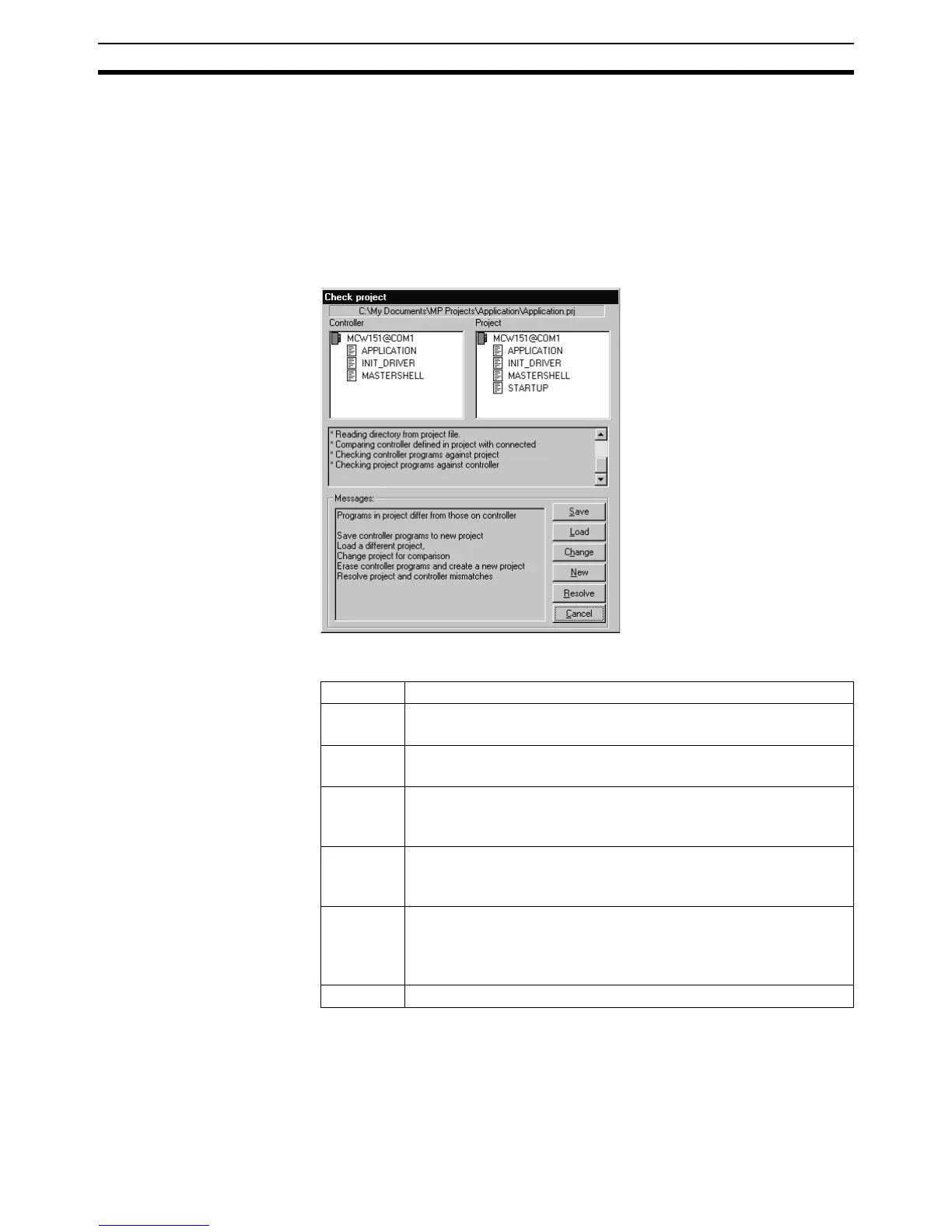
If both projects differ, the window will display the options for the user to deter-
mine how to resolve this inconsistency. The Check Project Window is shown
here:
The window enables the user to select the required option to resolve the dis-
crepancy. The options available include:
You can force Motion Perfect to verify that the two copies are identical at any
time by selecting Check project from the File Menu.
Function Purpose
Save Save controller programs to new project. Create a new project
on the computer and save the programs to this project.
Load Load a different project. Select a new project on the computer
and load this project into the controller.
Change Change project for comparison. Select a different project on the
computer with which to perform the programs consistency
check.
New Erase controller programs and create a new project. Create a
new empty project on the computer and delete all programs on
the controller.
Resolve Resolve project and controller mismatches. Continue to check
the project, enabling the user to resolve each individual program
inconsistency by either saving the project version into the con-
troller or loading the controller version into the project.
Cancel Run Motion Perfect without connection to the controller.



 To Next Page