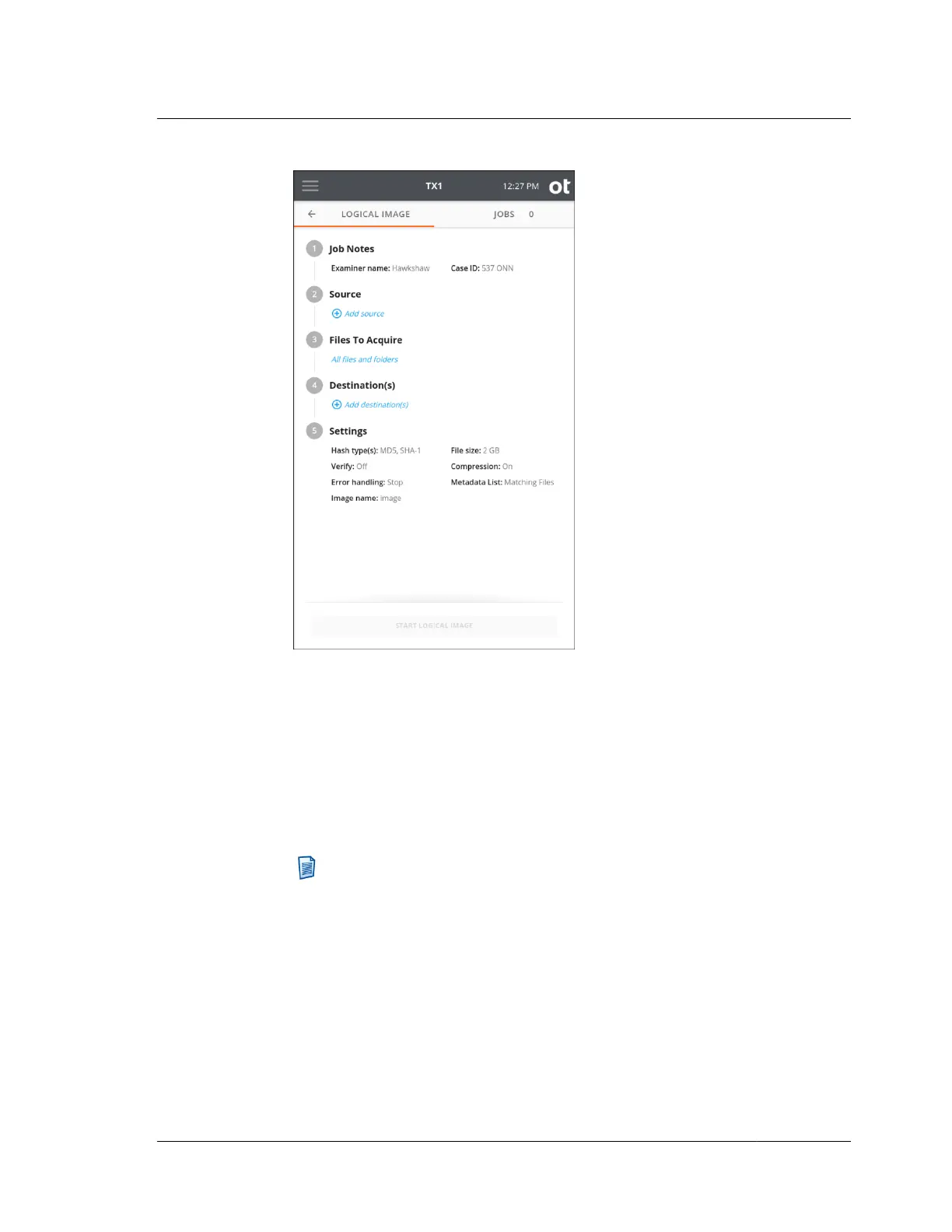
The job setup screen is organized in a natural workflow from top to bottom, but
the steps and settings can be accessed in any order. The default values display
for each step and setting. Tap the step number or heading to expand the section
and view or change the settings.
If only one source drive with one recognized filesystem and one formatted
destination drive are connected, they are automatically selected. If you are
satisfied with the default settings and the selected source and destination
filesystems, press the Start Logical Image button at the bottom of the screen to
begin the job.
Note: Logical image job source auto-selection is distinct from duplication
job source auto-selection in that a logical image job operates at the
filesystem level, not the drive level. Therefore, a sole source drive will not
be auto-selected for a logical image job if it contains more than one
recognized filesystem.
3. To modify or enter job notes, tap the 1 or Job Notes heading to expand the
section. Tap a text box to modify or enter Examiner name, Case ID, or notes
values and the virtual keyboard is displayed on the bottom half of the screen. If
desired, you can also attach a USB keyboard to one of the front Accessory USB
ports.
4.5. Logical imaging
ISTX240300-UGD-EN-1
User Guide
119



 To Next Page