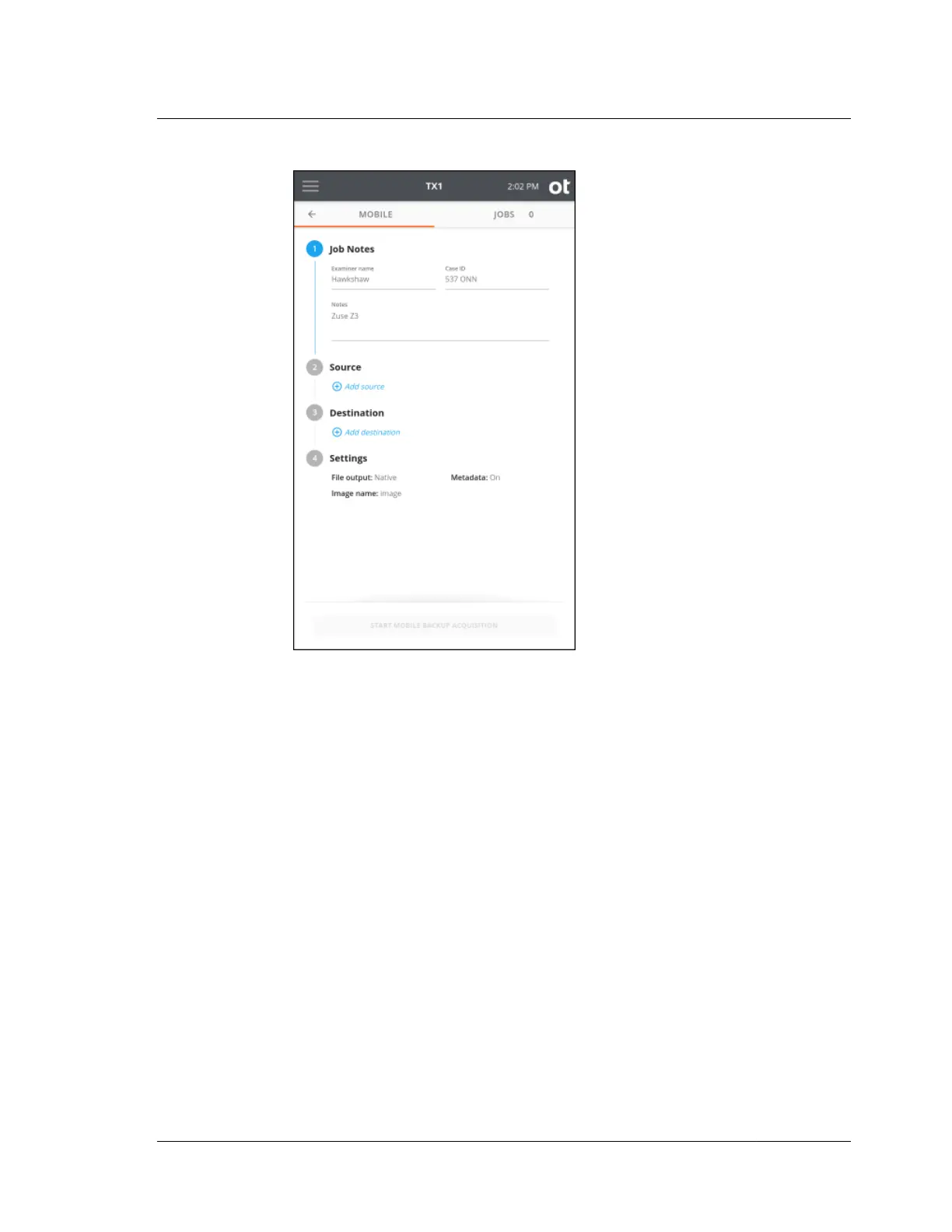
4. To change or add a source mobile device, tap the 2 or Source heading. From the
displayed source list modal, select a mobile device from the list. A green check
confirms your selection.
If a connected mobile device is not showing in the TX1’s source list, it is possible
that phone interaction/configuration is required. In the case of iOS devices, this
is typically as simple as accepting trust of TX1 as the host computer on the
mobile device. For Android devices, the exact steps may vary between phone
vendors and OS versions. But, in general, most Android devices will need USB
Debug mode enabled before they will show in the TX1 source list. The location
of the setting for USB debug mode can vary from phone to phone. See
“Connecting and detecting mobile devices” on page 153 for more information.
As indicated in the source selection area of the mobile backup acquisition job
stepper, the state of the backup file encryption setting on a mobile device is a key
piece of forensic information. In general, if backup file encryption is enabled,
more mobile device user information will be included in the backup.
One key difference between iOS and Android devices is how backup encryption
is managed. For iOS devices, an informative message will appear in the source
selection section of the mobile backup acquisition job setup screen to indicate the
encryption state of the mobile backup. If backup encryption is not enabled on an
iOS device, it can be enabled via the Manage Backup Encryption media utility
available in the mobile device details screen. For Android devices, TX1 is not
4.9. Mobile backup acquisition
ISTX240300-UGD-EN-1
User Guide
157



 To Next Page