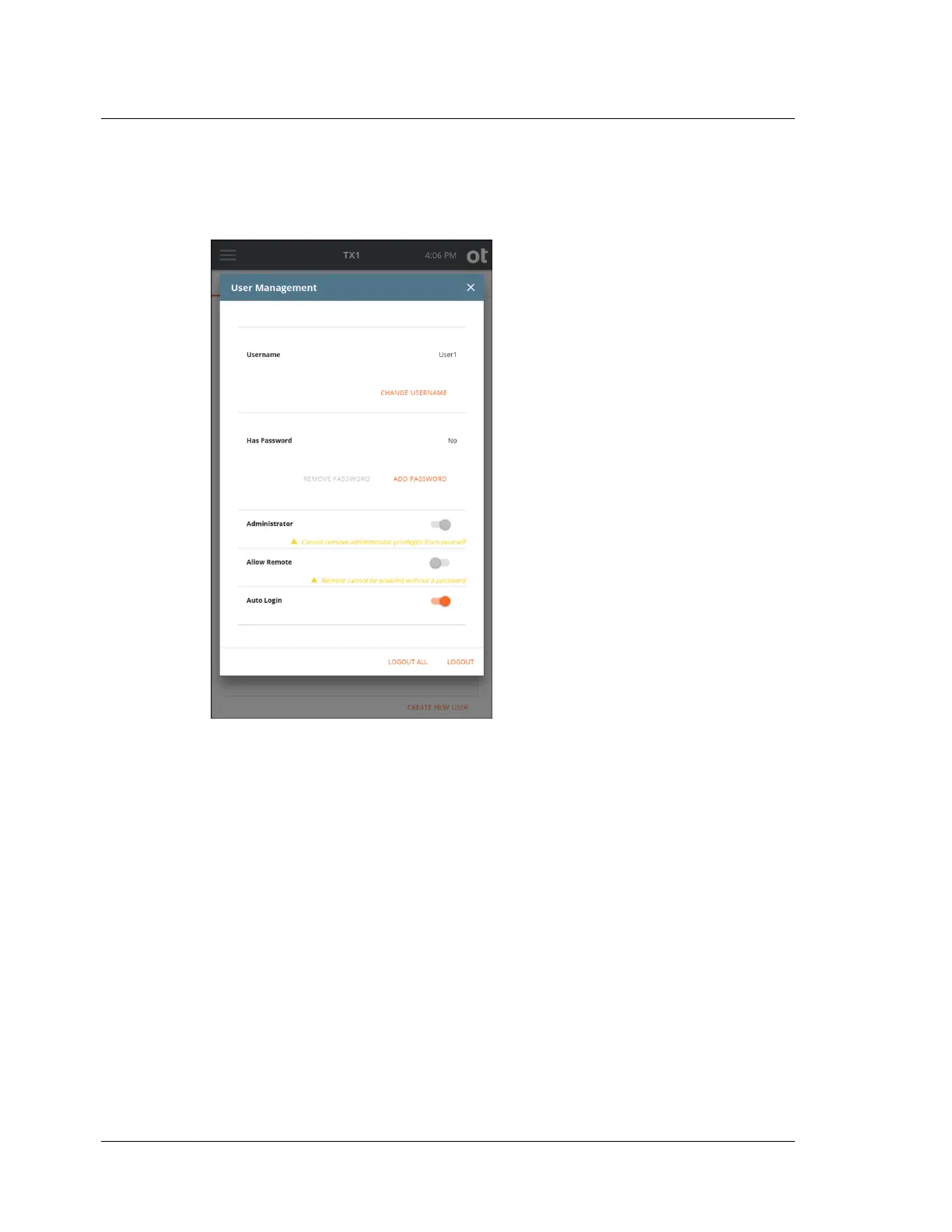
Tapping on any user in the list will show a User Management screen which contains
all the available options for each user. The User Management screen for default
User1 is shown below.
On this screen, an administrator can change any user's username and password, as
well as set administrator rights, allow remote access, and enable auto login. Note
that remote access cannot be enabled for any users that have no password setup, and
auto login cannot be enabled for any that do have a password setup. Also, turning
off administrator rights for a currently logged-in administrator is disallowed.
As you use the User Management screen to set up new and edit existing users, you
may occasionally be prompted to reenter your password. This is a security feature
that automatically disallows administrator level changes after 30 seconds has passed
without any user interaction. Promptly going through all your user management
activities and leaving this screen is recommended to avoid having to reenter your
password. At the bottom of each User Management screen, either one or two
buttons are displayed. All User Management screens will show the Logout All
option. This will logout all instances of that particular user (local and/or remote
logins). When the administrator is logged in and viewing their own User
Management screen, (as shown above for default User1), a Logout button is also
visible. This button logs out only that instance (local or remote) of that user.
Chapter 3 Configuring TX1
36
OpenText™ Tableau™ Forensic TX1 Imager
ISTX240300-UGD-EN-1



 To Next Page