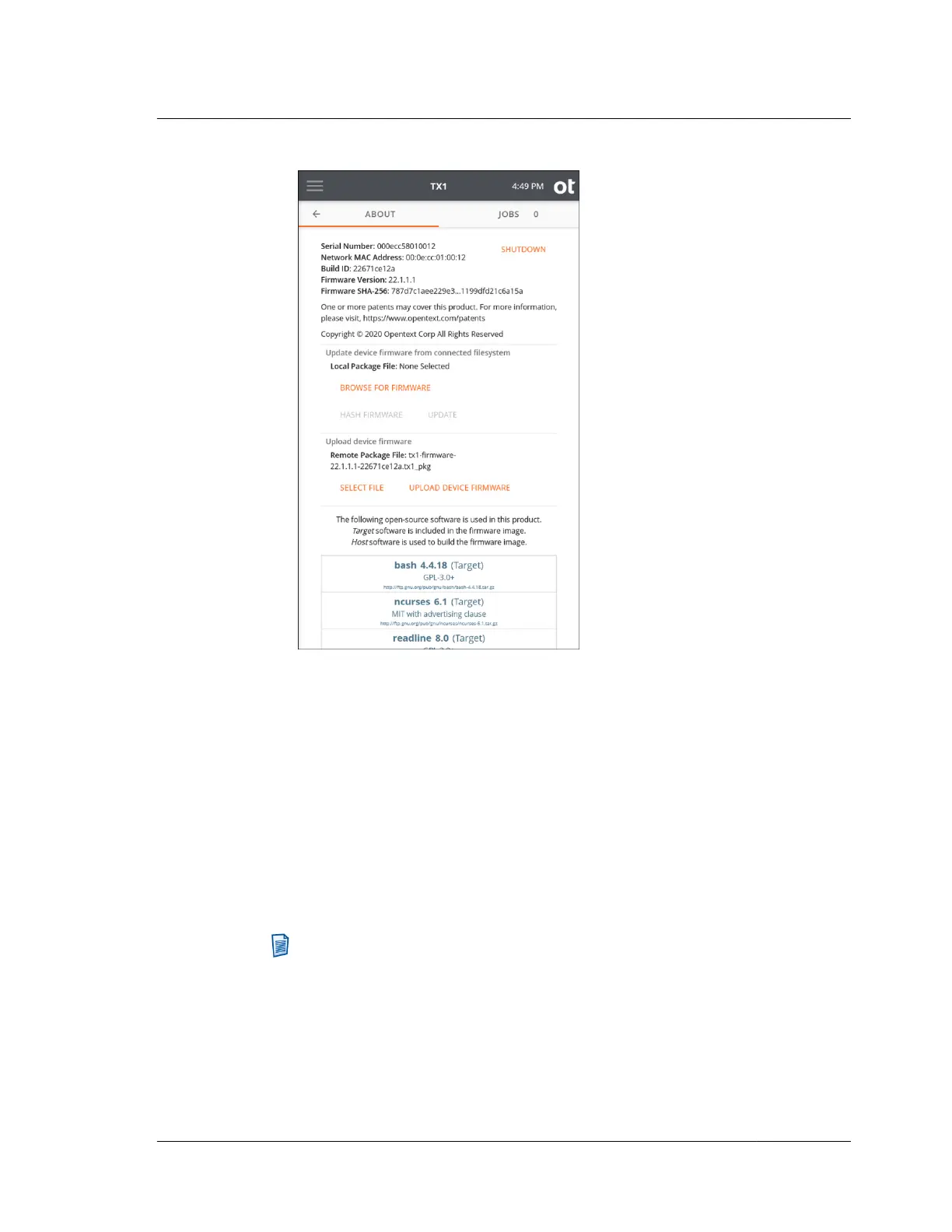
6. Tap Select File in the Upload Device Firmware section of the About screen.
7. Use the Windows File Navigator browse window to navigate to the appropriate
folder and select the desired TX1 firmware package file (saved from Tableau
Firmware Update as described earlier in this section).
8. On the About screen, double check the name of the selected firmware package
file to ensure it is the one you intended to select. Then tap Upload Device
Firmware to initiate the firmware package file upload to TX1. A progress bar
will appear indicating that the file upload is in progress. Note that navigating
away from this page when a firmware file upload is in progress will abort the
firmware update process. Once the file has been fully received by TX1, it will
automatically update the SD card with the new firmware and then reboot the
unit.
Note: This remote firmware update method performs an update of the SD card
without reformatting it. Since the card was not reformatted, all previously
stored user data (settings, logs, etc.) are retained. If a reformatted SD card is
desired, use the TFU Prepare New TX1 SD Card feature to format and
program your card.
3.2. Configuring TX1
ISTX240300-UGD-EN-1
User Guide
43



 To Next Page