Chapter 4 Settings — [POSITION] menu
ENGLISH - 105
[POSITION] menu
On the menu screen, select [POSITION] from the main menu, and select an item from the sub-menu.
Refer to “Navigating through the menu” (x page 89) for the operation of the menu screen.
Note
f When the optional DIGITAL LINK output supported device (Model No.: ET-YFB100G, ET-YFB200G) is connected to the <DIGITAL LINK IN/
LAN> terminal on the optional DIGITAL LINK Terminal Board (Model No.: TY-SB01DL) installed in the slot, set the shift and aspect from the
menu of DIGITAL LINK output supported device rst.
f On the [POSITION] menu screen (without selecting [GEOMETRY]), you can set [STORE TYPE] on the [OPTION] screen displayed by
pressing the <INPUT MENU> button on the remote control or control panel.
f The [STORE TYPE] setting item in [OPTION] screen is common with the menu item of the [PROJECTOR SETUP] menu → [STORE TYPE]
(x page 177).
[SHIFT]
Move the image position vertically or horizontally if the image projected on the screen is still out of position even
when the positions of the projector and screen are correct.
1) Press as to select [SHIFT].
2) Press the <ENTER> button.
f The [SHIFT] screen is displayed.
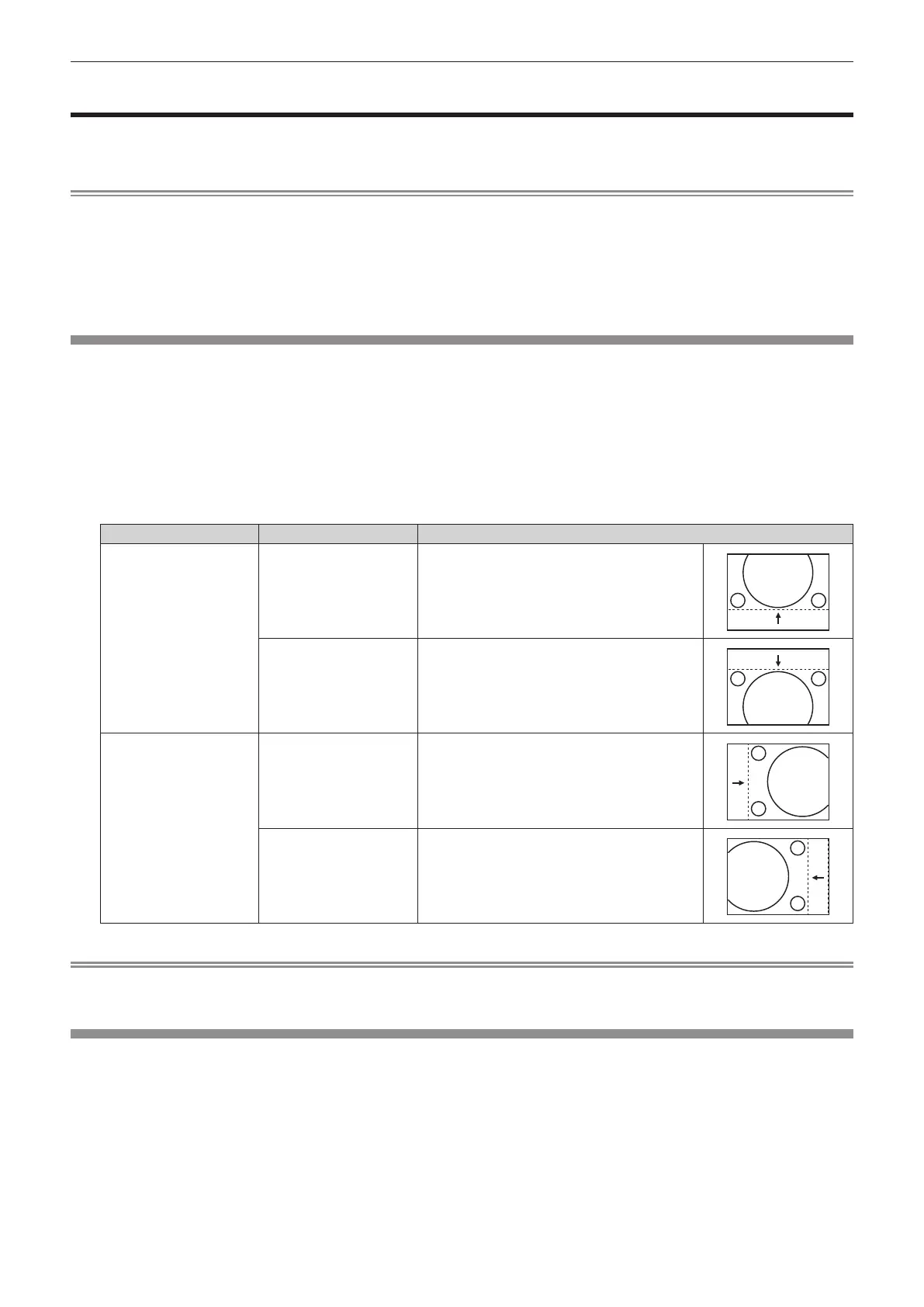
3) Press asqw to adjust the position.
Orientation Operation Adjustment
Vertical (up and down)
adjustment
Press a.
The image position moves up.
Press s.
The image position moves down.
Horizontal (right and left)
adjustment
Press w.
The image position moves to the right.
Press q.
The image position moves to the left.
Note
f For the portrait setting, image position is moved horizontally when “Vertical (up and down) adjustment” is made. Image position is moved
vertically when “Horizontal (right and left) adjustment” is made.
[ASPECT]
You can switch the aspect ratio of the image.
The aspect ratio is switched within the screen range selected in the [DISPLAY OPTION] menu → [SCREEN
SETTING] → [SCREEN FORMAT]. Set [SCREEN FORMAT] rst. (x page 122)
1) Press as to select [ASPECT].
2) Press qw or the <ENTER> button.
f The [ASPECT] individual adjustment screen is displayed.














 To Next Page