Chapter 4 Settings — [DISPLAY OPTION] menu
ENGLISH - 143
3) Press the <ENTER> button.
Note
f You can also switch the [BACK COLOR] item by pressing the qw button while the [BACK COLOR] menu is selected.
f The [BACK COLOR] setting item is common with the following menu item.
g The [PROJECTOR SETUP] menu → [NO SIGNAL SETTING] → [BACK COLOR]
f For the procedure to set the back color from the web control screen, refer to [Back color] (x page 244).
[STARTUP LOGO]
Set the logo display when the power is turned on.
1) Press as to select [STARTUP LOGO] and press the <ENTER> button.
f The [STARTUP LOGO] screen is displayed.
2) Press as to select the item.
f Select the image you want to display.
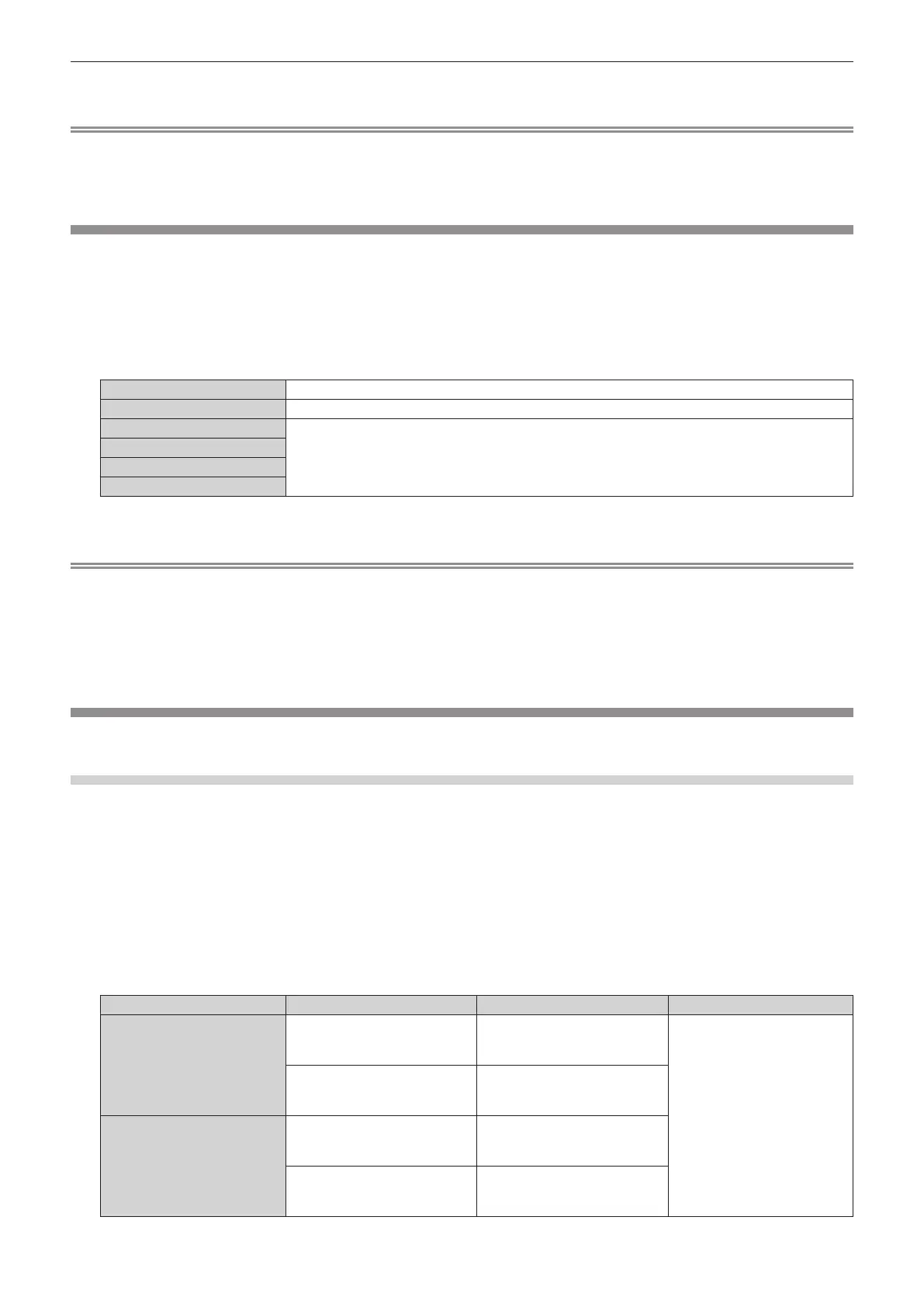
[NONE]
Disables the startup logo display.
[DEFAULT LOGO]
Displays the Panasonic logo.
[USER IMAGE 1]
Displays the image registered by the user in the projection screen.
If no user image is registered, [NO IMAGE] is displayed. You can register the user image following the
instructions displayed on the screen by selecting [NO IMAGE] and pressing the <ENTER> button.
For details on registering an image, refer to “Registering the user image” (x page 183).
[USER IMAGE 2]
[USER IMAGE 3]
[USER IMAGE 4]
3) Press the <ENTER> button.
Note
f You can also switch the [STARTUP LOGO] item by pressing the qw button while the [STARTUP LOGO] menu is selected.
f When [USER IMAGE 1], [USER IMAGE 2], [USER IMAGE 3] or [USER IMAGE 4] is selected, the display of the startup logo will be kept for
approximately 15 seconds.
f When the [PROJECTOR SETUP] menu → [QUICK STARTUP] is set to [ON], the startup logo is not displayed when the projection is started
before the specied time has elapsed after going into the standby mode.
The specied time is the time set in the [PROJECTOR SETUP] menu → [QUICK STARTUP] → [VALID PERIOD].
f For the procedure to set the startup logo from the web control screen, refer to [Startup logo] (x page 243).
[UNIFORMITY]
Correct the brightness unevenness and color unevenness of the whole image.
Setting [GRADIENT CORRECTION]
Correction is performed in vertical and horizontal directions to approach the even condition when unevenness in
one direction is occurring throughout the whole image.
1) Press as to select [UNIFORMITY].
2) Press the <ENTER> button.
f The [UNIFORMITY] screen is displayed.
3) Press as to select [WHITE], [RED], [GREEN], or [BLUE].
4) Press qw to adjust the level.
Item Operation Adjustment Range of adjustment
[VERTICAL]
Press w.
The lower-side color becomes
pale, or the upper-side color
becomes dark.
-
127 - +127
Press q.
The upper-side color becomes
pale, or the lower-side color
becomes dark.
[HORIZONTAL]
Press w.
The left-side color becomes pale,
or the right-side color becomes
dark.
Press q.
The right-side color becomes
pale, or the left-side color
becomes dark.














 To Next Page