Chapter 4 Settings — [POSITION] menu
ENGLISH - 107
When [ASPECT] is set to [DEFAULT]
1) Press as to select [ZOOM].
2) Press the <ENTER> button.
f The [ZOOM] screen is displayed.
3) Press as to select [MODE].
4) Press qw to switch the item.
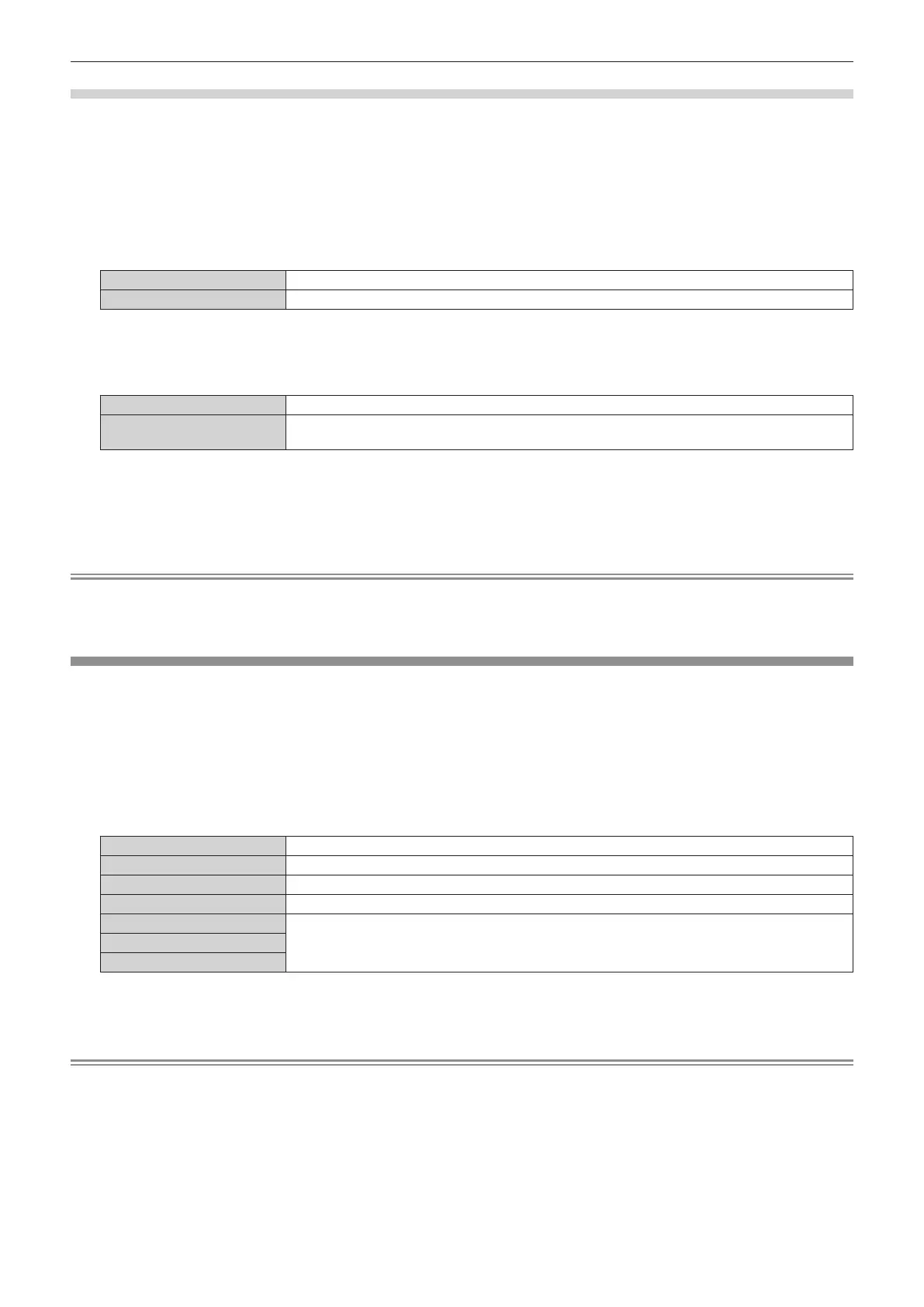
[INTERNAL]
Enlarges the size within the aspect range set with [SCREEN FORMAT].
[FULL]
Enlarges or reduces the size using the entire display area set with [SCREEN FORMAT].
5) Press as to select [INTERLOCKED].
6) Press qw to switch the item.
[OFF]
Sets the [VERTICAL] and [HORIZONTAL] zoom ratio.
[ON]
Uses [BOTH] to set zoom ratio. Image can be enlarged or reduced vertically and horizontally at the
same magnication.
7) Press as to select [VERTICAL] or [HORIZONTAL].
f If [ON] is selected, select [BOTH].
8) Press qw to adjust.
Note
f When the [POSITION] menu → [ASPECT] is set to anything other than [DEFAULT], [MODE] is not displayed.
f The sound of the iris operation may be heard right after adjusting the zoom. Also, when using the projector for the rst time or after replacing
the projection lens, you may hear the sound of the iris operation right after turning on the power of the projector.
[GEOMETRY]
You can correct various types of distortion in a projected image.
Unique image processing technology enables projection of a square image on a special screen shape.
The projected image can be made to look more natural by making topical correction as necessary.
1) Press as to select [GEOMETRY].
2) Press qw to switch the item.
f The items will switch each time you press the button.
[OFF]
Does not perform geometric adjustment.
[KEYSTONE]
Adjusts any trapezoidal distortion in the projected image.
[CORNER CORRECTION]
Adjusts any distortion in the four corners of the projected image.
[CURVED CORRECTION]
Adjusts any curved distortion in the projected image.
[PC-1]
Select this item when performing correction using a computer and “Geometric & Setup Management
Software”
*1
. Up to three correction data can be saved.
[PC-2]
[PC-3]
*1 “Geometric & Setup Management Software” can be downloaded from the following website.
https://panasonic.net/cns/projector/pass/
It is necessary to register and login to PASS to download.
Note
f The menu, logo, or waveform monitor display may run o the screen when [GEOMETRY] is set.
f The edge blending adjustment may not be performed correctly depending on the environment when using the [ADVANCED MENU] menu →
[EDGE BLENDING] and [GEOMETRY] simultaneously.
f For PT-REQ15, the [GEOMETRY] setting is disabled in the following cases, and the geometric adjustment function cannot be used.
g When the [ADVANCED MENU] menu → [QUAD PIXEL DRIVE] is set to [OFF]
However, it is not disabled when 1080/120p image, 1080/240 image or test patterns are projected.
f The image may disappear for a moment or may be disrupted while performing adjustment, but it is not a malfunction.














 To Next Page