Chapter 4 Settings — [TEST PATTERN] menu
190 - ENGLISH
[TEST PATTERN] menu
On the menu screen, select [TEST PATTERN] from the main menu.
Refer to “Navigating through the menu” (x page 89) for the operation of the menu screen.
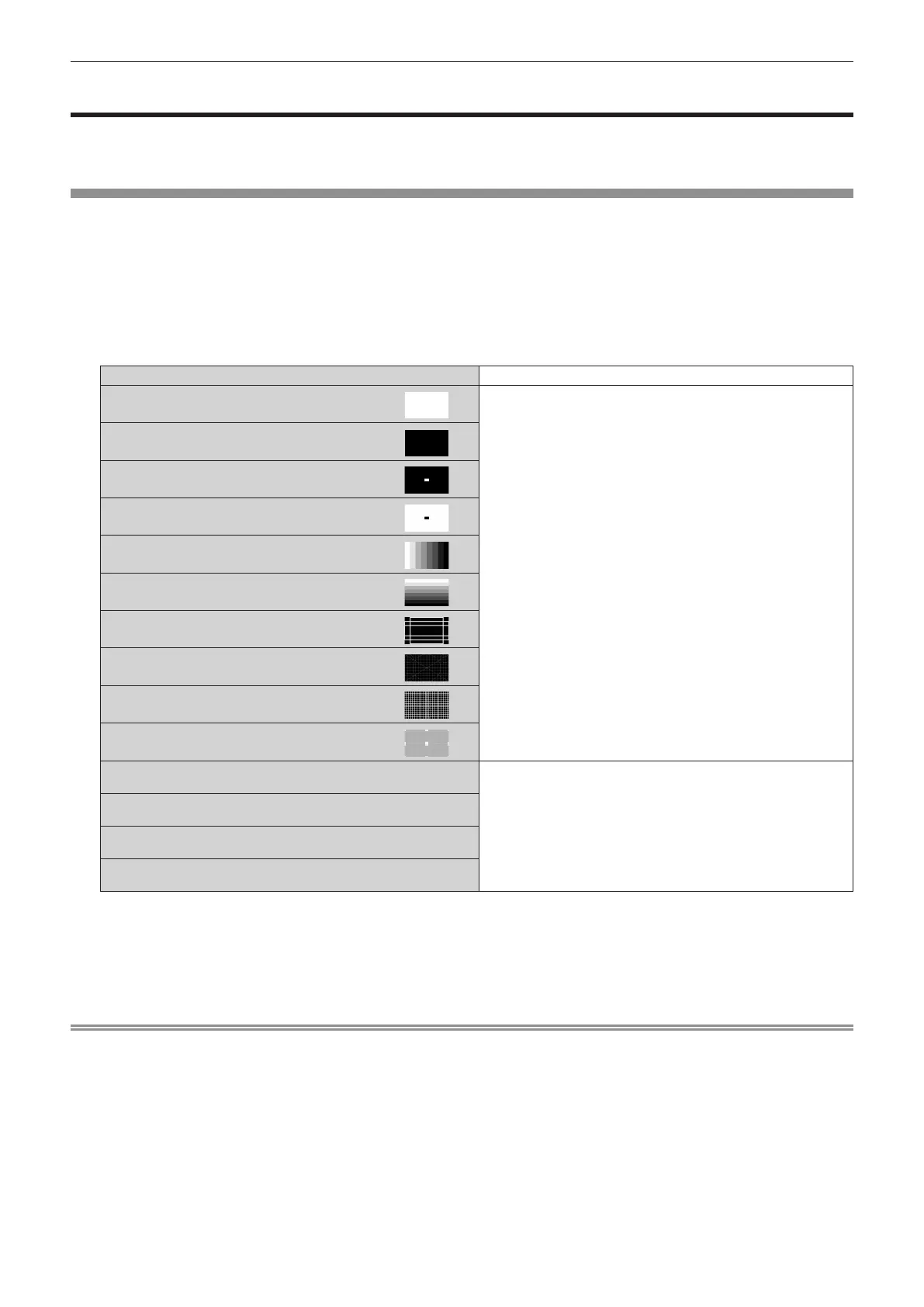
[TEST PATTERN]
Display the test pattern.
Settings such as position and size will not be reected in test patterns. Make sure to perform various adjustments
while displaying the input image.
1) Select the [TEST PATTERN] menu, and press the <ENTER> button.
f The [TEST PATTERN] screen (list format) is displayed.
2) Press as to select the test pattern to display, and press the <ENTER> button.
[OFF]
Test pattern is not displayed.
01 [ALL WHITE]
Displays the test pattern built-in to the projector.
To change the color of the cross hatch test pattern, refer
to “Changing the color of the cross hatch test pattern”
(x page 191).
02 [ALL BLACK]
03 [WINDOW]
04 [WINDOW(INVERSION)]
05 [COLOR BAR(VERTICAL)]
06 [COLOR BAR(HORIZONTAL)]
07 [SCREEN ASPECT FRAME]
08 [CIRCLE]
09 [CROSS HATCH]
10 [FOCUS]
11 [USER IMAGE 1]
Displays the image registered by the user in the projection screen.
If no user image is registered, [NO IMAGE] is displayed. You can
register the user image following the instructions displayed on
the screen by selecting [NO IMAGE] and pressing the <ENTER>
button.
For details on registering an image, refer to “Registering the user
image” (x page 183).
12 [USER IMAGE 2]
13 [USER IMAGE 3]
14 [USER IMAGE 4]
f Selected test pattern and the [TEST PATTERN] screen (toggle selection format) are displayed.
f To change the test pattern, proceed to Step 3).
3) Press qw to switch the test pattern.
f The test pattern will switch each time you press qw.
Note
f The [TEST PATTERN] screen (list format, toggle selection format) can be hidden by pressing the <ON SCREEN> button on the remote
control while the test pattern is displayed.
f Thumbnails of [USER IMAGE 1], [USER IMAGE 2], [USER IMAGE 3] and [USER IMAGE 4] are not displayed.
f When the projector is initialized by one of the following methods, the data registered in [USER IMAGE 1], [USER IMAGE 2], [USER IMAGE
3] and [USER IMAGE 4] are initialized.
g When initialized by selecting the [PROJECTOR SETUP] menu → [INITIALIZE] → [FACTORY RESET]
g When initialized by selecting the [PROJECTOR SETUP] menu → [INITIALIZE] → [USER IMAGE ONLY]
g When initialized by setting the [PROJECTOR SETUP] menu → [INITIALIZE] → [USER SETTINGS] → [USER IMAGE] to [INITIALIZE]
f Pressing qw while the [TEST PATTERN] menu is selected can also switch the test pattern.
f Perform the image adjustment when the projected image has stabilized.
It is recommended to adjust the image after at least 30 minutes have elapsed with the focus test pattern displayed. For details of the test
pattern, refer to “[TEST PATTERN] menu” (x page 190).
f For the procedure to set the test pattern from the web control screen, refer to “[Test pattern]” (x page 238).














 To Next Page