Chapter 5 Operations — Using the web control function
218 - ENGLISH
Using the web control function
Following operation is possible from a computer using the web control function.
f Setting and adjustment of the projector
f Display of the projector status
f Sending E-mail messages when there is a problem with the projector
The projector supports “Crestron Connected”, and the following application software of Crestron Electronics, Inc.
can be used.
f Crestron Fusion
Note
f Communication with an E-mail server is required to use the E-mail function. Conrm that the E-mail can be used beforehand.
f “Crestron Connected” is a system of Crestron Electronics, Inc. that collectively manages and controls devices on multiple systems
connected to a network using a computer.
f For details of the “Crestron Connected”, visit the following website of Crestron Electronics, Inc.
https://www.crestron.com/
Computer that can be used for setting
To use the web control function, a web browser is required. Conrm that the web browser can be used in
advance.
OS Compatible browser
Windows Microsoft Edge
Mac OS Safari 17.0
iOS Safari (equipped with version iOS 15, iOS 16, or iOS 17)
iPadOS Safari (equipped with version iPadOS 17)
Android Google Chrome (equipped with version Android 9.0/10.0/11.0/12.0/13.0/14.0)
Accessing from the web browser
1) Start up the web browser on the computer.
2) Enter the IP address set on the projector into the URL entry field of the web browser.
f When a user name and password are already set for the administrator account in the initial setting screen
(x page 75) or in the [NETWORK] menu → [ADMINISTRATOR ACCOUNT] (x page 205), proceed to
Step 8).
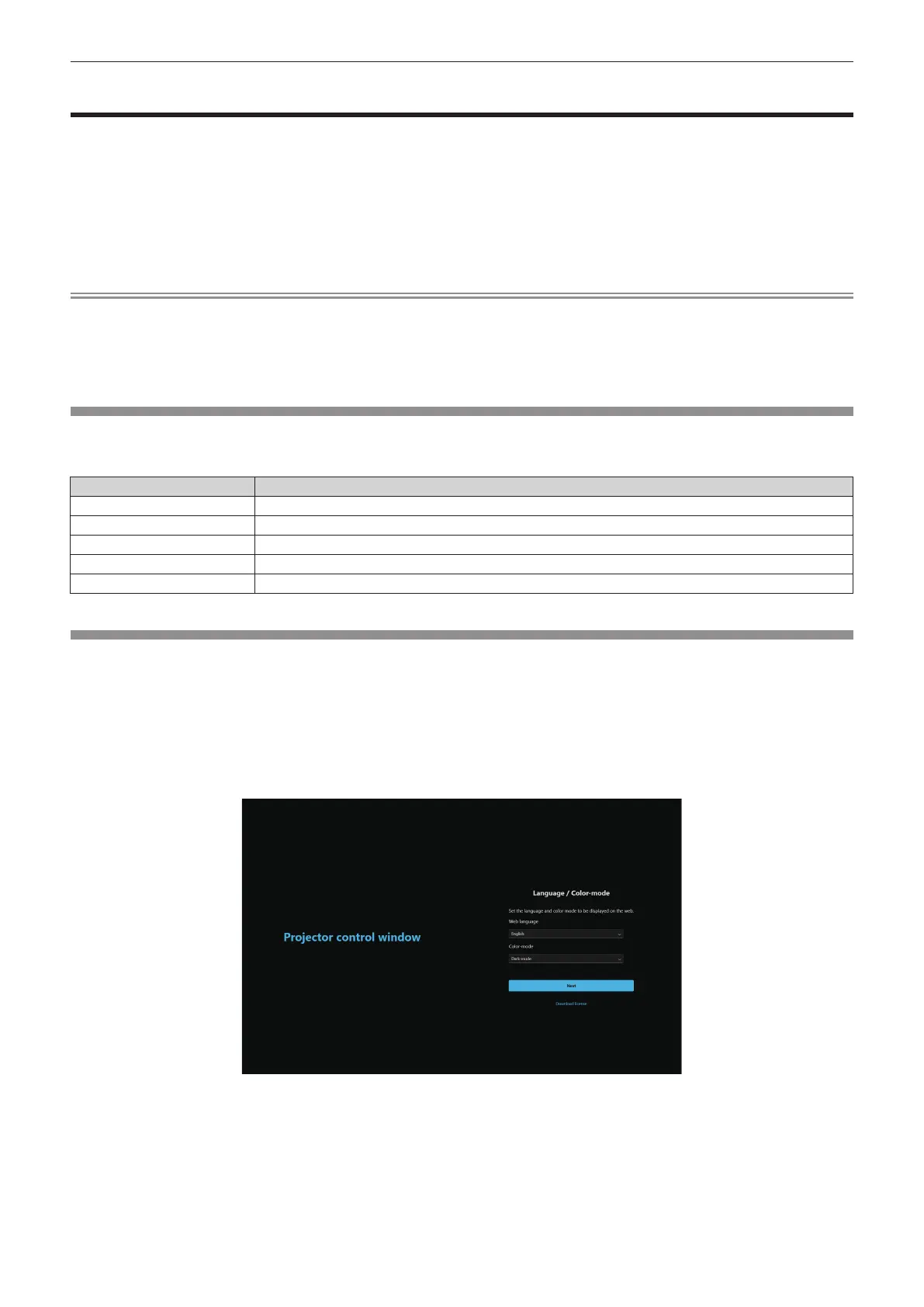
f When the administrator account is not set, the [Language / Color-mode] screen is displayed.
3) Set the language and color-mode, and click [Next].
f The [New administrator account set up] screen is displayed.














 To Next Page