Chapter 4 Settings — [POSITION] menu
ENGLISH - 109
[CURVED CORRECTION]
[VERTICAL BALANCE] [HORIZONTAL BALANCE]
[MAINTAIN ASPECT RATIO]
Select [ON] to correct while keeping the aspect ratio.
[FREE GRID]
Finer adjustment is possible by selecting the points or lines to be corrected.
For details of operation, refer to “Adjusting distortion with [FREE GRID]” (x page 110).
Setting [CORNER CORRECTION]
1) Press as to select [GEOMETRY].
2) Press qw to select [CORNER CORRECTION].
3) Press the <ENTER> button.
f The [GEOMETRY:CORNER CORRECTION] screen is displayed.
4) Press as to select the item to adjust, and press the <ENTER> button.
f When [LINEARITY] is selected, press qw to select either adjustment method ([AUTO] or [MANUAL]).
Select [AUTO] normally.
For details of operation when [MANUAL] is selected, refer to “Adjusting to desired linearity” (x page 109).
5) Press asqw to adjust.
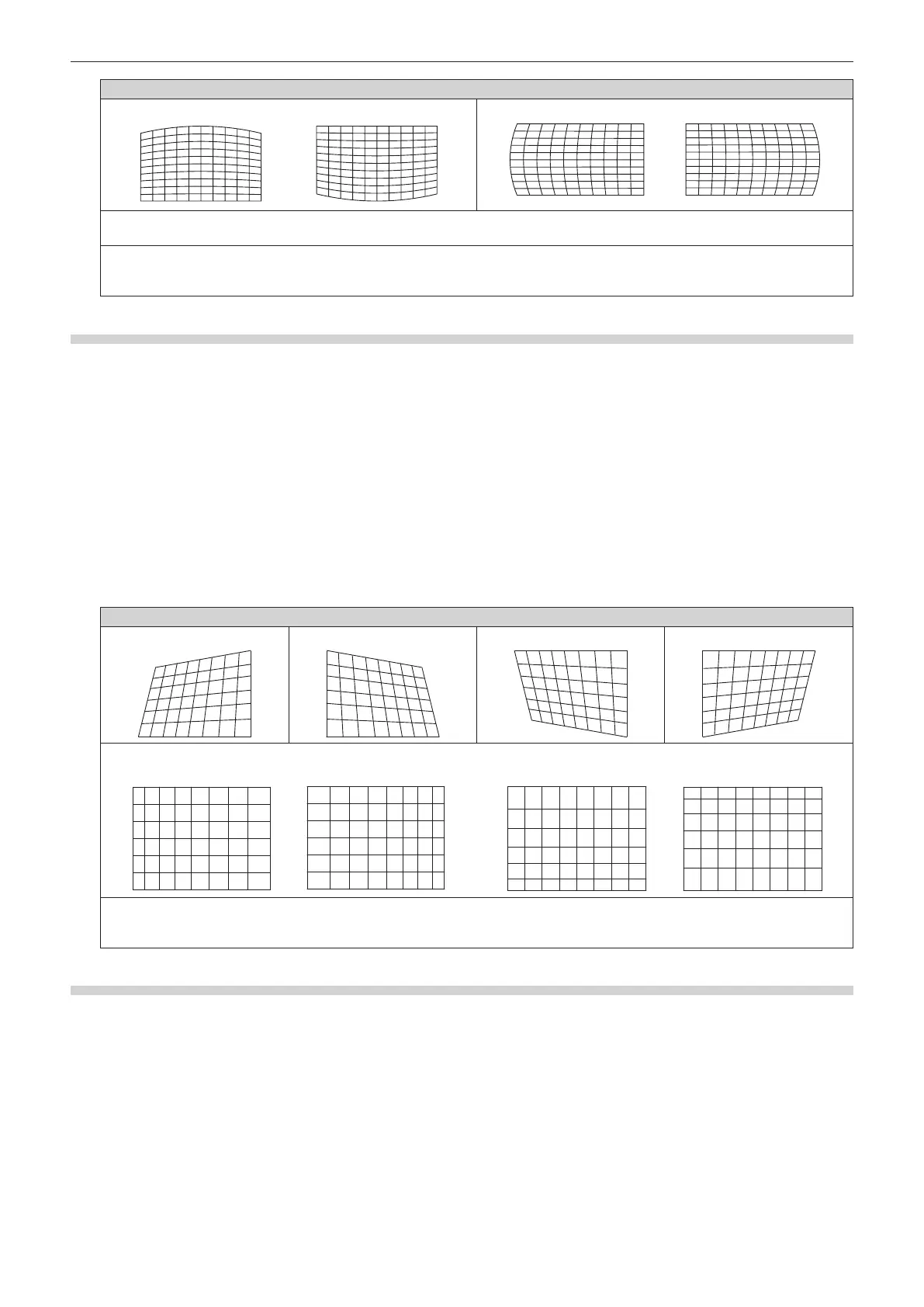
[CORNER CORRECTION]
[UPPER LEFT] [UPPER RIGHT] [LOWER LEFT] [LOWER RIGHT]
[LINEARITY]
Horizontal direction Vertical direction
[FREE GRID]
Finer adjustment is possible by selecting the points or lines to be corrected.
For details of operation, refer to “Adjusting distortion with [FREE GRID]” (x page 110).
Adjusting to desired linearity
1) Press as to select [GEOMETRY].
2) Press qw to select [CORNER CORRECTION].
3) Press the <ENTER> button.
f The [GEOMETRY:CORNER CORRECTION] screen is displayed.
4) Press as to select [LINEARITY].
5) Press qw to select [MANUAL].
6) Press the <ENTER> button.
f The [LINEARITY] screen is displayed.














 To Next Page