20
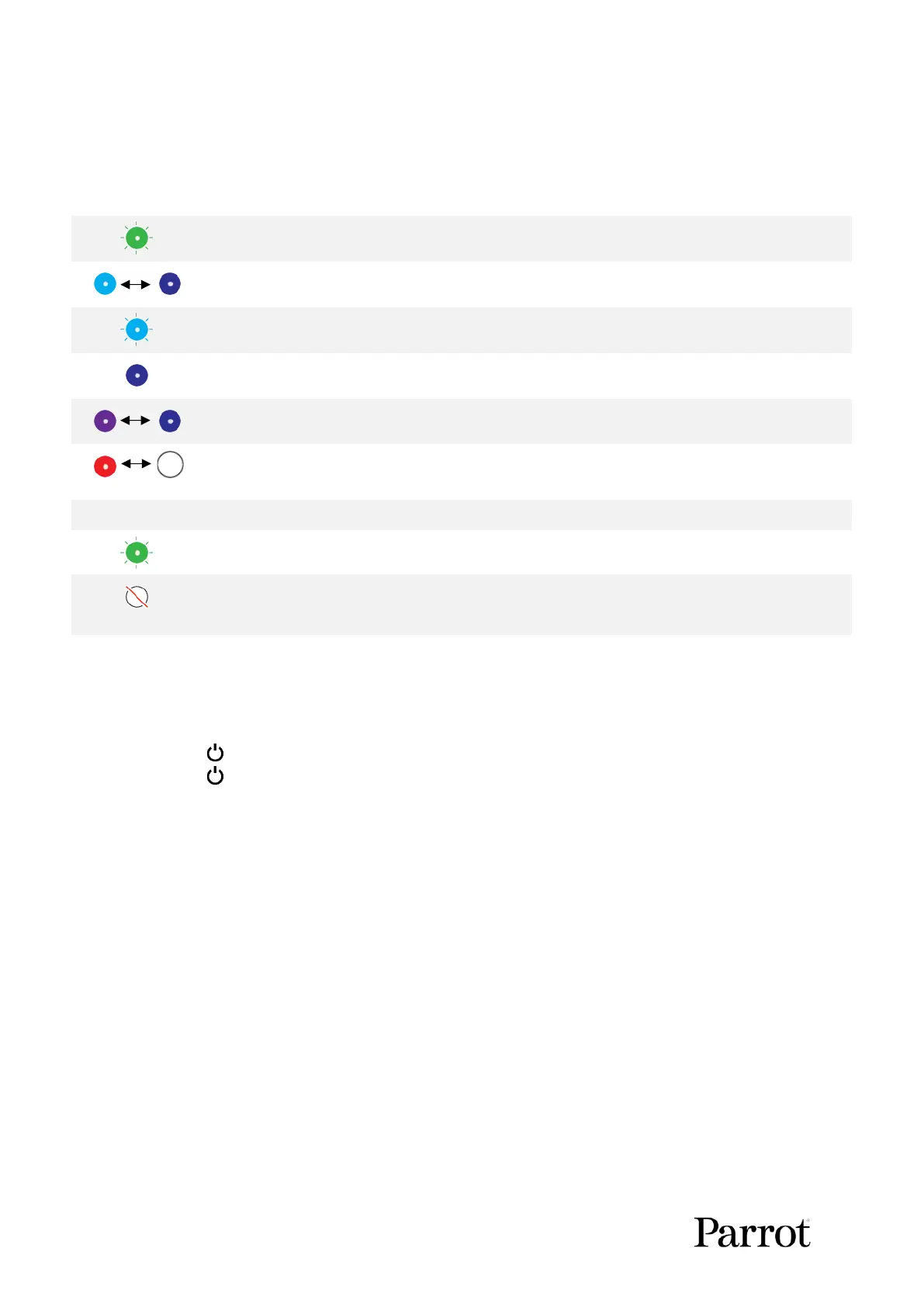
LED status indicator color codes
When the Skycontroller 4 is powered on, its status LED indicator (number 7 on image) and its charging
LED (number 16 on image) provide an instant visual indication:
Pairing ANAFI USA to a Skycontroller 4
Follow this procedure to pair a drone and a controller for the first time, and to restore the lost pairing
between a drone and a controller.
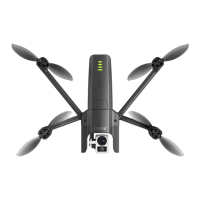
1. Verify that a compatible microSD card is inserted into ANAFI U SA.
2. Press Power on ANAFI USA.
3. Press Power on the Skycontroller 4.
4. Connect the drone and the controller with a USB cable (USB-C connection to the USB-C port
inside the right handle of the controller, USB-C connection to the drone).
5. The LED of the Skycontroller 4 repeatedly flashes green to indicate it acknowledges
ANAFI U SA, and to establish pairing protocols.
6. Wait for synchronization between Skycontroller 4 and ANAFI USA. The controller shows a
steady dark blue LED.
7. Verify that the left trigger of the Skycontroller 4 activates the drone’s gimbal to ensure the
synchronization is complete.
8. Disconnect the controller from the drone.
HDMI video sharing
Use a micro-HDMI to HDMI cable to connect the Skycontroller 4 to an external screen (or VR goggles).
The screen displays ANAFI USA’s video stream.
Note: External screens only display the drone’s video stream, and none of the additional information
provided by FreeFlight 6 USA. Operators can watch the drone’s view on an external screen, while they
navigate FreeFlight 6 USA menus (settings or dashboard) on the device associated to the Skycontroller
4.



 To Next Page