42
The Gallery also lets you:
- preview videos, without downloading them to your device;
- create panoramas (refer to the “Creating panoramas” section of this guide for more
information);
- format a microSD card;
- encrypt a microSD card (refer to the next sections of this guide for additional details).
To access the Gallery from the homepage of FreeFlight 6 USA, either tap the microSD card box, on the
top bar of the interface, or tap the Gallery box, at the center of the interface.
If ANAF I USA is powered on and connected to the device (directly or through the Skycontroller, the
FreeFlight 6 USA Gallery displays the microSD card media, by default.
Tap any media to preview it.
Tap any green media download box to transfer the corresponding media to your device.
Access the media you have downloaded to your device by tapping the Local box, at the top of the
interface.
MicroSD card formatting
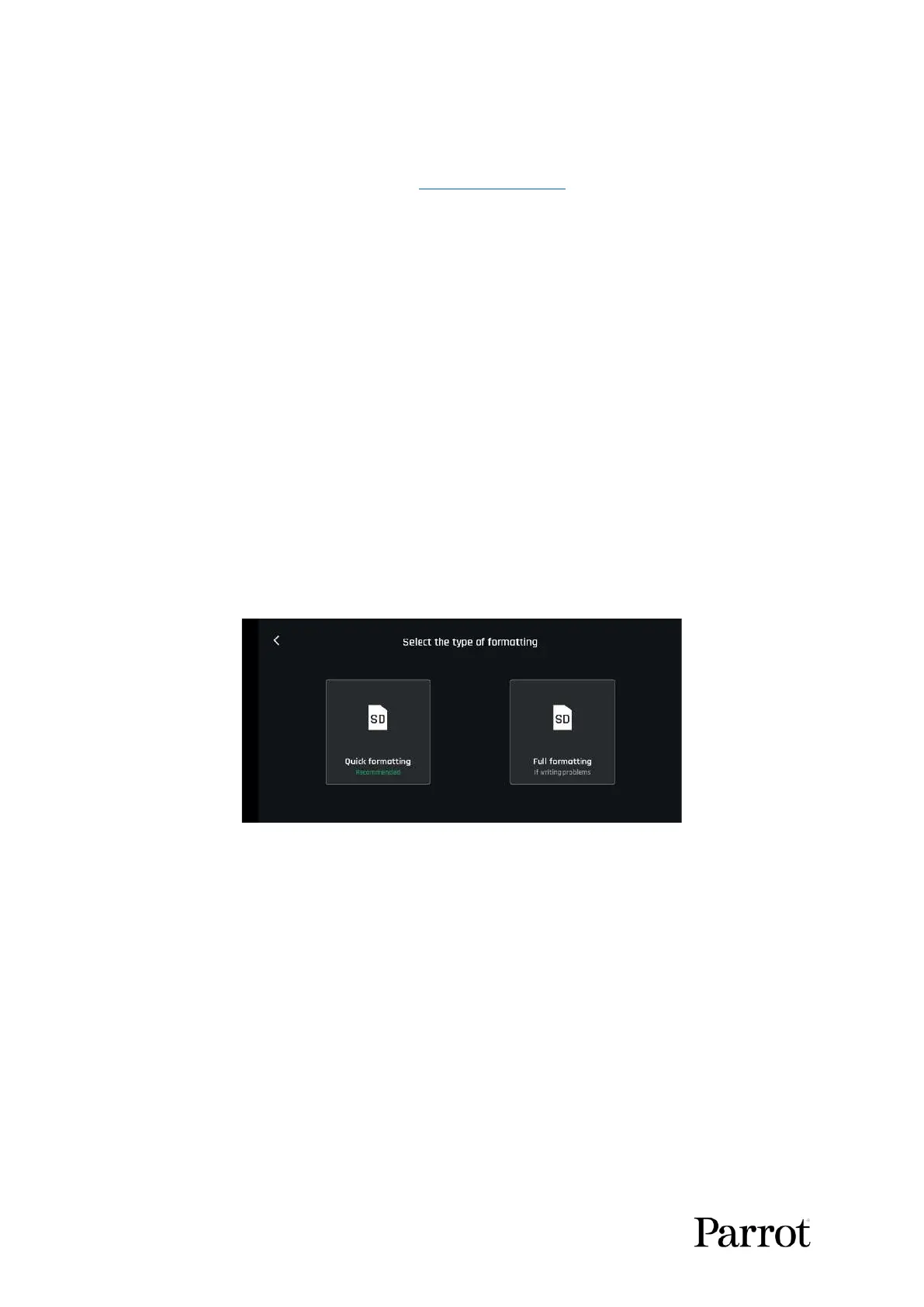
Tap the Format SD card button of the SD Card screen of FreeFlight 6 USA Gallery to Select the type of
formatting options. Select one of the following options:
Confirm your selection from the next screen to launch the formatting.
Important: Both options delete all microSD card contents, including flight data.



 To Next Page