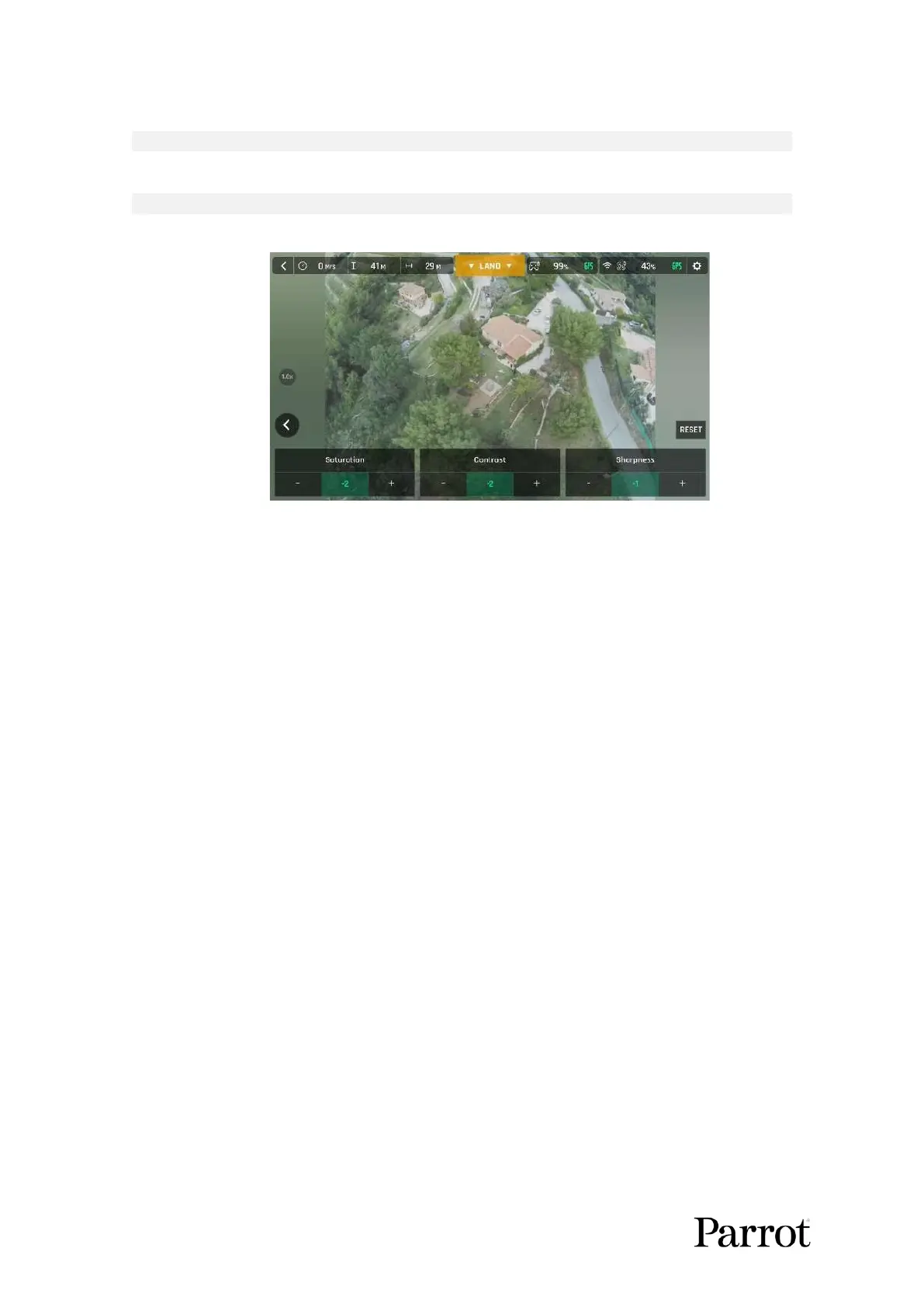
All settings at minimal values (iOS)
Tap the RESET button, on the right of the screen, to bring all values to 0 (zero).
Tap the < back, on the left of the screen, to confirm your settings and exit the ADJUSTMENT menu.
Lock AE
In FreeFlight 6 USA you can lock the general exposure of a view to fine-tune the framing of a shot and
keep the desired exposure.
To access this function, tap the Video settings box (video mode) or the Photo settings box (photo
mode) of the HUD.
A Lock AE icon appears, to the left of the HDR icon (it replaces the HDR icon in DNG+JPEG photo format,
as HDR is not available with this setting).
Tap the Lock AE icon to lock the exposure value to that of the current view. The icon turns yellow. A
yellow Lock AE box appears under the Next available action box, at the center of the top bar of the
HUD.
Move ANAFI USA around or tilt its gimbal to change the frame. The exposure settings remain as they
were when you activated the function.
Tap the Lock AE icon again to deactivate the exposure lock. The icon turns back to white, and the
yellow Lock AE box disappears.



 To Next Page