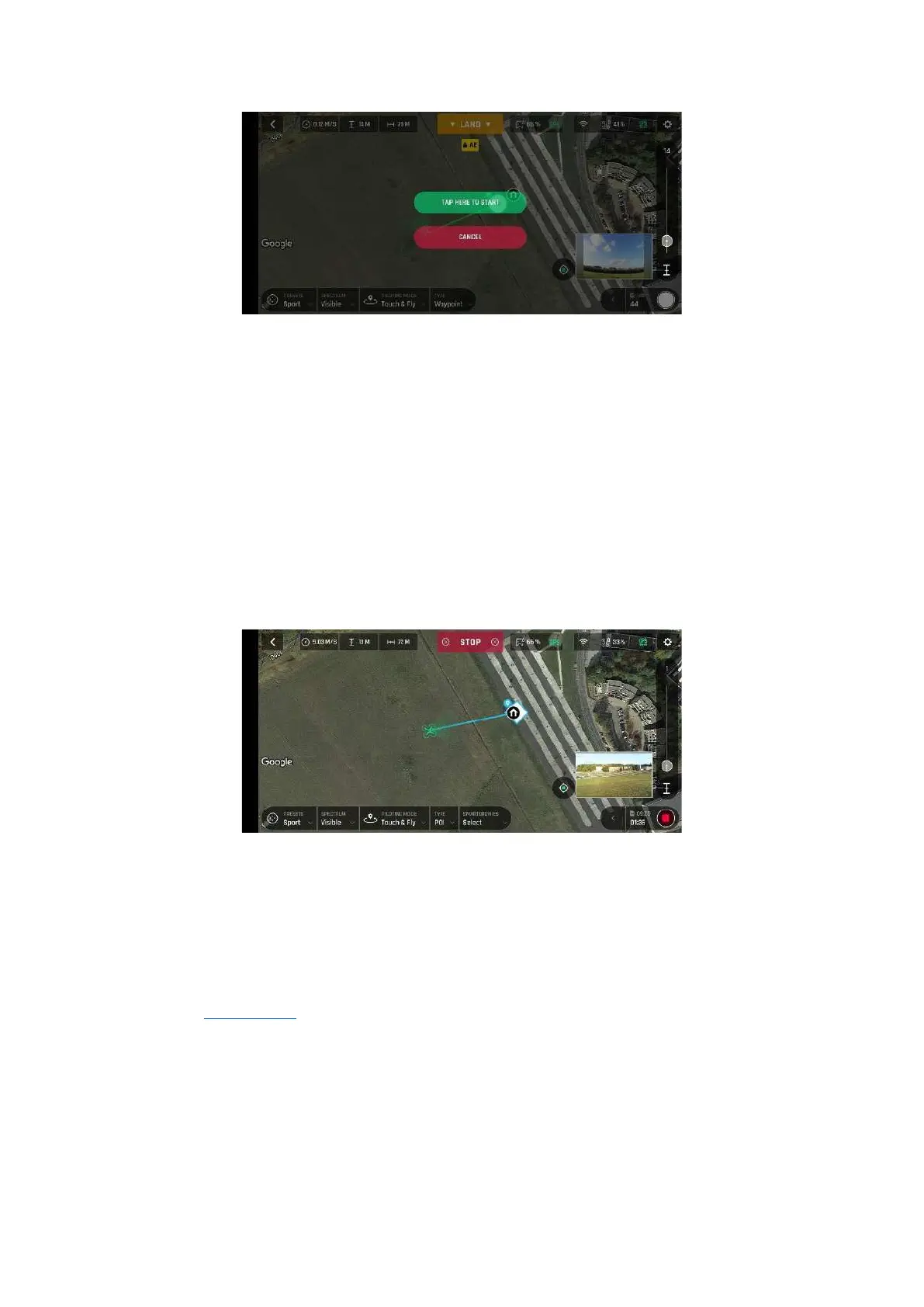
Android Touch & Fly Waypoint: first destination confirmation screen
Important: Activate Touch & Fly Waypoint with care. After the initial confirmation, any tap on the map
will immediately send AN AFI U SA to the corresponding spot. Parrot recommends you set your
FreeFlight 6 USA filming or photography options before activating the Touch & Fly Waypoint mode. If,
by mistake, you send ANAFI U SA toward a dangerous area, tap the STOP box at the center of the top
bar of the HUD, or firmly reclaim commands from the Skycontroller.
Touch & Fly: POI
To access the POI Touch & Fly option, tap the Type box from the lower bar of the HUD, and select POI.
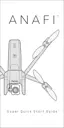
In POI mode, tap a point on the map to create a point of interest, marked as a white square diamond
with a blue border, labelled with a POI icon. Control the height of the POI (the blue figure inside the
square diamond) through the slider on the right. This controls the tilt of the gimbal, while you use the
Skycontroller to fly around your target. ANAFI USA remains focused on the POI.
Android Touch & Fly: POI
Tap STOP from the red box at the center of the top bar of your screen to halt ANAFI USA, or to reset
a POI.
From the Smartdronies box, next to the Type box of the lower bar of the HUD, you can also activate
Smartdronies (Orbit, Parabola, Dolly Zoom, Boomerang) of your POI.
Refer to the “Smartdronies” section of this guide for more information.



 To Next Page