Business Voice Continuity 52
Business Voice Continuity
Business VoiceEdge has many user-level features that ensure Business Continuity. Technical Administrators
may want to ensure that users understand these features and how they may impact a broader Business
Continuity plan.
Call Forwarding Not Reachable
There are several features that ensure your business voice continuity. The most important of these features
is Call Forwarding Not Reachable. With Call Forwarding Not Reachable, your incoming phone calls are
automatically routed to a pre-determined destination in the event of power outages, broadband outages,
device outages or natural disasters causing outages. No human intervention is needed. The service is set up
during the provisioning of your VoiceEdge service. However, users can change the settings at any time.
Note: The forwarding phone number must be permitted by your outgoing calling plan.
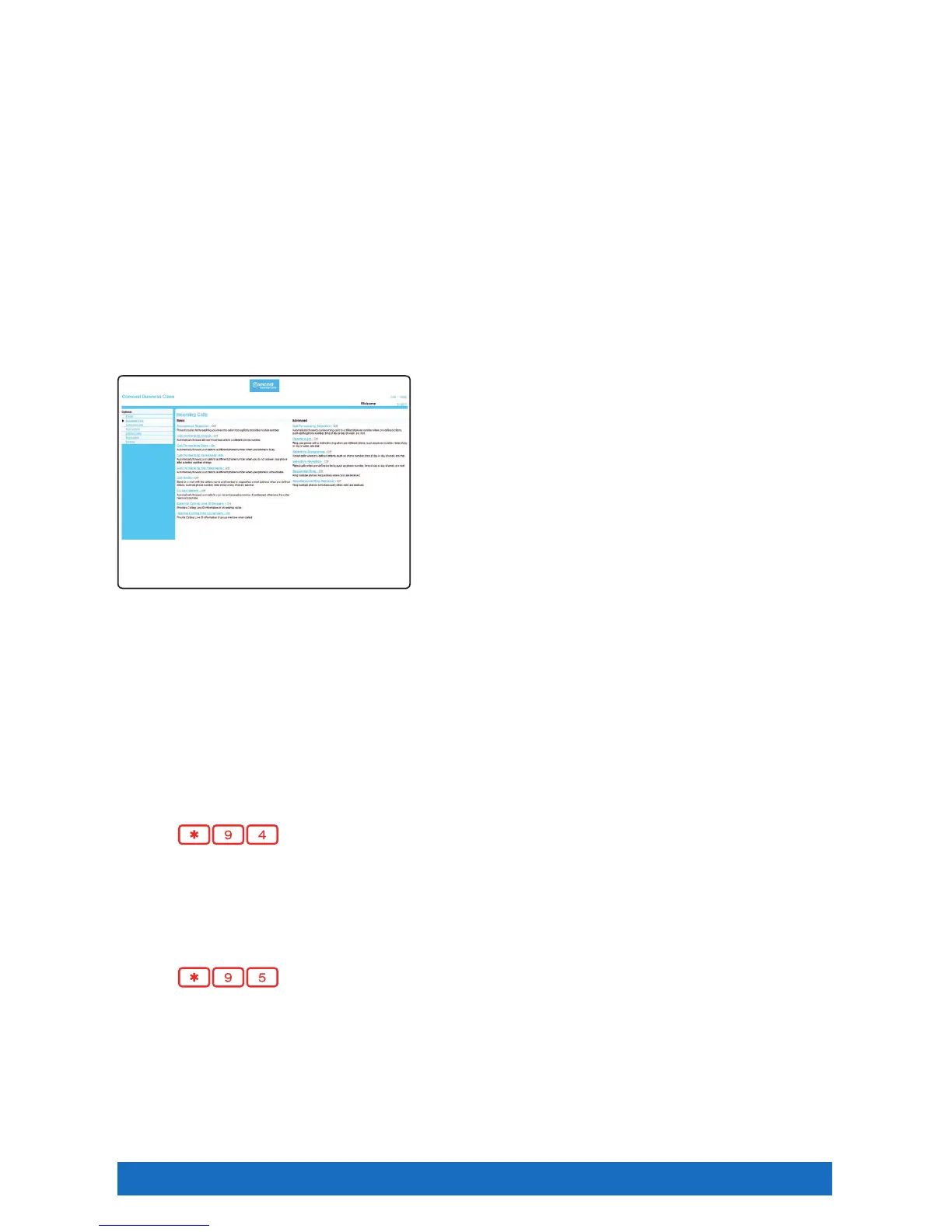
You can activate or change the phone number for this feature at Business VoiceEdge Online, or by using
Feature Access Codes on your device.
Business VoiceEdge Online activation of Call
Forwarding Not Reachable:
1. Click “Incoming Calls” on the upper, left-hand side of
your screen.
2. Click “Call Forwarding Not Reachable” to access the
customization screen for this feature.
3. The default setting for Call Forwarding Not Reachable
is “Off”. Click the “On” button to activate the feature.
4. Next, enter the telephone number that you want calls
routed to in the case of your business line not being
reachable. This could be a cell phone, a home phone or
an alternate business location.
5. After entering the telephone number for Call Forwarding Not Reachable, click “OK” to save and exit this
screen.
6. Call Forwarding Not Reachable has now been updated. All incoming calls will be routed to the number you
entered if your phone device should become unreachable.
Feature Access Code activation of Call Forwarding Not Reachable:
1. Lift the receiver and listen for the dial tone.
2. Press
.
3. A menu of options will guide you in managing this feature. The prompts will enable you to activate and
deactivate the feature as well as add and delete the numbers on your list.
To deactivate Call Forwarding Not Reachable:
1. Lift the receiver and listen for the dial tone.
2. Press
.
3. When prompted, press to turn the feature off.
Note: When entering the “forward to” number, remember to dial 1 and/or the area code before the number if it’s necessary to place the
call. When creating your list, enter the area code plus the 7-digit number for both local and long-distance numbers.





 To Next Page