93
MBOX® USER MANUAL
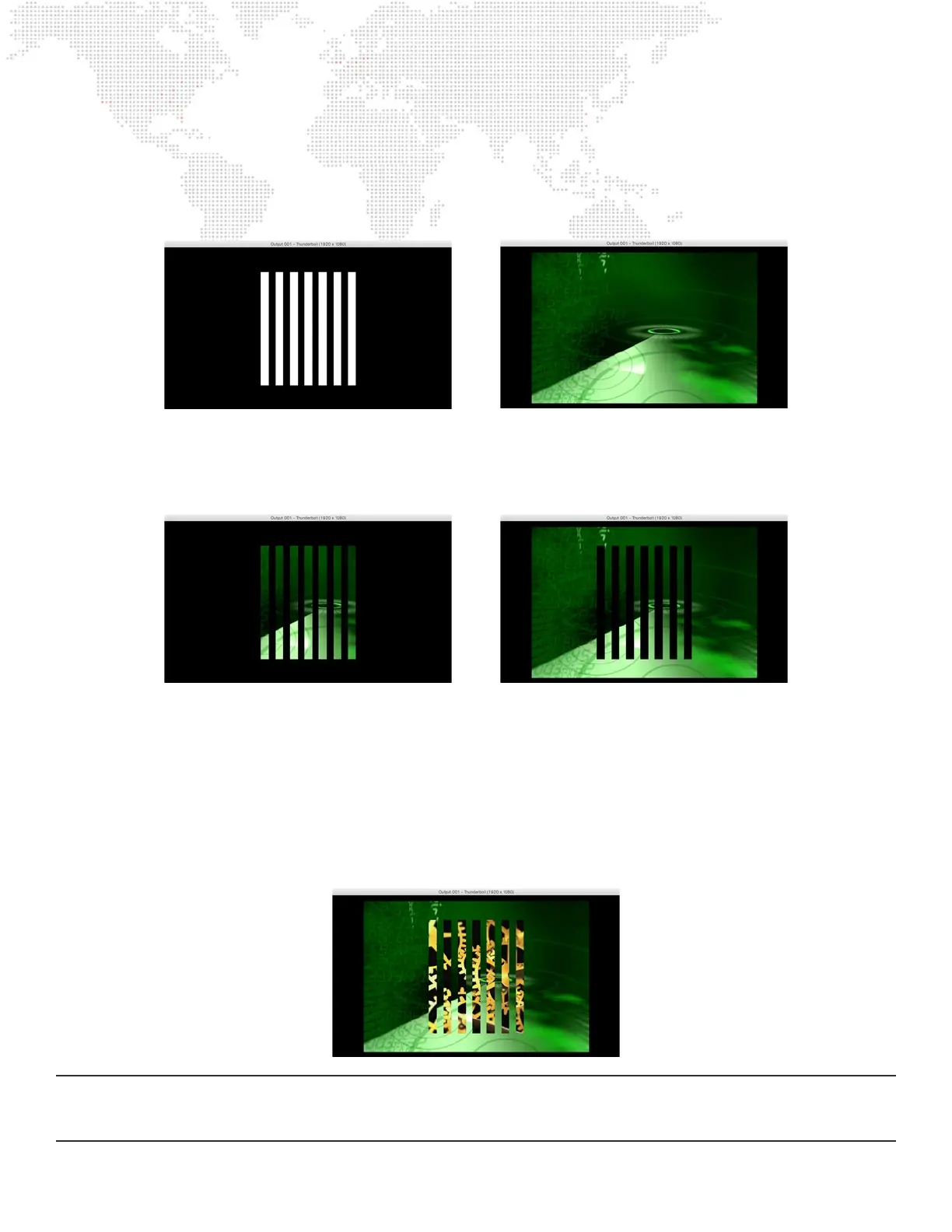
The following illustrations show an example of using a gobo to cut the stencil then using the stencil to affect a movie on
a higher-numbered layer. The left image shows a digital gobo on Layer 1 using Drawmode 1 (Light) - so that it can be
seen. The right image shows a movie clip on Layer 2 using Drawmode 0 (idle). The movie on Layer 2 obscures the gobo
on Layer 1 because Layer 2 is in front of Layer 1.
Below, on the left, Layer 2 has been set to Drawmode 6 (Draw thru Stencil), and on the right Layer 2 has been set to
Drawmode 8 (Draw onto Stencil). In both cases, the gobo on Layer 1 has been set to Drawmode 2 (Cut) to make it cut
the stencil. The the lighting on the gobo is now off, because the Drawmode has been changed.
It is important to realize that when a layer’s Drawmode is set to 6, the term “Draw Through Stencil” really means: draw
this layer’s texture only where the holes are in the stencil. This is like spray-painting through the holes in a cardboard
stencil. In the opposite case, if a layer’s Drawmode is set to 8, the term “Draw Onto Stencil” really means: draw this
layer’s texture only where the stencil does not have holes. This is like spray-painting onto the cardboard stencil itself.
By setting Layer 1 to Drawmode 5 (Cut and Draw plus Light) and applying a texture to Layer 1, Layer 1’s texture can be
shown instead of the black areas seen in the right-hand image above.
In the example below, Drawmode 5 causes the shape of Layer 1’s gobo to be cut into the stencil. Also, Layer 1’s texture
is applied to the gobo and the end result is that Layer 1’s texture is see in the holes in the stencil.
Note: In this particular example, the same result could also be achieved without using Drawmodes by placing the green
clip on Layer 1 and placing the textured gobo on Layer 2 making sure that Layer 2’s Drawmode set to 1 so the texture is
visible on the gobo.



 To Next Page