Chapter 6: Tekterm Application
Using The Task Manager To Switch Between Applications
226
Psion Teklogix 7535/7530 Hand-Held Computer User Manual
Once you’re done:
• Unlock the <BLUE> key.
6.4.1 Using The Task Manager To Switch Between Applications
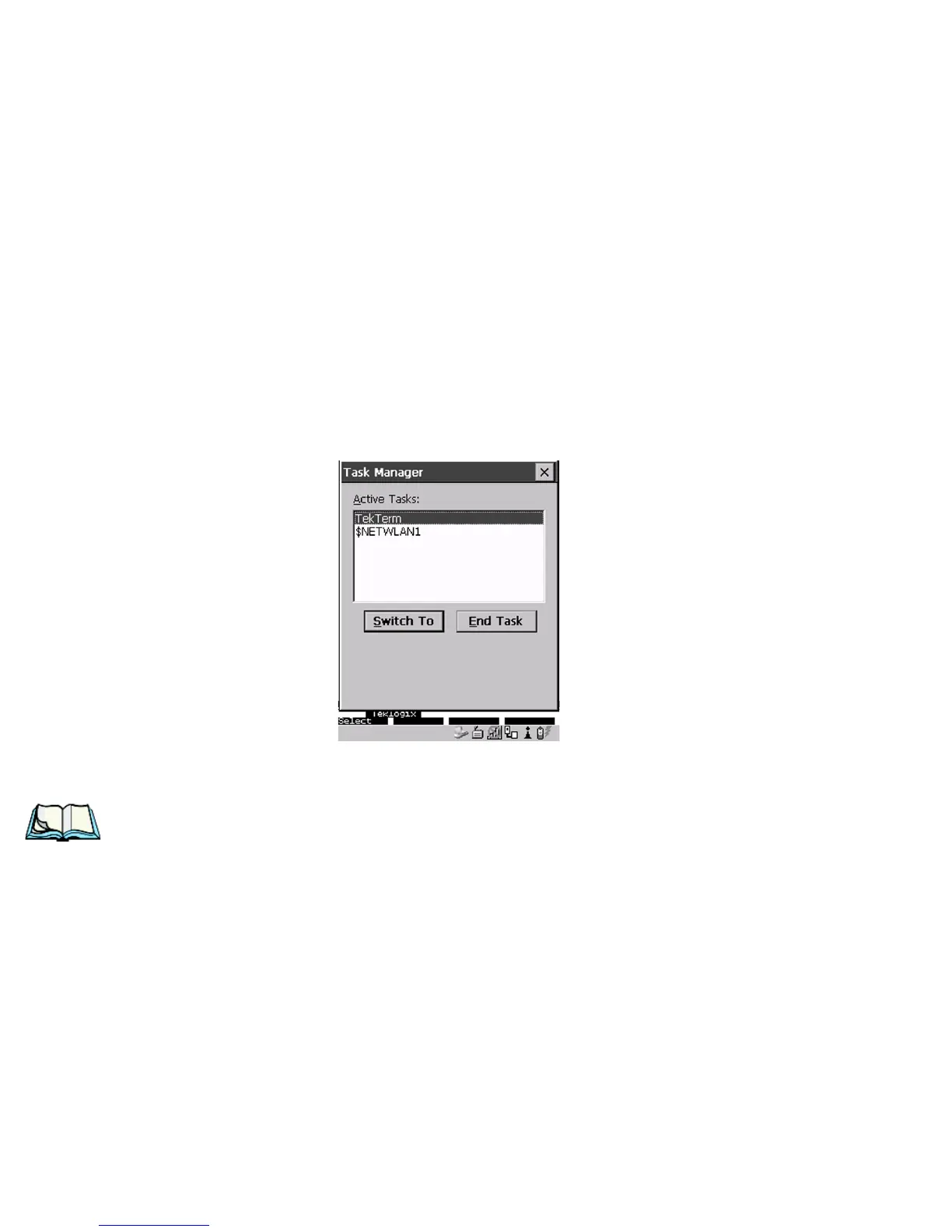
To display the Task Manager screen:
•In the Start Menu, tap on Shortcuts followed by Task Manager
.
If you’re using the keyboard:
• Press <BLUE> <0> to display the Start Menu.
• Highlight
Task Manager, and press <ENTER>, or
Type the underlined alpha character – in this case, the letter t.
Figure 6.1 Task Manager Screen
Note: To bypass the Start Menu and go directly to the ‘Task Manager’ screen,
press <ALT> <ESC>.
To switch between applications:
• Highlight the application you want to work with, and press <ENTER>.
To end or close an application:
• Highlight the application you want to end, and tap on the End Task button.
If you’re using the keyboard:
• Press <TAB> to highlight the End Task button, and press <ENTER>.



 To Next Page