Psion Teklogix 7535/7530 Hand-Held Computer User Manual 21
Chapter 2: Basic Checkout
Installing The Battery And Switching The Hand-Held On
2.2.1 Installing The Battery And Switching The Hand-Held On
If you are not using a docking station or PDM:
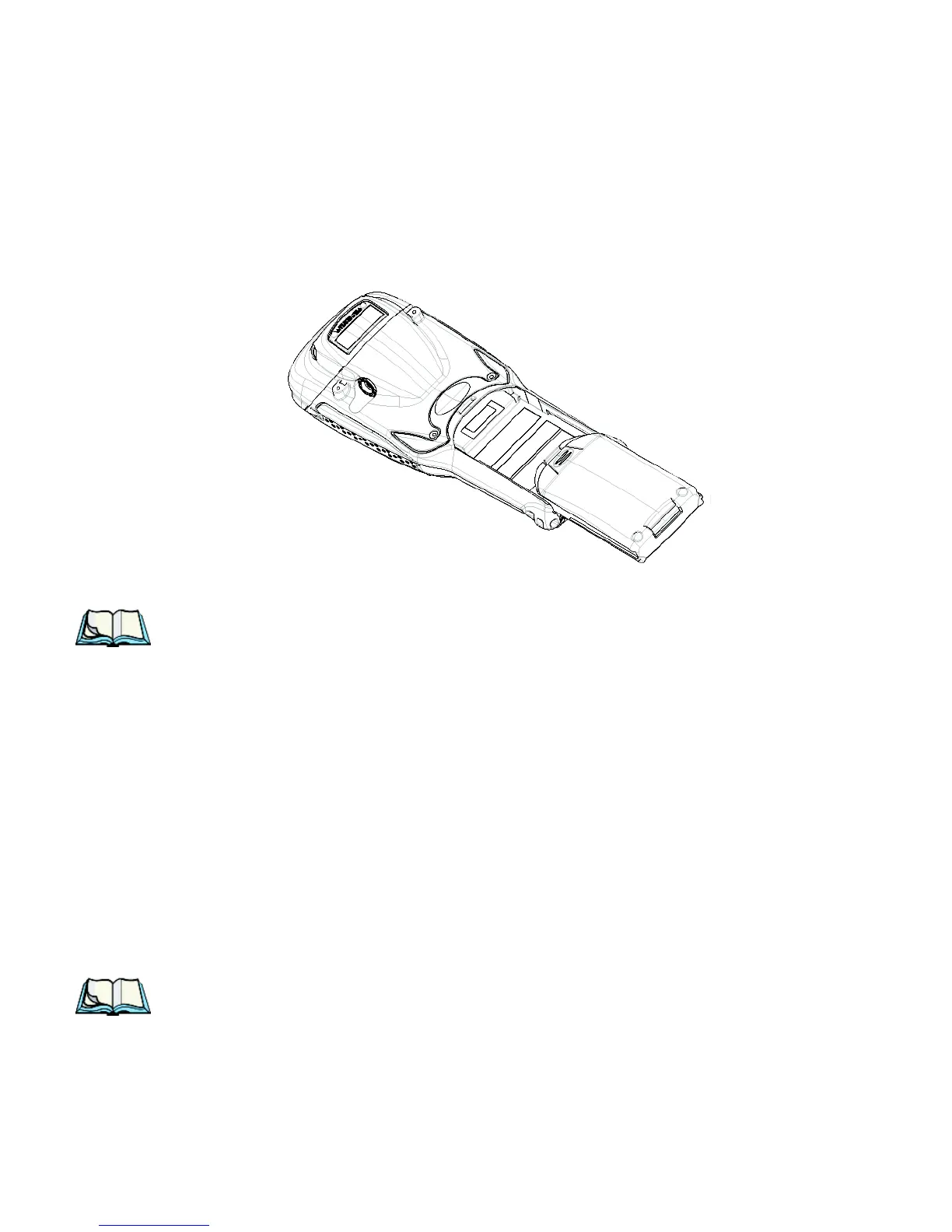
• Slide the charged battery with the contoured plastic facing you into the unit.
Click the battery into place.
Figure 2.4 Installing The Battery
Note: If you are using a docking station, you can insert an uncharged battery,
dock the unit and switch it on.
If you are using a PDM, you can configure your unit without a battery, with
a charged battery or with an uncharged battery.
If you are using a hand strap:
• Hook the bottom of the hand strap into the slot at the base of the battery.
To switch the unit on:
• Press and hold down the <ENTER/ON> key for at least one second.
• When all four LEDs flash yellow, release the <ENTER/ON> button.
A splash screen displaying the Psion Teklogix logo and the Windows CE .NET
logo appears. When Windows CE has successfully loaded, the startup desktop
is displayed.
Note: The screen may go blank for a few seconds after the splash screen loading
bar reaches the end. This is part of the normal Windows CE .NET cold
boot process. The desktop is displayed after a few moments.



 To Next Page