Psion Teklogix 7535/7530 Hand-Held Computer User Manual 69
Chapter 4: Working With Windows CE
The Startup Desktop
If you’re using the keyboard:
• Use the arrow keys to highlight the icon you want to open or launch.
• Press <ENTER>.
4.3 The Startup Desktop
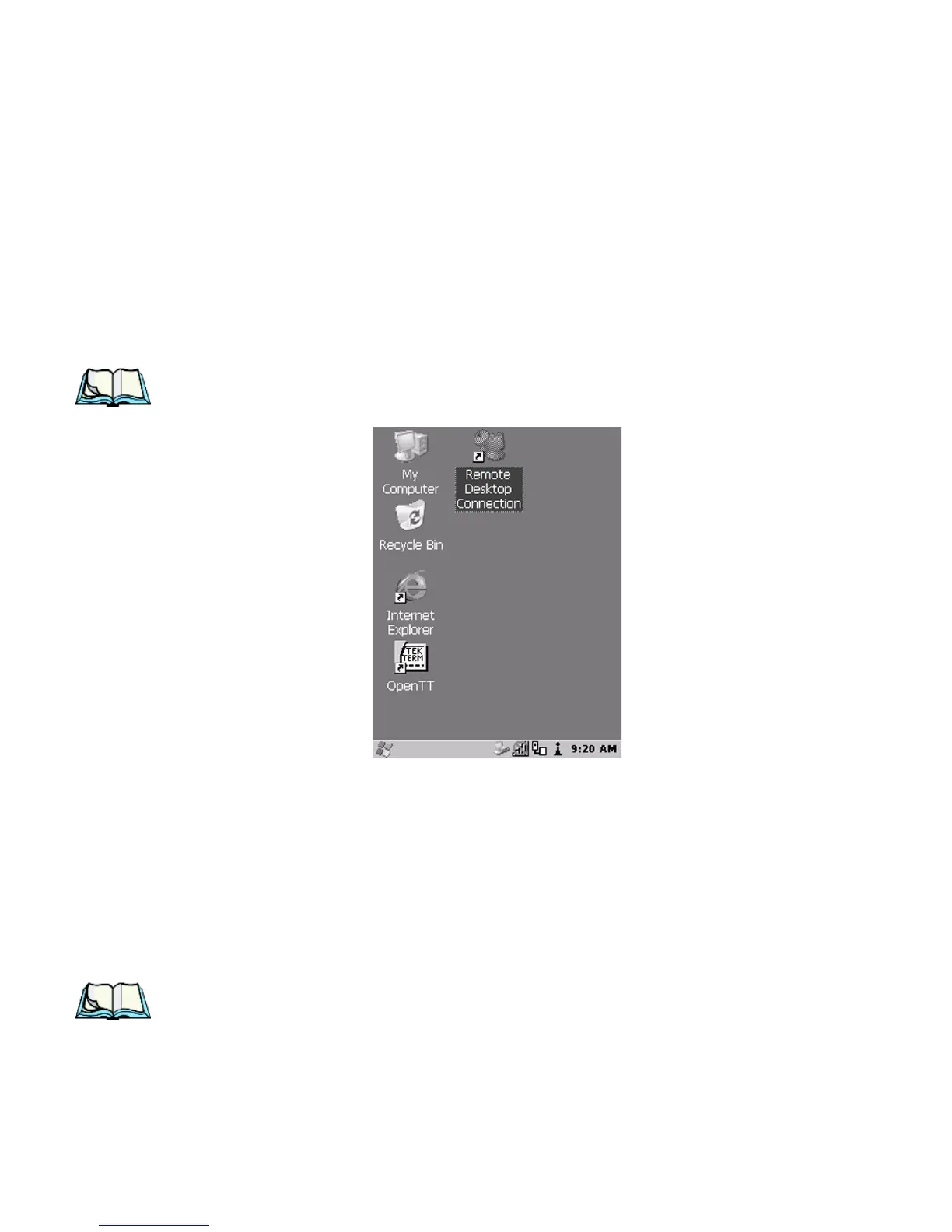
When the 7535/7530 boots up, the startup desktop (shell) is displayed. Any
applications stored in the Startup folder start up immediately.
Note: The startup folder is located in \Windows\StartUp and
\Flash Disk\StartUp.
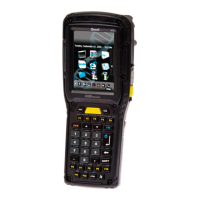
Figure 4.2 The 7535 Startup Desktop
To access desktop icons:
• Double-tap on the icon to open a window or, in the case of an application
icon, launch an application.
On the keyboard:
• Use the arrow keys to highlight the icon, and press <ENTER> to launch the
highlighted icon.
Note: If the arrow keys do not highlight the desktop icons, the desktop may not
be selected. Press <BLUE> 0 (zero) to display the Start Menu, and select
Desktop. Now the desktop will be “in focus” and the arrow keys will high-
light the icons.


 To Next Page