PathMaster® Manual Rev. H 6/03
- 29 -
• Select the control handle to be used.
• Click the OK button.
Saving Machine Parameters
Once all machine parameters have been set, click the Save & Close button to save the parameters and return
to the main PathMaster® window.
Database Backup and Restoration
It is extremely important that the PathMaster® database be backed up properly. Precision Valve &
Automation strongly recommends that the entire database be backed up (manually) before and after any
changes are made to projects or programs. Precision Valve & Automation is not responsible for any lost
data or production time due to improper database backup procedures.
Automatic Backup
PathMaster® will perform an automatic backup of the entire database each day that PathMaster® is
executed. PathMaster® utilizes a rolling ten day automatic backup scheme, therefore, backup file will be
stored for the last ten days that PathMaster® was executed. All automatic backups are stored in the
Db\Daily sub folder of the PathMaster® application folder. The default location of these files is
“c:\program files\pva\pathmaster\db\daily”.
Manual Backup
A manual database backup is by far the safest method. This method requires a conscious effort by the user,
and therefore, should be part of a their programming procedure. To perform a manual database backup,
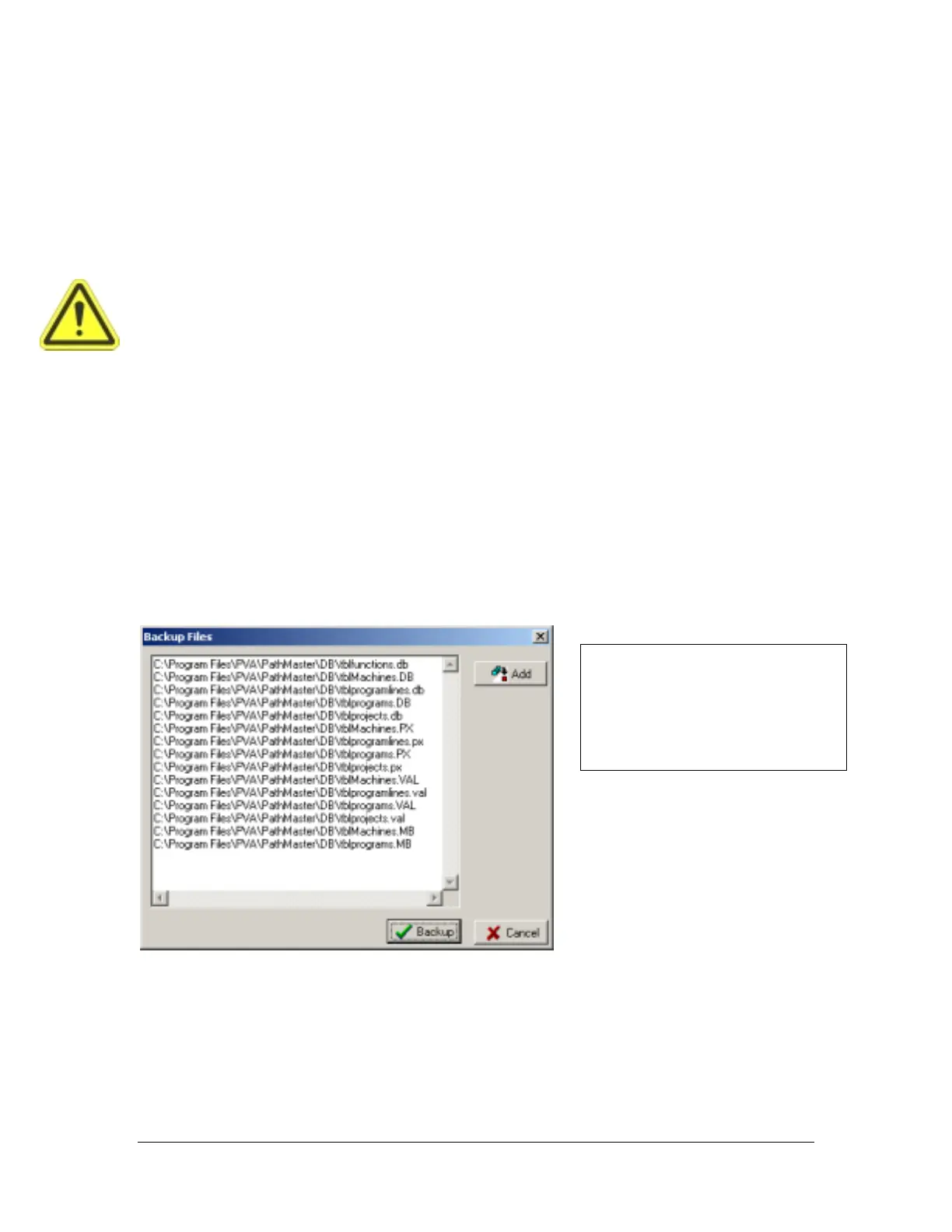
select the File -> Database -> Backup option from the main menu. Save the project if prompted to do so.
When the Backup Files form opens, click the Backup button.
The Save As dialog box opens. Select a destination and a filename for the backup file (the backup will
only be 1 file). The backup file extension will be ‘bck’. Click the Save button. The PathMaster® database
backup is complete.
OTE: Additional files can be added
to the backup by clicking the Add
button and selecting the file. This is
not normally necessary for a
complete PathMaster® database
backup.


 To Next Page