EasyManua.ls Logo

RADVision Scopia XT5000 Series - User Manual

RADVision Scopia XT5000 Series
113 pages
Print Icon
To Next Page IconTo Next Page
Loading...
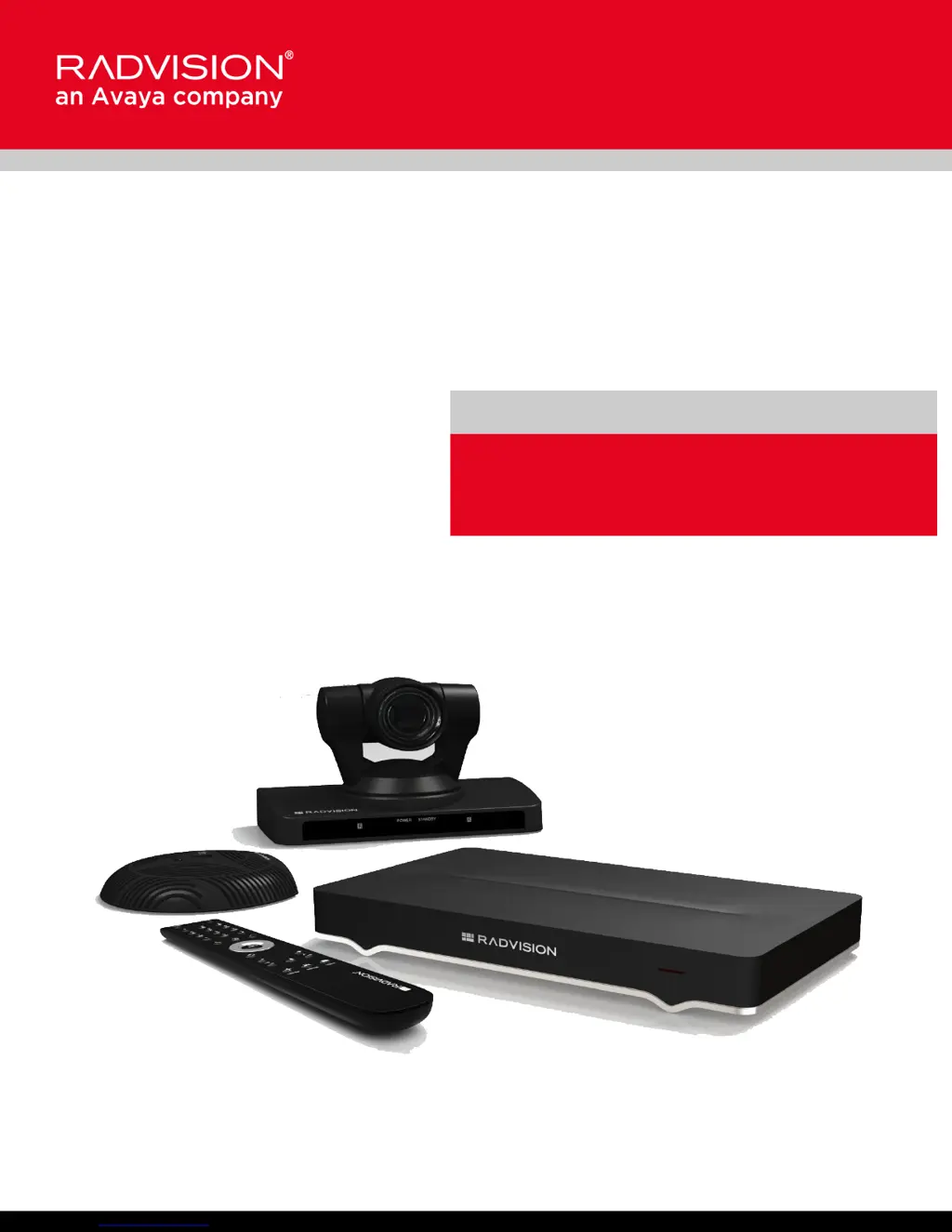
Scopia XT5000 Series
User Guide
Version 3.2
For Solution 7.7, 8.0.x, 8.2
3.2

Table of Contents

Other manuals for RADVision Scopia XT5000 Series

Questions and Answers

  • C
    Christopher SilvaAug 21, 2025
    How to fix no audio on RADVision IP Phone?
    • J
      Jessica CampbellAug 21, 2025
      If you cannot hear audio after setting up the RADVision IP Phone system, first ensure the system volume isn't muted by checking the XT Remote Control Unit. If the volume is not the problem, initiate audio tests during a call to verify the audio input and output functionality.
  • S
    Shelby ColemanSep 3, 2025
    How to troubleshoot if I cannot dial out with my RADVision Conference System?
    • T
      Tamara TaylorSep 3, 2025
      If you cannot dial out or connect to an outgoing SIP or H.323 video call using your RADVision Conference System, verify you dialed the correct number or address. Additionally, recheck the Network Configuration, Network Preferences, and H.323/SIP Proxy settings.
  • V
    Victor BrownSep 1, 2025
    What to do if my RADVision Conference System displays a blank screen?
    • R
      Rachel MackSep 1, 2025
      If your system displays a blank screen, verify the power cord of the XT Codec Unit and the monitor are properly connected at both ends. Ensure the monitor power switch is set to ON. Check that the XT Codec Unit’s LED is on; if it’s blinking, press the Power key on the XT Remote Control Unit. Also, make sure the XT Codec Unit output is properly connected to the monitor input and that the monitor/DVI cable is correctly connected at both ends.
  • J
    jonathan90Aug 30, 2025
    Why can't the other party hear or see me on my RADVision Conference System?
    • R
      Regina BrownAug 31, 2025
      If the other party in a call cannot see or hear you, ensure your Microphone Pod is correctly connected to the system. Also, check that the Video Privacy and Mute functions are not enabled, indicated by 'No video' or 'No audio' in the system's top bar menus. If they can hear you but not see you, verify your Call Type is set to 'Audio & Video' and not 'Audio Only'.
  • M
    Mr. Ryan ShahAug 29, 2025
    How to see camera output on RADVision IP Phone?
    • K
      Kathleen GreenAug 29, 2025
      If you cannot see the camera’s output after setting up your RADVision IP Phone, you can check the camera's output remotely from the Scopia XT Series web interface by selecting More Actions > Web Video.
  • J
    Jonathan CopelandAug 27, 2025
    Why can't I move the camera on RADVision IP Phone?
    • S
      Susan WilkinsAug 28, 2025
      If you can see the camera’s output on your RADVision IP Phone but cannot move the camera, change the video source to the correct camera. Ensure the camera is correctly connected to the system. Also, make sure the Moving setting is enabled.
  • R
    Rachel KiddAug 26, 2025
    Why RADVision IP Phone screen flickering?
    • J
      Joshua FreemanAug 27, 2025
      If the RADVision IP Phone system is displaying a flickering or blank screen, ensure that the rear panel of the XT Codec Unit is connected to both a main and auxiliary screen using the two HD outputs. Have your system administrator configure the system for the correct video resolution. When you are not in a call, you can also adjust the refresh frequency of the monitor display.
  • D
    Debra MyersAug 25, 2025
    Why is RADVision IP Phone remote control not working?
    • M
      Mason BridgesAug 25, 2025
      If the XT Remote Control Unit for your RADVision IP Phone isn't working, try replacing the battery. If a new battery doesn't solve the problem, check the XT Remote Control Unit code on the XT Codec Unit and ensure it matches the setting on the remote. As a last resort, reconfigure the XT Remote Control Unit code to a number between 01 and 04.
  • L
    lawrence91Aug 23, 2025
    What to do if RADVision IP Phone displays a blank screen?
    • N
      Nathan BrooksAug 23, 2025
      If your RADVision IP Phone system displays a blank screen, start by verifying that the power cord of the XT Codec Unit is securely connected at both ends, and that the monitor's power cord is also properly connected. Ensure that the monitor power switch is turned ON. Check if the XT Codec Unit’s LED is lit; if it’s blinking, press the Power key on the XT Remote Control Unit. Finally, confirm that the XT Codec Unit output is correctly connected to the monitor input, ensuring the monitor/DVI cable is firmly attached at both ends.

Summary

Getting Started

Performing Basic Configuration

Details the essential settings for system name, language, and network configuration.

Starting a Videoconference

Dialing a Number Directly from the Endpoint

Details the most common method for placing calls directly from the endpoint.

Answering and Ending a Video Call

Covers manual or automatic call answering and how to end a videoconference.

During Your Videoconference

Sharing Content

Details how to share a presentation or any other file from a PC during a call.

Hosting Videoconferences with the Built-in MCU

Troubleshooting the Scopia XT Series

Resolving Monitor Display Problems

Offers solutions for common issues like flickering or blank screens on monitors.

Restoring Default User Settings

Explains how to restore the system to its default user settings if needed.

RADVision Scopia XT5000 Series Specifications

General IconGeneral
BrandRADVision
ModelScopia XT5000 Series
CategoryConference System
LanguageEnglish

Related product manuals