ProSYS User Guide 51
12)
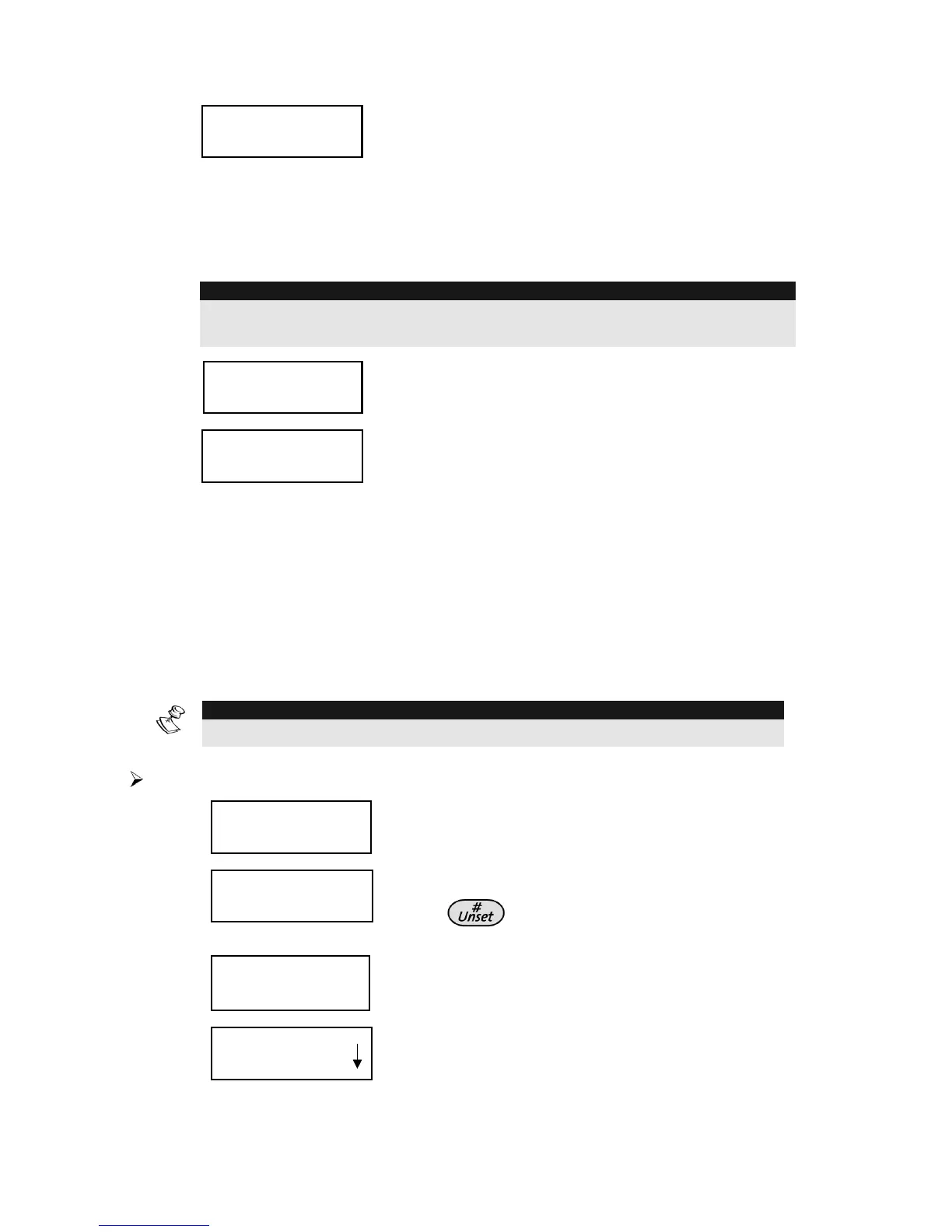
PO HOLIDAY S:01
PO HOLIDAY S:01
YES/NO? N
YES/NO? N
PO HOLIDAY S:01
PO HOLIDAY S:01
YES/NO? N
YES/NO? N
N: During holidays, POs are activated in the
same way as defined in the time windows of
the week.
Y: POs are activated during the holiday
according to the time schedule defined in the
next step (holiday definition).
NOTE:
If all the time intervals during the holiday are defined as 00:00, then the POs are
not activated during the holiday.
13)
SCHEDULE LABEL:
SCHEDULE LABEL:
SCHEDULE 03
SCHEDULE 03
SCHEDULE LABEL:
SCHEDULE LABEL:
SCHEDULE 03
SCHEDULE 03
Enter a name for the scheduling program.
14)
SCHEDULER:
SCHEDULER:
03)
03)
SCHEDULE 03
SCHEDULE 03
SCHEDULER:
SCHEDULER:
03)
03)
SCHEDULE 03
SCHEDULE 03
Define additional weekly programs, as
required.
Defining a User Limitation Program
A user limitation program automatically prevents certain users from
unsetting the system during specified time intervals. By default, all
users of the system operate without this limitation.
When defining a user limitation program, you need to define the
following three parameters: Users, Time Schedule, and Label.
NOTE:
By default, all users are not restricted.
To define a user limitation program:
1)
USER FUNCTIONS:
USER FUNCTIONS:
1) OMIT
1) OMIT
USER FUNCTIONS:
USER FUNCTIONS:
1) OMIT
1) OMIT
From the User Functions menu, select
[6] Clocks.
2)
INSERT CODE:
INSERT CODE:
INSERT CODE:
INSERT CODE:
Enter the Grand Master code and
press
.
3)
SET CLOCKS:
1) SYSTEM TIME
SET CLOCKS:
1) SYSTEM TIME
Select [5] Scheduler.
4)
SCHEDULER:
SCHEDULER:
01)SCHEDULE 01
01)SCHEDULE 01
SCHEDULER:
SCHEDULER:
01)SCHEDULE 01
01)SCHEDULE 01
Select a program other than those already
being used for automatic setting or PO
activation.



 To Next Page