Basic Operations
Basic Operations
28
• Do not load inappropriate originals or origi-
nals of mixed sizes into the ADF.
This can causes paper jams or trouble.
)p.17
Note:
• You can place up to about 50 sheets of orig-
inals in the ADF unit.
• The Custom Setting mode allows you to set
the Auto-Process to perform automatically
when an original is placed in the ADF unit.
)p.64
• If using the Custom Setting mode you select
ON for Semi-Auto, the next master-making is
automatically started and then the machine will
stop when the ADF unit contains originals.
)p.64
4 Make necessary settings.
Make various settings including image processing
mode selection.
)p.32~)p.45
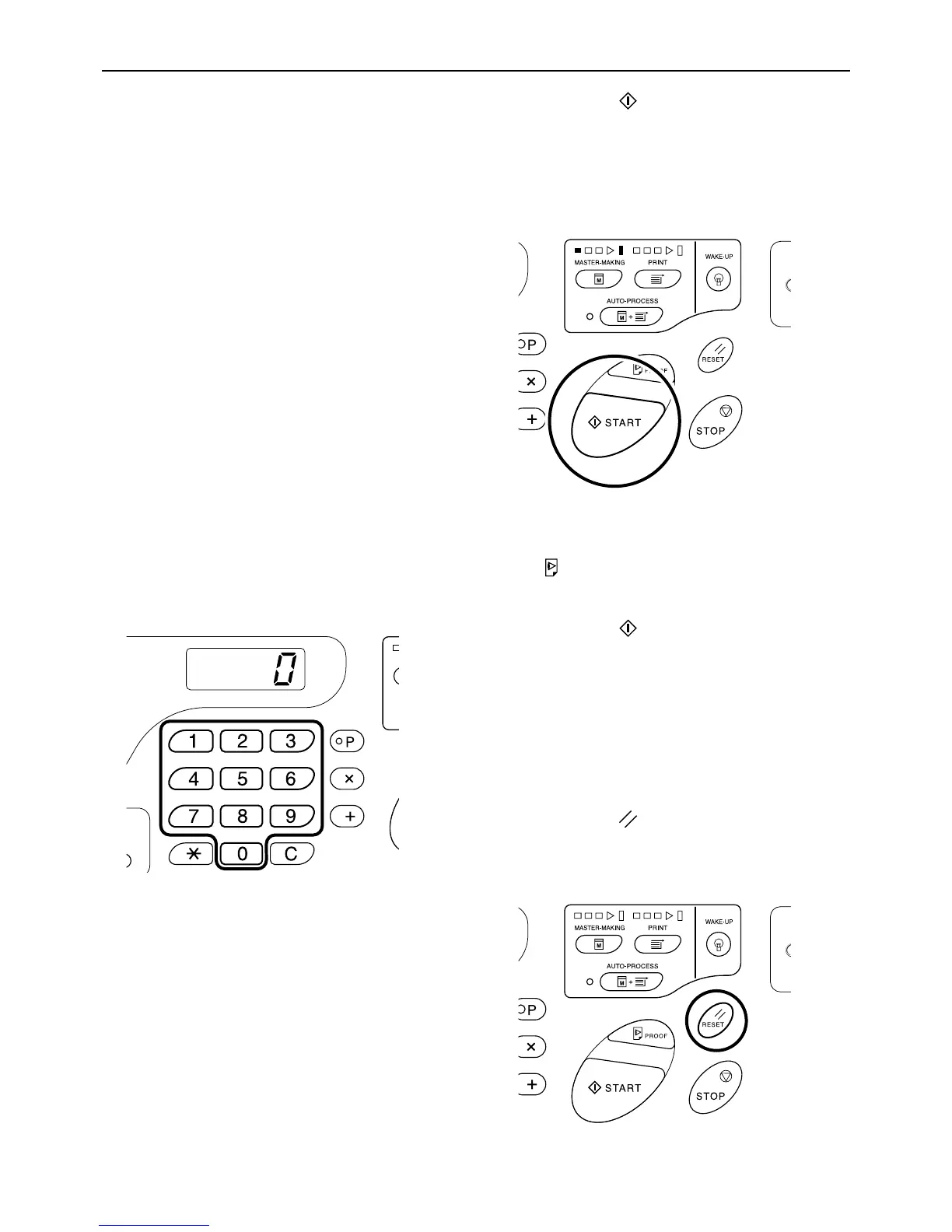
5
Enter the number of copies to be
printed, using the Print Quantity keys.
The specified number is shown on the Print Quan-
tity Display.
Note:
• If you enter an incorrect number, press the [C]
key, and then enter the correct number.
6 Press the key.
The original is scanned, and a master is made.
After a master has been made, a sample copy is
printed.
Check the sample copy result; e.g., print position
and density.
Note:
• You can change the settings for print position
and density. After changing the settings, press
, and then check the proof copy result.
)p.46~)p.49
7 Press the key again.
The specified number of copies is printed.
Note:
• You can change the print speed using the Print
Speed Adjustment keys.
)p.49
• If printing is stopped halfway, check the display.
)p.100~)p.109
8 Press the key.
After printing has been finished, return the set-
tings to the initial settings.



 To Next Page