27
Basic Operation
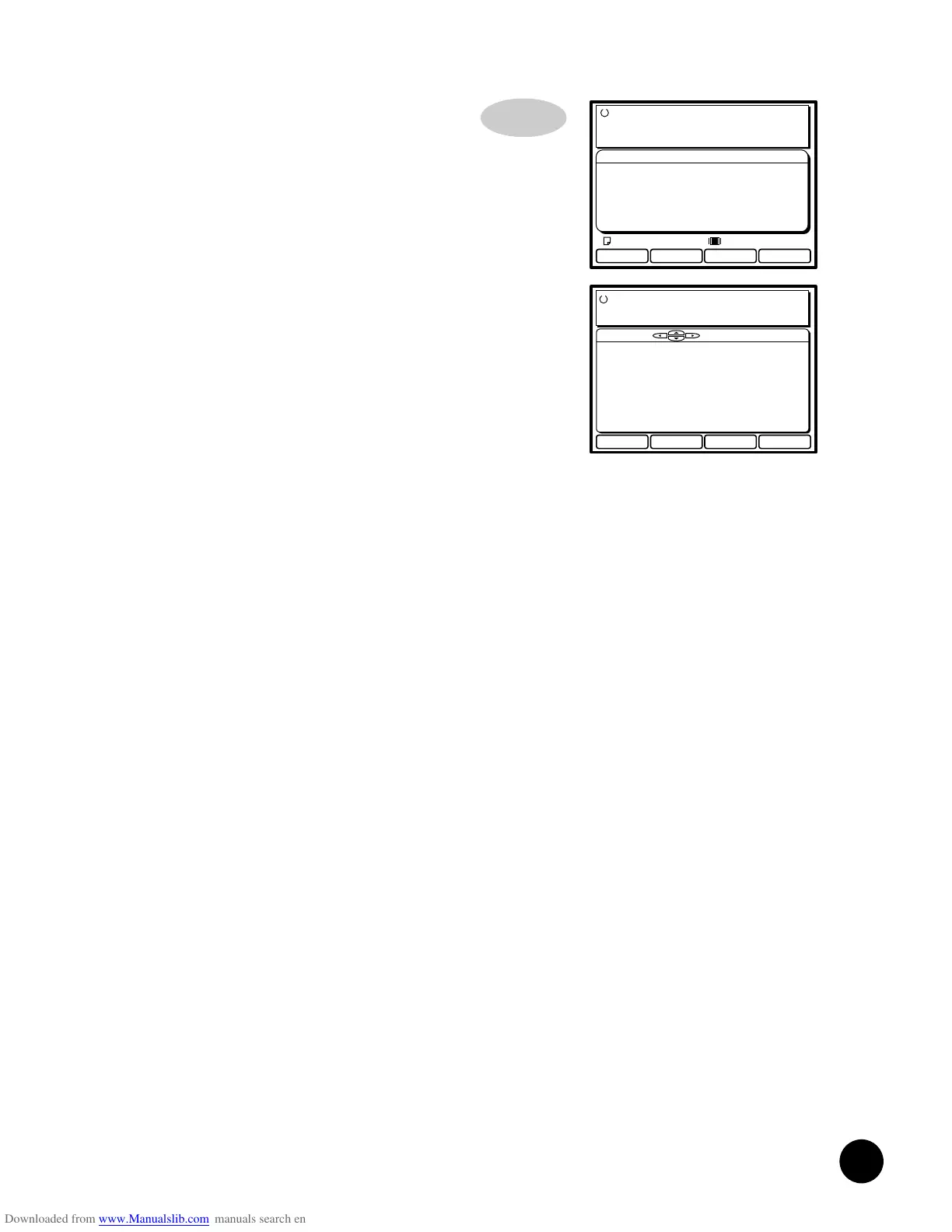
• If the Main Display shows the PC data
mode window, press the Data Source
Selection key on the Sub control panel
to open the window for the stand-alone
operation mode (Scan data mode).
Before pressing this key in this case,
however, make sure no print job is
proceeding for any computer document
data. You can close the PC data mode
window safely when the window
displays to the right appear in the Main
Display.
Holding down the RESET key longer than one
second returns the control panel to the initial
settings.
☞ p.42 ...You can return to initial settings.
☞ p.70 ....You can customize the initial settings.
☞ p.62 ....Frequently used combinations of
settings can be saved in memory for
quick recall.
26
Basic Operation
I –ON
– OFF
1
Turn the power switch ON.
The power switch is located on the lower right
side of the machine.
When your RISOGRAPH is sleeping in
the Energy saving mode, the indicator on
the START key lights. In this case, press
the START key to wake up your
RISOGRAPH.
☞ p.72
2
Check the settings on the control
panel.
When the power is connected, the Main Display
and control panel indicators show the initial
settings.
Make any necessary changes, such as
reproduction size and processing mode.
• When "Processing Data" appears as
PC data mode status at the base of the
Main Display, it indicates that
document data have already been
received from the computer and are
being processed in the system of the
machine. In normal operation, the print
job of this document data will start
within a few minutes. If it is not
required to proceed with your original
urgently, wait until this print job
finishes.
If the PC data mode status display
changes to "Pause-Selection" or
"Pause-Master" in this case, however,
you can proceed with your original.
NOTE
NOTE










 To Next Page