71
Customizing the Initial Settings
4
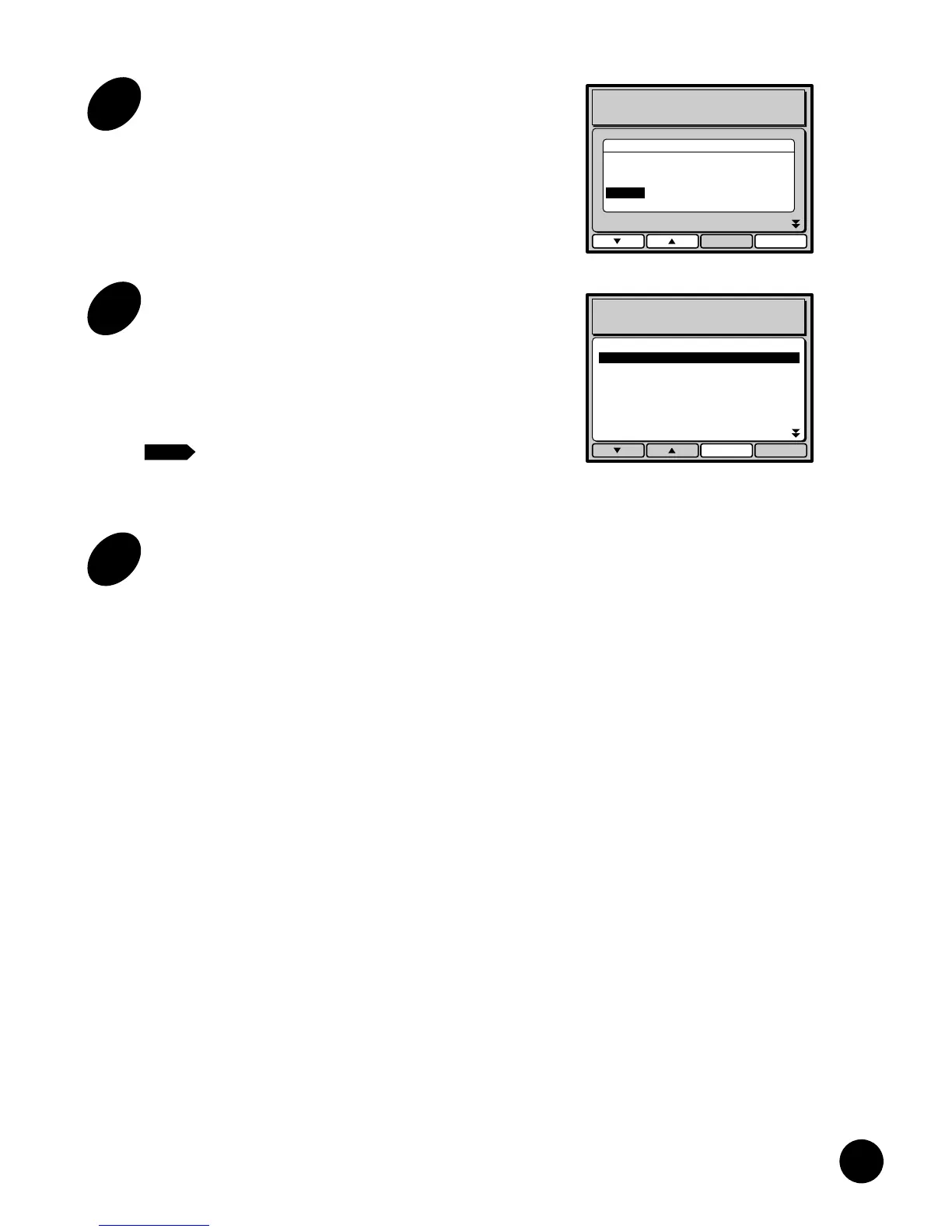
Select a desired initial setting.
Highlight a desired setting by pressing the
w or q function key or the cursor
keys.
5
Press the e function key.
A new initial setting is confirmed and the Initial
setting selection box is closed.
The initial setting of the selected item now
changes to the new one in the Custom Initial
Setting List window.
To cancel this operation, press the
o function key in place of the
e key.
6
Press the o function key.
The Custom Initial Setting List window is closed
and the new (custom) initial settings are applied to
the selected items.
NOTE
Close OK
Custom Initial Settings
Image Processing Line
Print Speed Level 3
Printing Density Standard
Scanning Contrast Auto
Auto Print Feature OFF
Book Size(Wide) Legal
Book Size(Long) Letter
Book Erasure Width 0.5inch
Print Speed
Level 1
Level 2
Level 3
Level 4
Level 5
Close OK
Custom Initial Settings
Image Processing Line
Print Speed Level 4
Print Density Standard
Scanning Contrast Auto
Auto Process OFF
Book Size(Wide) Legal
Book Size(Long) Letter
Book Erasure Width 0.5inch
Customizing the Initial
Settings
You can customize some of the initial settings to which the
machine status will be returned when the power is turned
on, or the RESET key is held down for more than one
second.
When you customize the initial settings,
they remain valid until they are changed
again.
NOTE
1
Press the CUSTOM SETTING key.
The Custom Initial Settings List window appears
in the Main Display.
AUTO IDLE
CONFIDENTIAL
REDUCE
ENLARGE
1 : 1
ZOOM
PRINT POSITION
DENSITY
LIGHT DARK
DUO
LINE
START
STOP
AUTO IMAGE
PROCESS
TEST
PRINT
RESET
PHOTO PRINT
MASTER
MAKING
AUTO
PROCESS
SLOW FAST
CENTER
PROGRAM
MEMORY
NORMAL
NORMAL
SPEED
CUSTOM
SETTING
SCANNING
CONTRAST
MULTI-UP
PRINT
DOT
PHOTO
BOUND
ORIGINAL
DATA
PC/SCAN
Close OK
Custom Initial Settings
Image Processing Line
Print Speed Level 3
Print Density Standard
Scanning Contrast Auto
Auto Process OFF
Book Size(Wide) Legal
Book Size(Long) Letter
Book Erasure Width 0.5inch
2
Select an item that you want to
customize.
Highlight a desired item name by pressing the
w or q function key or the cursor
keys.
Close OK
Custom Initial Settings
Image Processing Line
Print Speed Level 3
Print Density Standard
Scanning Contrast Auto
Auto Process OFF
Book Size(Wide) Legal
Book Size(Long) Letter
Book Erasure Width 0.5inch
3
Press the e function key.
The Initial setting selection box of the selected
item appears.
Close OK
Custom Initial Settings
Image Processing Line
Print Speed Level 3
Printing Density Standard
Scanning Contrast Auto
Auto Print Feature OFF
Book Size(Wide) Legal
Book Size(Long) Letter
Book Erasure Width 0.5inch
Print Speed
Level 1
Level 2
Level 3
Level 4
Level 5










 To Next Page