77
Step 2. Connecting to the congured
computer
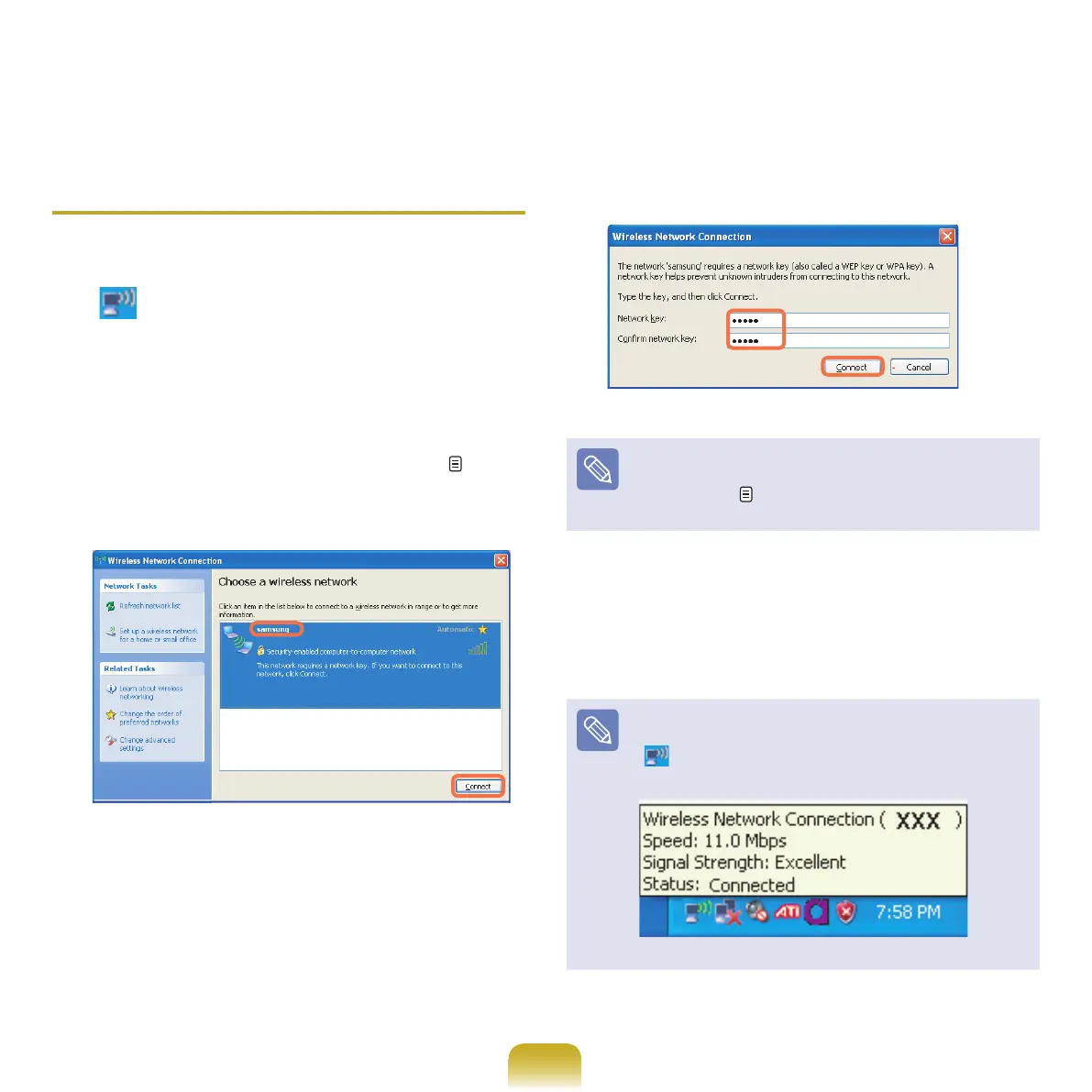
1
Right-clickontheWireless Network Connection
( )icononthetaskbar,andselectView
Available Wireless Networks.
2
Select the wireless network name (e.g. samsung)
speciedin”Connectingtocomputer-to-computer
networks(peer-to-peeroradhoc)”onpage 75,
and click Connect.
3
Enteracryptographickeyinthenetworkkeyboxand
click Connect.
Ifthenetworkkeyisnotconguredin”Connectingto
computer-to-computernetworks(peer-to-peerorad
hoc)”onpage
75,justclickConnect,withoutany
keystrokes.
Whenconnectedtothewirelessnetwork,thesystem
displays Connected in the selected network of the
NetworkConnectionwindow.
Checking the connection status Move the mouse
pointerovertheWirelessNetworkConnection
(
)icononthetaskbar,andtheconnectionstatusis
displayed.


 To Next Page