5
If the FTP File Access Privilege Request window
appears on Computer B,clickthewindow.Ifthe
SelectAccessPermissionwindowappears,clickOK.
6
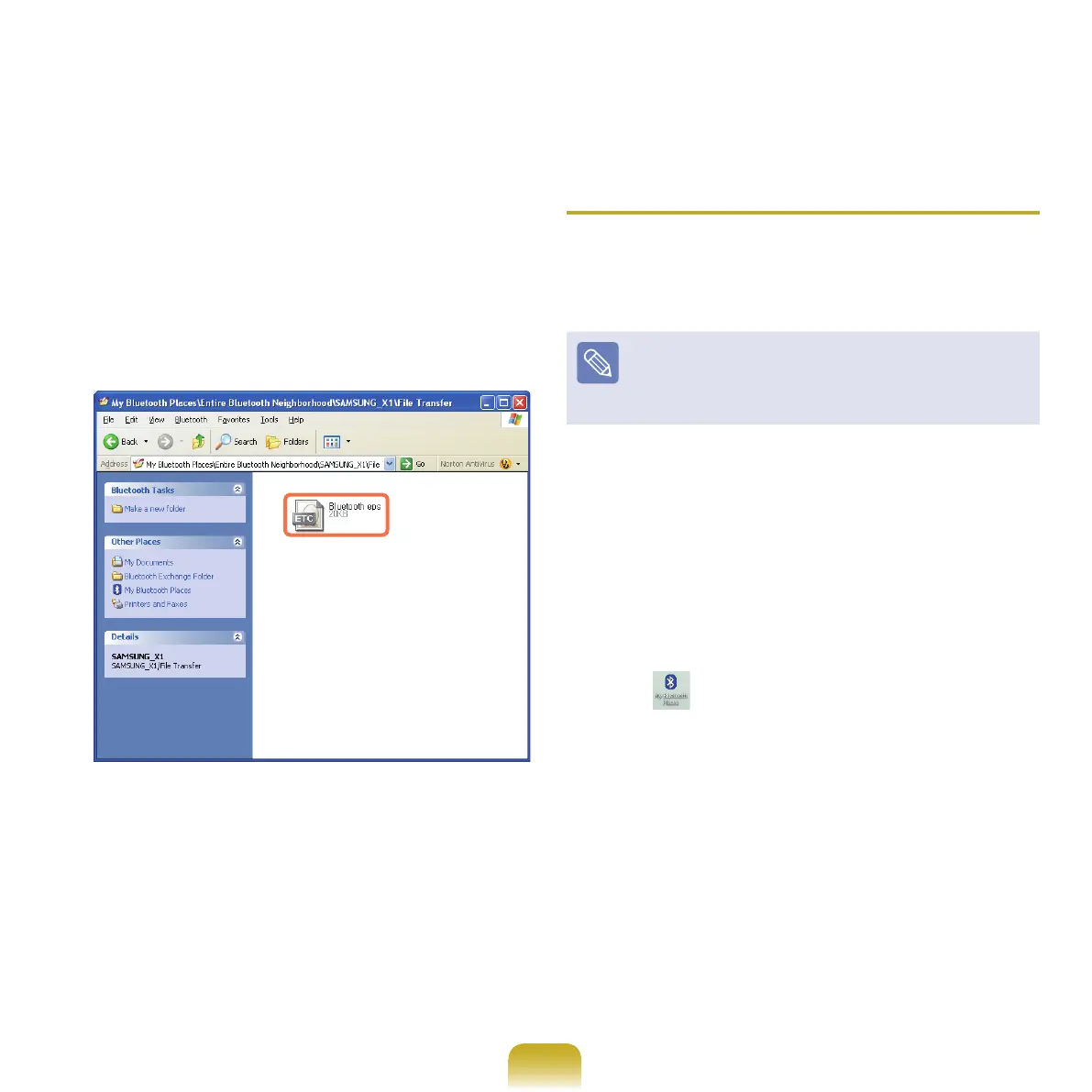
Theletransmissionwindowappearsoncomputer
A.Draglesorfolderstosendontothewindow,and
thelesorfoldersareautomaticallytransmitted.
7
Iftheletransmissioniscomplete,closetheFile
Transmissionwindow.Thereceivedlesaresaved
in the C:\Documents and Settings\[user name]\My
Documents\Bluetooth Exchange folder.
Connecting Keyboard, Mouse, Joystick
and Headset devices
TheprocedurestouseBluetoothHIDdevices(keyboard,
mouse,joystick,etc.)oraheadset,etc.onthecomputer
aredescribedbelow.
TheBluetoothPINCodeisapasswordusedforthe
connectionbetweentwoBluetoothdevices,theuserjust
enterthesamePINCodeonbothBluetoothdevicesto
make a connection.
1
Turn on the Bluetooth function on the device to
connectto(mouse,keyboard,joystickorheadset).
SomedeviceshaveabuttontoturnontheBluetooth
function,soseethecorrespondingdevice manual.
2
Double-clicktheMy Bluetooth Settings
icon ( ) on the Desktop.


 To Next Page