96
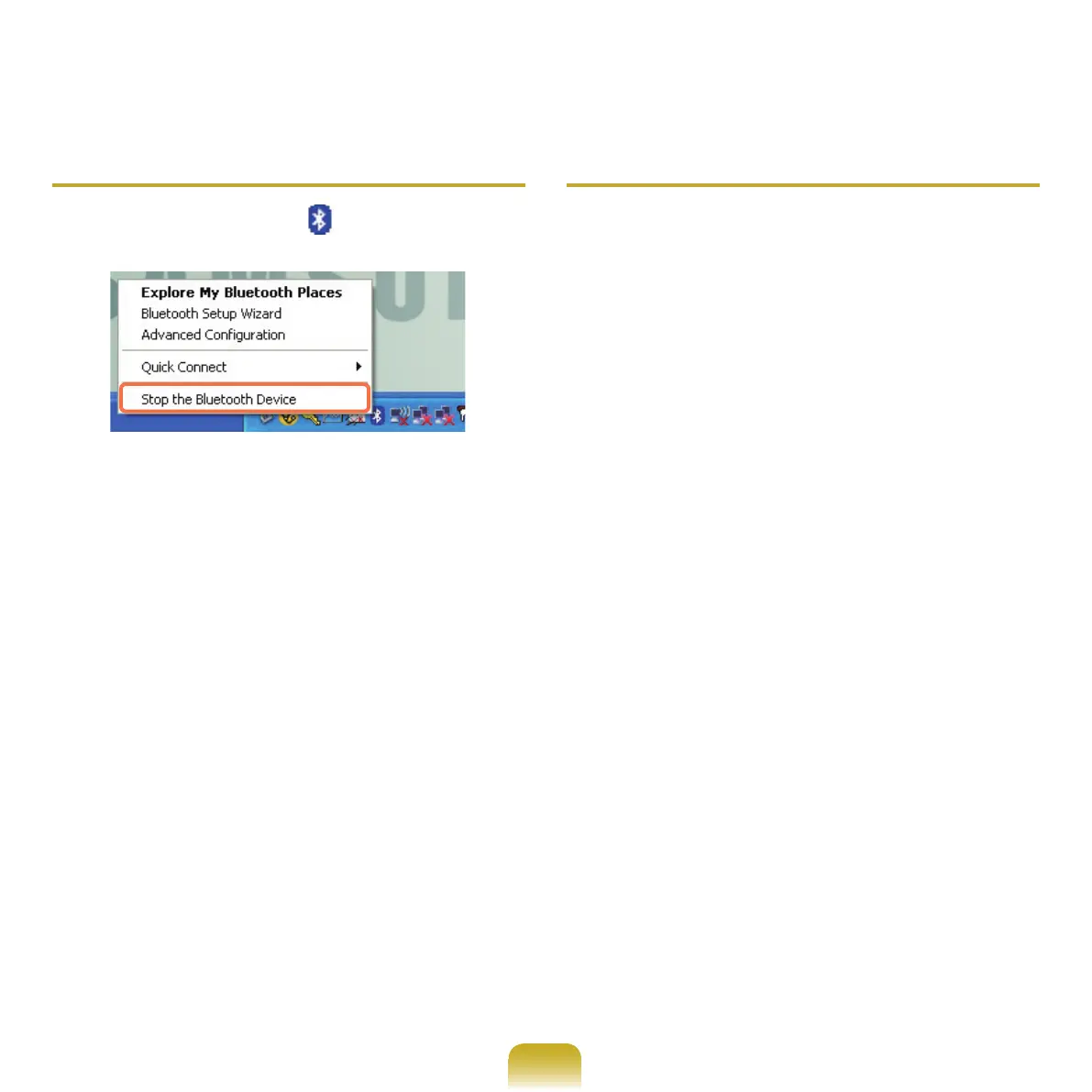
Stopping a Bluetooth device
Right-clicktheBluetooth icon ( )ontheTaskbarand
select Stop the Bluetooth device.
TouseaBluetoothdeviceafterstoppingit,selectStart
Bluetooth device
likeabove.
Use Instructions
■ Bluetoothdevicesmustbewithina3mdistance.
■ Forabettercommunicationsenvironment,usethe
devicesinanopenspacewherenowallorobstacle
exists.
■
Foratelephoneconnection,datasynchronization,
electronicsbusinesscardexchange,faxtransmission/
reception,soundrelatedfunctions,andserialport
function,youcanconnectwithonlyoneBluetooth
device.
■
Usingthenetworkconnectionorletransmission
function,multipleBluetoothdevicescanbeconnected.
However,sinceconnectingwithmultipledevices
may slow down the data rate or make the connection
unstable,
connectingwithonedeviceatatimeis
recommended.
■ TheBluetoothfunctionofaBluetoothPDA,mobile
phone,mouseorkeyboardmaybeturnedoff.To
use them in connection with a Samsung computer
supporting
Bluetooth,youmustcheckiftheBluetooth
function of the device to connect to is turned on. For
the procedures on turning on the Bluetooth function of
adevice,seethemanualofthedevice.
■ TheservicesprovidedbyBluetoothdevicesmayvary
dependingontheircapability.
FortheservicesprovidedbyBluetoothdevices,see
the manual of the device.


 To Next Page