10
If you switch to PLANNING the map will stay
Trail Up. If you wish to switch the map to
North Up, return to the GPS Map page and
press the North Up/Trail Up button.
The 4 data box option is not available in the
Trail Up (low) mode as it would obscure the
locator circle.
Note: Trail Up is not available in advanced
power saving mode. (A prompt page will
remind you). This is because the screen
refreshes more frequently in Trail Up, drawing
more power.
3.01 Toggleable Maps
The toggle maps button can be used to toggle
between different maps on toggle-enabled
map cards without needing to zoom in and
out. It will toggle between the map layers at a
particular point.
If a toggle-enabled map card is loaded, a mini
toggle icon appears next to the Stop/Record
icon and the toggle maps button is enabled
(gure 3.00).
Note: Not all maps are toggleable. Maps are
available from the website, which are marked
with a toggle icon (see below). Look for
the toggle logo on all of our toggle-enabled
products. The toggle function can also be
added to existing map cards (see website for
further details).
3.02 Map Packs Page
(GPS Map → POSITION INFO via centre
press → Map Packs)
(Available once a map card is inserted).
Alternative access:
PLANNING → POSITION INFO via centre
press → Map Packs
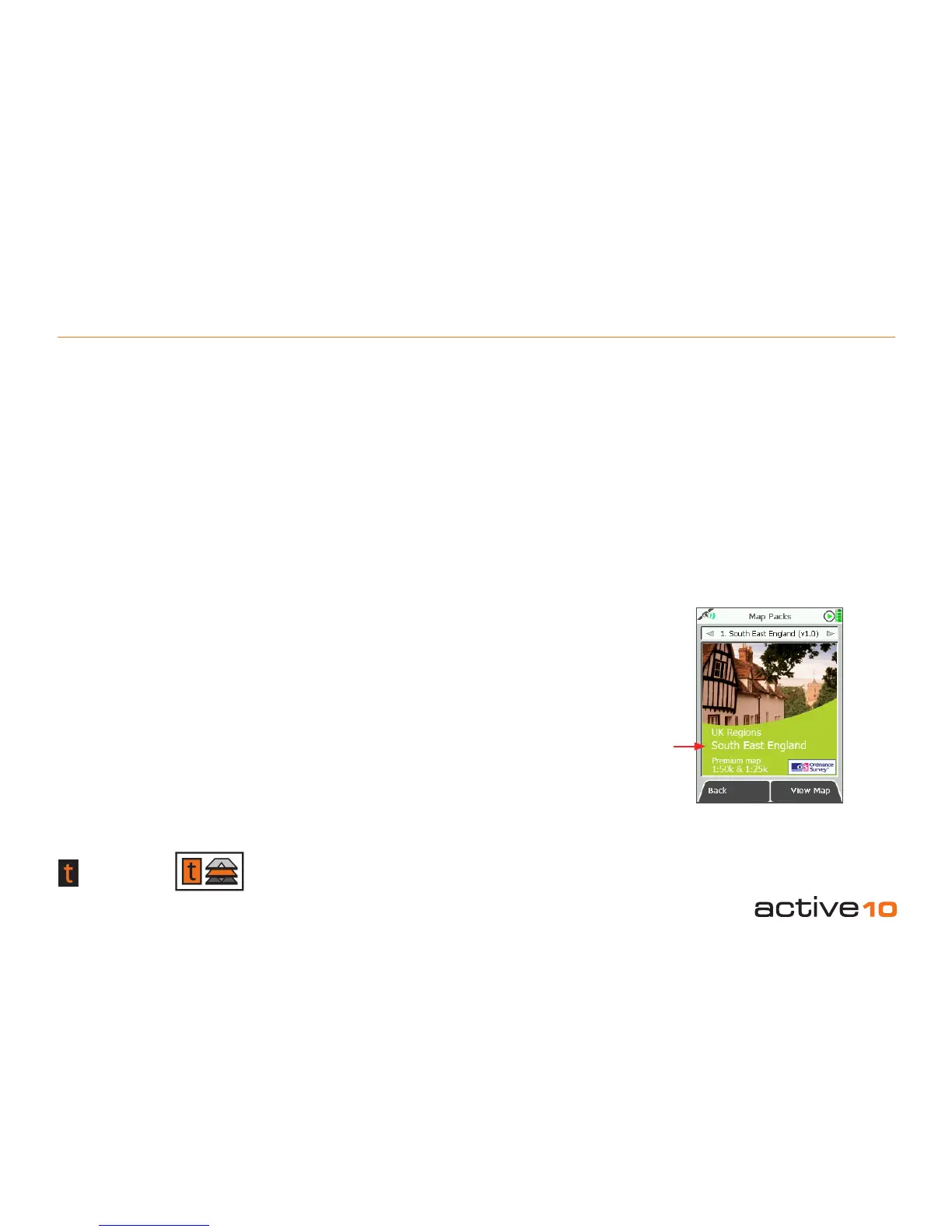
At any time a map card may be inserted or
taken out. When a map card is inserted,
an on-screen message shows, ‘SD Card
Inserted’. After about ve seconds the map
title page appears. After a further ve
seconds the screen will revert the previous
map screen.
If you have more than one map on a card
(a service offered by Satmap) move the
joystick left/right to access different maps.
Buttons:
Back
Return to POSITION INFO page (section
8.00)
View Map
Go to PLANNING screen (section 6.00)
Note: The screen shows a default location for
the loaded map.
4.00 Primary Pages
(GPS Map → MAIN MENU → COMPASS →
TRIP LOG → GPS STATUS → PLANNING/
GPS Map → MAIN MENU etc.)
Alternatively, scroll through the primary pages
by pressing the joystick left/right.
3.01 Toggleable Maps, Map Packs & Primary Pages
Map
title
Figure 3.01
After navigating away from the Map Packs
page, pressing any one of the 4 side buttons
or the 2 front buttons displays the ‘soft’ button
symbols on-screen. (‘Soft’ refers to software/
programmable buttons whose function varies
depending on which screen is displayed.)
The side buttons are designed to be pressed
in a sideways direction, enabling one-handed
operation.
With the buttons you have a choice:
• 2-click operation – rst click to reveal button
images (with icons), second click for action.
• 1-click operation – button is activated without
the reveal (section 5.14).
Toggle icon Toggle logo



 To Next Page