43
POI Menu
9.04d Add New POI by Grid Ref
(GPS Map → MAIN MENU → POI Menu →
(folder/category) → Edit → Add New POI by
Grid Ref)
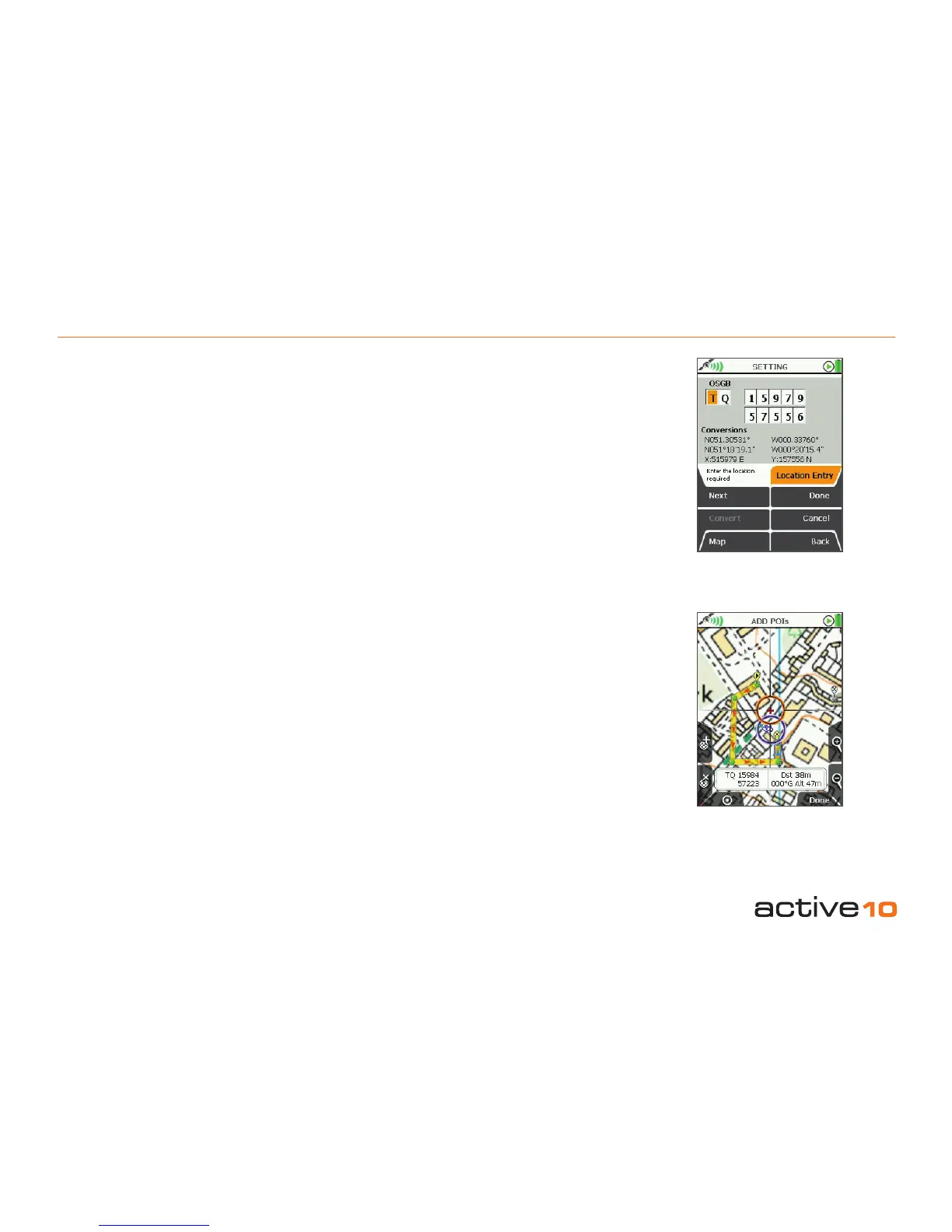
Press the Add POI button to go to the
SETTING page. Use the joystick moving left/
right to go to boxes, then up/down to change
box entries.
Under the grid reference boxes are the
Conversions for the reference shown
initially. Once the joystick has been moved
vertically (changing the grid reference),
these conversions gures are greyed out.
Pressing the Convert button will update the
conversions.
9.04e Add New POI by Map
(GPS Map → MAIN MENU → POI Menu →
(folder/category) → Edit → Add New POI by
Map)
Press the Add POI button to access the ADD
POIs map screen.
Use the joystick to move the crosshairs. Fix
the POI by either pressing the ‘+’ button
(upper left) or by centre pressing the joystick.
The keypad page (section 9.03) appears so
you can label the POI. When nished press
Done to return to the POI CATEGORY page.
9.04f Add New POI by Postcode
(GPS Map → MAIN MENU → POI Menu →
(folder/category) → Edit → Add New POI by
Postcode)
(This option is not available with all versions
of software. Please check our website or your
supplier for further details).
Press the Add POI button to access the
keypad (section 9.03). Enter the postcode.
Press Done to re-access the keypad to name
the POI, then press Done to return to the POI
CATEGORY page.
9.04g Move to SD Card
(GPS Map → MAIN MENU → POI Menu
→ (folder/category) → Edit → Move → Up
Folder)
(This option is only available if a mapcard is
inserted).
Highlight Move to SD Card and either
press Move or centre press the joystick.
(Subsequently this option becomes Move
from SD Card). The screen will go to the POI
Menu.
Figure 9.04d
Figure 9.04e



 To Next Page